Best PDF Editors for Personal Use: Smart Picks for Every Budget
Quick Verdict
PDF editors are no longer only tools for offices and large companies.
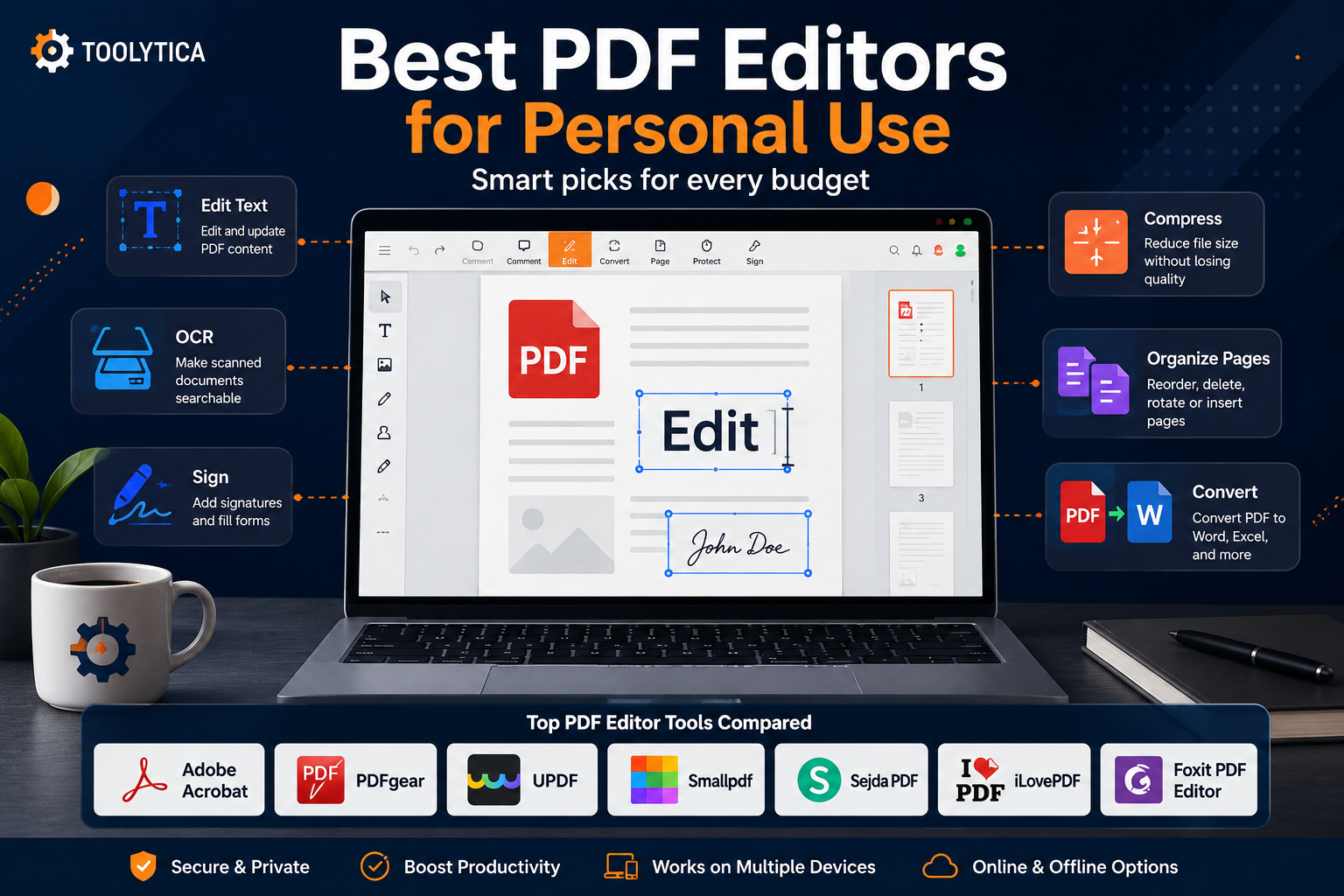
You may need one to correct a document, sign a form, combine several files, convert a PDF to Word, compress an attachment, reorganize pages, scan paperwork, or make text in a scanned document searchable.
The problem is that PDF editors vary significantly.
Some are complete professional desktop applications. Others are lightweight browser tools. Some focus on occasional editing, while others include OCR, electronic signatures, AI assistants, cloud storage, and document management features.
The best PDF editor for personal use therefore depends on what you actually need.
Our overall recommendations are:
- Adobe Acrobat — Best premium PDF editor overall.
- PDFgear — Best free PDF editor.
- UPDF — Best value for a desktop PDF editor.
- Smallpdf — Best for simple online PDF workflows.
- Sejda PDF — Best for occasional short-term use.
- iLovePDF — Best for everyday browser-based PDF tasks.
- Foxit PDF Editor — Best advanced Adobe alternative.
For most casual users, paying more than €20 every month for a PDF editor is unnecessary.
If you edit PDFs occasionally, start with PDFgear, iLovePDF, or the free versions of Smallpdf and Sejda.
If you regularly edit, convert, OCR, annotate, and organize documents, UPDF offers an attractive balance between features and price.
If you work frequently with complex PDFs, forms, contracts, redaction, document comparison, and professional workflows, Adobe Acrobat Pro remains the strongest premium option.
Foxit is another serious choice for users who want advanced desktop editing and professional PDF features without automatically choosing Adobe.
If you are deciding between a lightweight online editor and a more complete professional suite, read our detailed Smallpdf vs Adobe Acrobat comparison.
Best PDF Editors for Personal Use at a Glance
| PDF Editor | Best For | Free Option | Main Strength | Value Rating |
|---|---|---|---|---|
| Adobe Acrobat | Advanced and professional PDF use | Reader available | Most complete ecosystem | ★★★★☆ 4.5/5 |
| PDFgear | Best free PDF editing | Yes | Strong free feature set | ★★★★★ 4.8/5 |
| UPDF | Value-focused desktop users | Limited free access | Desktop editing and lifetime options | ★★★★☆ 4.7/5 |
| Smallpdf | Easy online workflows | Yes, limited | Simplicity and browser access | ★★★★☆ 4.4/5 |
| Sejda PDF | Occasional editing | Yes, limited | Flexible short-term pricing | ★★★★☆ 4.3/5 |
| iLovePDF | Everyday PDF tasks | Yes | Simple collection of online tools | ★★★★☆ 4.4/5 |
| Foxit PDF Editor | Advanced Acrobat alternative | Trial available | Strong desktop feature set | ★★★★☆ 4.4/5 |
Pricing Comparison
The prices below are based on the pricing pages and screenshots reviewed for this comparison.
Prices may vary by country, currency, tax rules, promotions, billing method, and platform.
Always verify the current price on the official website before subscribing.
| Tool | Free Option | Paid Pricing Reviewed | Best Pricing Fit |
| Adobe Acrobat | Reader | Standard €18.14/month; Pro €23.99/month; Studio €30.24/month | Frequent advanced users |
| Smallpdf | Yes | Pro €10/month or €7.50/month billed yearly | Browser-first users |
| UPDF | Limited use | Yearly and lifetime offers available | Long-term desktop use |
| PDFgear | Yes | Free | Budget-conscious users |
| Sejda PDF | Yes, limited | €5.50/week; €8.50/month; €71/year | Occasional or temporary use |
| iLovePDF | Yes | $9/month or $5/month billed yearly | Everyday web workflows |
| Foxit PDF Editor | Trial | €10.96/month equivalent or €129.67/year upfront | Advanced desktop users |
1. Adobe Acrobat — Best Premium PDF Editor Overall
Adobe Acrobat is the most complete option in this comparison.
It is the right choice for users who work with PDFs frequently and need more than basic annotations or page management.
Acrobat covers workflows such as:
- Editing text and images;
- Reorganizing and deleting pages;
- Converting documents to PDF;
- Exporting PDFs to Word, Excel, and PowerPoint;
- Creating and filling forms;
- Signing documents;
- Password protection;
- Redaction;
- Comparing document versions;
- OCR;
- AI-powered document analysis.
Adobe currently separates its individual offering into multiple levels, including Acrobat Standard, Acrobat Pro, and the broader Acrobat Studio package.
Acrobat Studio combines Acrobat Pro with additional AI-powered and creative productivity features.
Adobe Acrobat Pricing Reviewed
Based on the pricing screenshots reviewed:
| Plan | Price Shown | Best For |
| Acrobat Standard | €18.14/month incl. tax | Core PDF editing |
| Acrobat Pro | €23.99/month incl. tax | Advanced PDF workflows |
| Acrobat Studio | €30.24/month incl. tax | PDF, AI, and broader productivity workflows |
The displayed prices were for annual commitments billed monthly.
Why Acrobat Pro Is Usually the Better Adobe Choice
For personal users who genuinely need advanced PDF editing, Acrobat Pro makes more sense than Standard because it includes the features that justify paying for a premium PDF editor.
For example:
- Redacting sensitive information;
- Comparing PDF versions;
- Creating more advanced forms;
- Applying professional document protection;
- Working with OCR and complex documents.
Acrobat Studio is a different proposition.
It is more interesting for people who also want AI-powered document analysis and a broader content workflow.
Adobe Acrobat Strengths
- Very comprehensive feature set;
- Strong editing capabilities;
- Advanced OCR;
- Forms and signatures;
- Document comparison;
- Redaction;
- Conversion tools;
- Mature desktop experience;
- AI options available.
Adobe Acrobat Weaknesses
- Expensive for occasional personal use;
- Subscription cost can become significant;
- Many casual users will not use enough advanced features to justify the price.
Who Should Choose Adobe Acrobat?
Choose Adobe Acrobat if you:
- Work with PDFs several times per week;
- Regularly edit important documents;
- Need professional redaction;
- Compare document versions;
- Create or manage forms;
- Work with contracts;
- Need a mature professional PDF workflow.
For occasional compression, merging, or simple document editing, it is probably more software than you need.
Toolytica Verdict: ★★★★☆ 4.5/5
2. PDFgear — Best Free PDF Editor
PDFgear is the most interesting option in this comparison for users who do not want another subscription.
Its main appeal is a strong range of free PDF editing and document management tools.
That makes PDFgear particularly attractive for:
- Students;
- Home users;
- Occasional PDF editing;
- Basic document administration;
- Users trying to avoid recurring subscriptions.
What Can PDFgear Do?
Depending on the platform and workflow, PDFgear provides tools for:
- PDF editing;
- Annotation;
- Highlighting;
- Signatures;
- Forms;
- Conversion;
- OCR;
- PDF to Word conversion;
- Image-based text extraction;
- Scanned document processing.
PDFgear Strengths
- Free;
- No recurring subscription for core usage;
- Good range of editing tools;
- OCR capabilities;
- Conversion tools;
- Desktop and online options;
- Strong value for personal use.
PDFgear Weaknesses
The main limitation is not necessarily the feature list.
It is deciding whether you actually need the deeper professional workflows offered by products such as Adobe Acrobat or Foxit.
Users managing complex business processes, advanced redaction, or specialized professional document workflows may still prefer a more established premium suite.
Who Should Choose PDFgear?
Choose PDFgear if:
- You need a free PDF editor;
- You are a student;
- You edit PDFs occasionally;
- You need OCR without another major subscription;
- You need basic conversions and annotations;
- You want to test a free solution before paying for Adobe or Foxit.
For pure value, PDFgear is difficult to ignore.
Toolytica Verdict: ★★★★★ 4.8/5
3. UPDF — Best Value for Long-Term Desktop Use
UPDF sits between free PDF tools and expensive professional subscriptions.
Its appeal is straightforward: it provides desktop-oriented PDF editing, conversion, OCR, annotation, and optional AI features while also offering yearly and lifetime pricing structures.
UPDF Pricing Reviewed
The screenshots reviewed showed multiple UPDF offers and promotional configurations.
Among the offers displayed were:
- A yearly UPDF plan around $79/year;
- A lifetime plan around $129 one-time on one pricing page;
- Promotional lifetime pricing around $79.99 on another page;
- AI Assistant around $79/year;
- A broader Productivity Suite offer around $42.99/month.
This is an important point: UPDF pricing can vary depending on the promotion, product bundle, and landing page.
Always check exactly what is included before purchasing, especially whether the offer includes:
- The core PDF editor;
- AI Assistant;
- Cloud storage;
- A yearly license;
- Lifetime access;
- A temporary promotional discount.
Why UPDF Is Attractive
UPDF is especially interesting for someone who wants a serious PDF editor but dislikes permanent monthly subscriptions.
The lifetime option can be more appealing than recurring payments for users who expect to edit documents for several years.
UPDF Strengths
- Desktop-focused PDF editor;
- Editing and annotation;
- OCR;
- Conversion tools;
- AI features available separately or in bundles;
- Yearly and lifetime pricing options;
- Good balance between price and capability.
UPDF Weaknesses
- Pricing structure can be confusing;
- AI may be priced separately;
- Promotions can make plan comparison harder;
- Users must verify exactly which license and features they are buying.
Who Should Choose UPDF?
Choose UPDF if:
- You want a desktop PDF editor;
- You work with PDFs regularly;
- You want OCR;
- You prefer a lifetime payment option;
- You find Adobe too expensive;
- You want optional AI features but still care primarily about editing.
Toolytica Verdict: ★★★★☆ 4.7/5
4. Smallpdf — Best for Simple Online PDF Workflows
Smallpdf is one of the easiest options for users who want to complete common PDF tasks directly in a browser.
The service provides more than basic editing.
It covers PDF editing, OCR, document conversion, compression, and common document management workflows.
Smallpdf Pricing Reviewed
Free
€0/month
The free tier shown included:
- Access to more than 30 document tools;
- Limited document downloads;
- Limited mobile app access.
Pro
The screenshots showed:
- €10/month with monthly billing;
- €7.50/month, billed as €90 annually, with yearly billing.
The Pro plan displayed:
- Unlimited access to all 30+ tools;
- Unlimited document downloads;
- Text editing;
- OCR;
- Strong compression;
- AI-powered tools;
- Unlimited mobile app access.
Why Smallpdf Works Well for Personal Use
The main advantage is simplicity.
You do not need to learn a complex desktop application just to:
- Compress a file;
- Convert a document;
- Merge PDFs;
- Organize pages;
- Run OCR;
- Edit simple document content.
Smallpdf Strengths
- Very accessible;
- Browser-based;
- Simple interface;
- Strong range of everyday tools;
- OCR;
- Conversion and compression;
- Mobile access.
Smallpdf Weaknesses
- Free plan has limits;
- Pro requires a subscription;
- Frequent professional editing may be better handled by a dedicated desktop editor;
- Cloud-based workflows may not suit every sensitive document use case.
Who Should Choose Smallpdf?
Choose Smallpdf if:
- You want simplicity;
- You work mainly in a browser;
- You frequently compress and convert documents;
- You need occasional OCR;
- You use different devices;
- You do not want complex desktop software.
Toolytica Verdict: ★★★★☆ 4.4/5
5. Sejda PDF — Best for Occasional and Short-Term Use
Sejda has one of the most interesting pricing structures in this comparison.
Rather than forcing every user into a long subscription immediately, it offers short-term options.
Sejda Pricing Reviewed
| Plan | Price |
| Web Week Pass | €5.50 for 7 days |
| Web Monthly | €8.50/month |
| Desktop + Web Annual | €71/year |
The weekly pass is especially interesting.
Imagine you need to:
- Prepare documents for an application;
- Edit several administrative PDFs;
- Complete paperwork;
- Organize documents before a move;
- Process a temporary batch of files.
Paying for one week can make more sense than subscribing indefinitely.
The free version is useful for light and occasional tasks, while paid plans remove the need to work around stricter usage limits.
Sejda Strengths
- Flexible pricing;
- Weekly pass;
- Affordable monthly plan;
- Web and desktop options;
- Useful editing tools;
- Free tier for light usage;
- Good for temporary projects.
Sejda Weaknesses
- Free limits are noticeable;
- Less appropriate for heavy professional use;
- Some complex scanned document workflows may require a stronger OCR-focused solution.
Who Should Choose Sejda?
Choose Sejda if:
- You need a PDF editor temporarily;
- You do not want a long subscription;
- You have a short administrative project;
- You edit only a few documents;
- You value flexible pricing.
Toolytica Verdict: ★★★★☆ 4.3/5
6. iLovePDF — Best for Everyday PDF Tasks
iLovePDF is a strong choice for everyday PDF management.
Its toolset covers workflows such as:
- Merging PDFs;
- Splitting documents;
- Compressing files;
- Converting formats;
- Editing documents;
- Organizing pages;
- Protecting PDFs;
- Managing everyday PDF tasks.
iLovePDF Pricing
Basic
Free
The free plan provides access to essential tools with document processing limits.
Premium
- $9/month with monthly billing;
- $5/month, billed as $60 annually.
The Premium tier includes:
- Full access to all tools;
- Unlimited document processing;
- Web, mobile, and desktop access;
- Digital signatures;
- Workflows;
- No ads;
- Priority support;
- Regional file processing;
- AI credits.
Why iLovePDF Is Good for Personal Use
iLovePDF is particularly useful for people who need many small PDF utilities rather than one complex professional editor.
For example, you might need to compress a file today, combine documents tomorrow, add page numbers next week, and convert a PDF later.
iLovePDF is built around that type of everyday workflow.
iLovePDF Strengths
- Easy to understand;
- Good free access;
- Many PDF utilities;
- Affordable annual Premium pricing;
- Web, mobile, and desktop access on Premium;
- Strong for everyday document management.
iLovePDF Weaknesses
- Less suitable for highly advanced professional document workflows;
- Many users may not need Premium if the free plan already covers their occasional tasks;
- Browser-focused tools are not always the best choice for every sensitive document workflow.
Who Should Choose iLovePDF?
Choose iLovePDF if:
- You regularly merge and compress documents;
- You convert PDFs;
- You need simple editing;
- You want browser access;
- You need a reasonably priced all-purpose toolset.
Toolytica Verdict: ★★★★☆ 4.4/5
7. Foxit PDF Editor — Best Advanced Alternative to Adobe Acrobat
Foxit PDF Editor is the strongest direct alternative in this list for users considering Adobe Acrobat but wanting another professional option.
Foxit covers functions including:
- PDF creation;
- Advanced editing;
- Conversion;
- Page organization;
- Protection;
- Forms;
- Signing;
- Sharing and collaboration;
- Scanning;
- OCR.
Foxit Pricing Reviewed
The screenshots showed two payment presentations.
Annual Commitment, Billed Monthly
| Plan | Price Shown |
| PDF Editor | €10.96/user/month |
| PDF Editor+ | €13.96/user/month |
Annual Payment Upfront
| Plan | Price Shown |
| PDF Editor | €129.67/user/year |
| PDF Editor+ | €159.59/user/year |
PDF Editor+ adds broader features beyond the standard Editor plan, including additional mobile access and advanced capabilities depending on the current offer.
Why Choose Foxit?
Foxit makes sense for users who want professional PDF functionality but do not automatically want the Adobe ecosystem.
It is particularly relevant for people who need:
- Serious PDF editing;
- OCR;
- Forms;
- Document protection;
- Mobile access on higher plans;
- E-signature workflows;
- Advanced redaction.
Foxit Strengths
- Full professional feature set;
- OCR;
- Editing and conversion;
- Forms;
- Security tools;
- Strong Adobe alternative;
- Multiple platforms.
Foxit Weaknesses
- Still relatively expensive for casual users;
- May be unnecessary for basic home PDF tasks;
- The distinction between Editor and Editor+ requires careful comparison.
Who Should Choose Foxit?
Choose Foxit if:
- You want a serious desktop PDF editor;
- You are comparing alternatives to Acrobat;
- You need OCR and advanced editing;
- You work with forms and protected documents;
- You use PDFs frequently enough to justify professional software.
Toolytica Verdict: ★★★★☆ 4.4/5
Best PDF Editor by Use Case
| Use Case | Best Choice |
| Best premium PDF editor | Adobe Acrobat |
| Best free PDF editor | PDFgear |
| Best long-term value | UPDF |
| Best easy online editor | Smallpdf |
| Best temporary subscription | Sejda PDF |
| Best everyday PDF toolkit | iLovePDF |
| Best professional Acrobat alternative | Foxit |
| Best for students | PDFgear |
| Best for occasional administration | Sejda or iLovePDF |
| Best for OCR on a budget | PDFgear or UPDF |
| Best for complex contracts and professional documents | Adobe Acrobat Pro |
| Best for browser-first users | Smallpdf |
Editing PDFs vs Summarizing PDFs With AI
One mistake users make is choosing a PDF editor when what they actually need is an AI document assistant.
These are different use cases.
A PDF editor helps you:
- Change text;
- Reorganize pages;
- Add images;
- Compress files;
- Convert formats;
- Add signatures;
- Run OCR;
- Protect documents.
An AI PDF assistant is more useful when you want to:
- Summarize long documents;
- Ask questions about a PDF;
- Extract key points;
- Analyze a research paper;
- Understand a report quickly;
- Compare information inside documents.
For that workflow, read our guide to the Best AI Tools to Summarize PDFs:
We have also reviewed PDF.ai separately.
Our PDF.ai Review explains its user plans, AI document chat, OCR limits, advanced plans, and separate API pricing.
This distinction matters.
Do not pay for a full professional PDF editor if your main need is simply understanding or summarizing documents.
What Should You Check Before Paying for a PDF Editor?
1. Do You Really Need Full Text Editing?
Many users say they need a PDF editor when they actually need to:
- Sign a form;
- Combine files;
- Add a comment;
- Compress an attachment;
- Delete a page.
Free tools can often handle these tasks.
Full text editing matters when you need to directly change existing content inside a PDF.
2. Do You Need OCR?
OCR is important when you work with:
- Scanned paperwork;
- Old documents;
- Image-based PDFs;
- Receipts;
- Printed forms.
Without OCR, a scanned page may behave like an image rather than searchable text.
3. Online or Desktop?
Browser tools are convenient.
Desktop tools can make more sense when you:
- Work offline;
- Process many documents;
- Prefer local workflows;
- Regularly edit large files;
- Need deeper editing functions.
Choose based on your actual workflow rather than the number of features advertised.
4. Monthly Subscription or Lifetime License?
A monthly subscription can make sense for temporary use.
A lifetime license may offer stronger value if you expect to use the editor for several years.
But always check what “lifetime” means in the specific license:
- Current version only?
- Future upgrades?
- AI included or separate?
- Number of devices?
- Cloud storage included?
5. Does the Free Plan Actually Cover Your Needs?
Before paying, test the free option.
For occasional personal use, the free version may already be enough.
Upgrade because you have reached a real limitation, not because the pricing page says the paid plan is recommended.
Common Mistakes When Choosing a PDF Editor
Mistake 1: Paying for Professional Software for Basic Tasks
You probably do not need Adobe Acrobat Pro simply to merge two files twice a month.
Start with free options.
Mistake 2: Comparing Prices Without Checking Billing Terms
A low monthly equivalent price may require an annual commitment.
Always check:
- Monthly billing;
- Annual billing;
- Auto-renewal;
- Cancellation rules;
- Whether taxes are included.
Mistake 3: Assuming AI Is Included
Some PDF products separate:
- PDF editor pricing;
- AI assistant pricing;
- Cloud features;
- Additional productivity suites.
Check exactly what is included.
Mistake 4: Ignoring Scanned Documents
Editing a normal digital PDF and processing a scanned document are different workflows.
Check OCR support before paying.
Mistake 5: Choosing Based Only on Feature Count
A tool with 100 features is not automatically better than a simpler tool.
The best PDF editor is the one that handles your actual tasks without unnecessary cost or complexity.
Final Recommendation
The best PDF editor for personal use depends primarily on frequency and complexity.
For free PDF editing, start with PDFgear.
For long-term desktop value, consider UPDF, especially when a suitable lifetime offer is available.
For simple online workflows, choose Smallpdf.
For everyday PDF utilities, iLovePDF offers a strong balance of free tools and affordable Premium access.
For occasional temporary editing, Sejda’s weekly and monthly pricing is unusually practical.
For advanced professional editing, choose Adobe Acrobat Pro or compare it carefully with Foxit PDF Editor.
Our simplest recommendations are:
Best free choice: PDFgear
Best value choice: UPDF
Best simple online choice: Smallpdf
Best premium choice: Adobe Acrobat Pro
Best advanced alternative: Foxit PDF Editor
The key is not finding the PDF editor with the most features.
It is finding the one that solves the document problems you actually have without making you pay for features you will never use.
FAQ
What Is the Best PDF Editor for Personal Use?
For free personal use, PDFgear is one of the strongest options.
For more advanced desktop editing at a lower long-term cost than recurring premium subscriptions, UPDF is worth considering.
Adobe Acrobat remains better suited to users who need professional features.
What Is the Best Free PDF Editor?
PDFgear is the strongest free recommendation in this comparison because it offers a broad combination of editing, OCR, conversion, and annotation tools.
Is Adobe Acrobat Worth It for Personal Use?
It can be worth it for users who frequently edit PDFs, manage forms, run OCR, compare versions, redact sensitive information, or work with professional documents.
For basic personal use, cheaper or free tools are usually more reasonable.
Is Smallpdf Free?
Smallpdf offers a free tier with limits.
Its paid Pro plan provides broader access to its PDF tools and removes some usage restrictions.
Is iLovePDF Free?
iLovePDF offers a free Basic plan with essential tools and limited document processing.
It also offers Premium access with broader processing and cross-platform features.
Is Sejda Good for Occasional Use?
Yes.
Sejda is particularly interesting for occasional use because it offers free limited use and short-term paid options, including weekly and monthly plans.
Which PDF Editor Is Best for OCR?
Adobe Acrobat, Foxit, UPDF, Smallpdf, and PDFgear all provide OCR-related workflows, although the exact capabilities and plan requirements differ.
Which PDF Editor Is Best for Students?
PDFgear is a strong first choice because of its free editing and OCR capabilities.
Students who need more advanced desktop functionality may also consider UPDF.
Should I Use a PDF Editor or an AI PDF Summarizer?
Use a PDF editor when you need to modify, convert, organize, sign, or protect files.
Use an AI PDF summarizer when your main goal is understanding, summarizing, or asking questions about document content.
For the latter, see our Best AI Tools to Summarize PDFs guide: