Best E-Signature Tools for Personal Documents
Quick Verdict
Most people searching for an electronic signature tool do not need a complete contract-management platform.
They need to sign a rental form, return an employment document, approve a freelance agreement, collect a signature from a client, or complete paperwork without printing and scanning it.
That distinction matters because the best-known platform is not always the most practical choice.
For ordinary personal use, our recommendations are:
| What You Need to Do | Best Choice |
|---|---|
| Sign your own PDF and send it back | Smallpdf |
| Send a few documents for signature every month | SignWell Free |
| Send unlimited signature requests as an individual | Dropbox Sign Essentials |
| Edit, prepare, protect, and sign PDFs in one place | Adobe Acrobat |
| Use the platform clients or employers already recognize | DocuSign |
| Create forms or more polished agreements before signing | PandaDoc |
Smallpdf is the easiest starting point when you already have a PDF and simply need to add your own signature.
SignWell offers one of the most usable free plans for occasional senders, with three documents per month, an audit trail, tamper-evident documents, and one reusable template.
Dropbox Sign is the strongest straightforward paid option for individuals who send documents regularly, because its Essentials plan includes unlimited signature requests rather than a small monthly envelope allowance.
Adobe Acrobat makes more sense when signing is only one part of the work and the PDF also needs editing, conversion, OCR, protection, redaction, or form preparation.
DocuSign remains useful when the other party expects it or when familiarity matters, but its Personal plan limits users to five envelopes per month.
PandaDoc is more document-creation-oriented. It becomes interesting when you want to build an agreement or form before sending it, not merely place a signature on an existing PDF.
Signing a Document and Requesting a Signature Are Different Jobs
This is the most important distinction in the entire comparison.
Self-signing means that you open a document, add your own signature, download the completed file, and send it back.
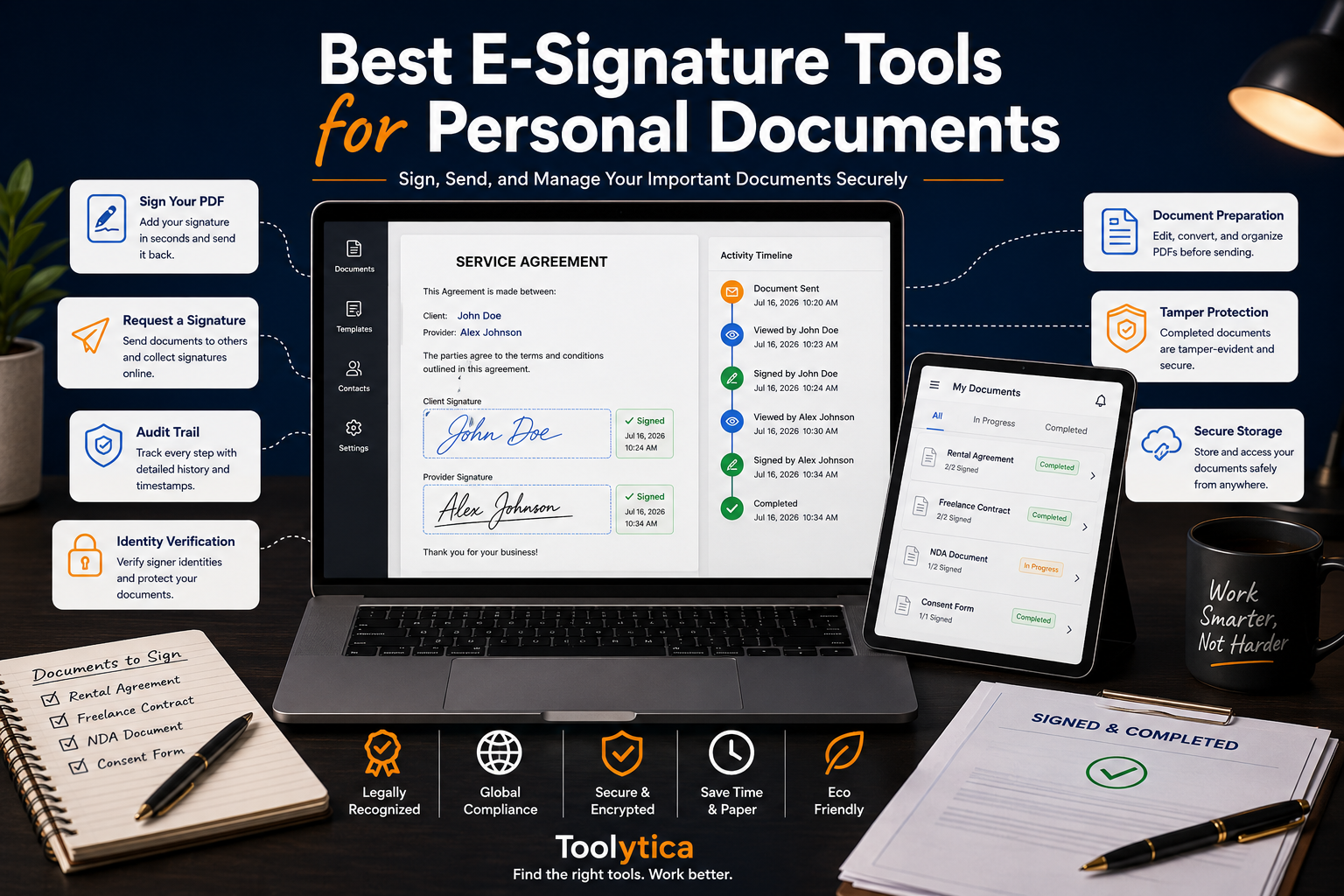
Requesting signatures means that you prepare a document, identify one or more signers, place required fields, send invitations, monitor progress, receive notifications, and keep a record of what happened.
Those workflows may look similar from the outside, but they require different levels of software.
Someone signing a school form or administrative PDF may need five minutes of access to a basic PDF signer. A freelancer sending contracts every week needs reminders, reusable templates, an audit trail, signer order, and proof that the final document was not altered.
Paying for DocuSign to add your own signature to one PDF is unnecessary. Using a basic drawing tool to manage a contract involving several parties may be equally inappropriate.
Best E-Signature Tools for Personal Documents: The Fast Decision
Choose Smallpdf when the document is already prepared and you mainly need to fill it, sign it, or make a few PDF changes.
Choose SignWell when you occasionally send documents to other people and want a free plan that includes an audit trail.
Choose Dropbox Sign when sending requests is a regular part of your freelance, rental, consulting, or administrative work and you do not want to count envelopes.
Choose Adobe Acrobat when the document regularly needs editing, OCR, redaction, conversion, protection, or signature fields before it is sent.
Choose DocuSign when the recipient specifically requests it, when familiarity reduces friction, or when you already work inside an organization using the platform.
Choose PandaDoc when you need to create attractive agreements, proposals, forms, or commercial documents before collecting signatures.
The best tool depends less on the legal importance of the document than on what happens before and after the signature.
Smallpdf: Best When You Just Need to Sign and Move On
Smallpdf is the most natural choice for the person who receives a PDF by email and needs to return it signed.
You upload the file, create a signature by drawing, typing, or uploading it, place it on the document, and download the finished copy. The service can also accept common office and image formats and convert them to PDF during the workflow.
That simplicity matters.
A large e-signature platform may ask you to create an envelope, define recipients, place multiple fields, choose a signing order, and configure notifications. Those controls are valuable when signatures need to be collected, but they create unnecessary steps when you are the only signer.
Where Smallpdf Becomes More Useful Than a Basic Signer
Smallpdf is not only a signing tool.
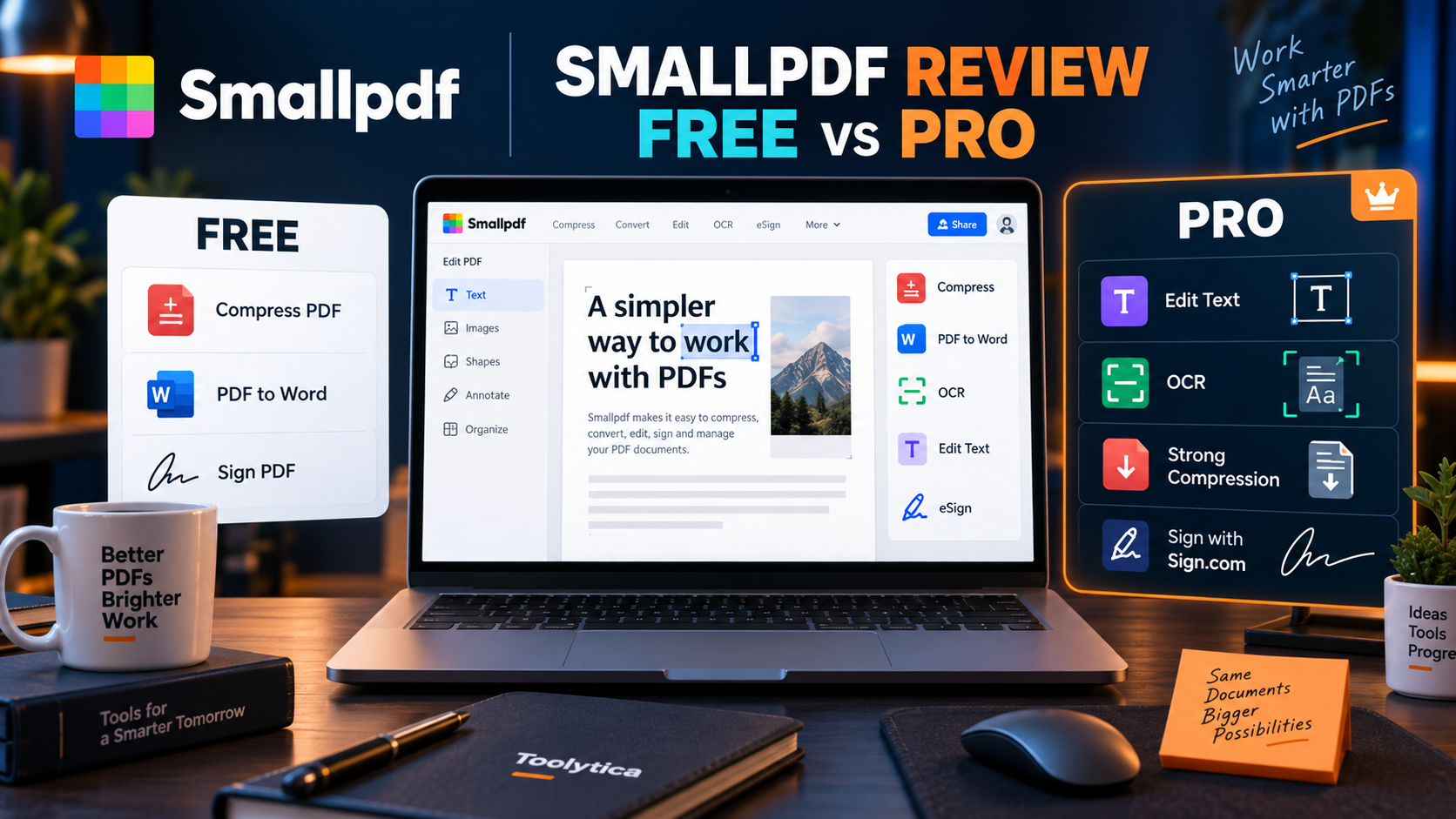
The same platform can edit text, run OCR, convert files, compress attachments, merge pages, remove pages, redact information, password-protect files, and organize documents. Its Pro subscription also includes access to Sign.com Premium for sending and tracking signature requests.
That makes Smallpdf particularly practical when the real workflow looks like this:
- Convert a Word file to PDF.
- Remove an unnecessary page.
- Fill in personal information.
- Add a signature.
- Compress the final document.
- Send it by email.
A dedicated signature platform handles only part of that sequence.
Smallpdf and Sign.com Free Limits
Smallpdf separates self-signing from managed signature requests.
Its Sign PDF tool handles simple personal signing, while Sign.com is used when you need to send a document to someone else and track the result. The current free Sign.com account is limited to two documents per month, while Smallpdf Pro includes unlimited Sign.com Premium access.
That is enough for someone who occasionally sends a landlord form, freelance agreement, authorization letter, or administrative document.
It is not enough for someone sending several contracts every week.
Where Smallpdf Is Not the Right Choice
Smallpdf is less appropriate when the recipient requires a specific certificate, digital identity, smart card, qualified signature, or approved institutional portal.
Adding a drawn signature to a PDF is not the same as creating a certificate-based digital signature. Smallpdf itself advises users to follow the named signing method when an organization specifically requires a digital certificate or qualified process.
For everyday PDF signing, Smallpdf is one of the easiest options.
For regulated or identity-sensitive transactions, follow the process specified by the organization receiving the document.
SignWell: The Free Plan That Covers Real Occasional Use
Many free e-signature plans are effectively demonstrations. They allow one test document, remove audit features, or make the user upgrade before completing a realistic workflow.
SignWell is more useful.
Its Free plan includes one sender, three documents per month, one template, multiple signers, signing order, an audit trail, and tamper-evident documents.
That combination is enough for many individuals.
A freelance designer may send one or two service agreements each month. A landlord may occasionally send a rental-related form. A consultant may need a client to approve a statement of work. None of those users automatically needs a $20–$30 subscription.
What SignWell Feels Like in Practice
SignWell sits between a simple PDF signer and a heavier business platform.
You prepare the document, add the recipient, place signature or text fields, send the request, and retain a record of the transaction. It gives the process more structure than emailing a PDF and asking someone to draw a signature manually.
The audit trail matters because it records activity around the document. The tamper-evident final file helps show whether the signed document has been changed after completion.
SignWell Pricing
Pricing verified in July 2026:
| Plan | Monthly Billing | Annual Billing Equivalent | Main Limit |
| Free | $0 | $0 | 3 documents/month |
| Light | $12/month | $10/month | Unlimited documents, 5 templates |
| Business | $36/month | $30/month | 3 senders, unlimited templates |
| Enterprise | Custom | Custom | Large teams and high volume |
The Light plan is the most relevant paid option for personal and solo-professional use. It includes unlimited documents and five templates for one sender.
SignWell is not the best-known brand in this comparison, but that may not matter for personal use. The signer does not need to be impressed by the platform. They need a clear document, a simple signing experience, and a reliable completed copy.
Dropbox Sign: Best for Individuals Who Send Regularly
Dropbox Sign is the cleanest upgrade for someone who has outgrown free limits but does not need complex enterprise workflows.
The Essentials plan is designed for one individual and includes unlimited signature requests, tamper-proof documents, reminders, notifications, signer fields, and integrations with services such as Dropbox, Google, and Microsoft.
The absence of a small envelope limit is important.
With some platforms, every sent request counts against a monthly or annual allowance, even if the recipient never completes it. Dropbox Sign’s individual plan is easier to budget because ordinary signature requests are presented as unlimited.
Dropbox Sign Pricing
The current official pricing page shows:
| Plan | Monthly Billing | Current Annual Offer | Best For |
| Essentials | $15/month | $10.05/month, billed $120.60/year | Individuals |
| Standard | $25/user/month | $17.50/user/month | Small teams |
| Premium | Custom | Custom | Larger organizations |
The annual Essentials price currently appears as a discounted offer and may change. The standard monthly price remains $15.
Who Gets Real Value From Dropbox Sign?
Dropbox Sign makes sense for:
- Freelancers sending regular agreements;
- Consultants collecting client approvals;
- Landlords managing recurring documents;
- Tutors or coaches using consent forms;
- Independent professionals who reuse the same contracts;
- People already storing documents in Dropbox or related cloud services.
It is harder to justify for someone signing only two documents per year.
The key question is not whether $15 seems affordable. It is whether managed signature requests have become a recurring part of your work.
Adobe Acrobat: Best When the PDF Needs Work Before Signing
Adobe Acrobat is not the simplest e-signature tool here, but it solves a broader problem.
Many documents are not ready to send when they arrive.
The text may need correcting. A scanned page may need OCR. Sensitive information may need redacting. Pages may need rearranging. A form may need to be created, or an old Word document converted into a clean PDF.
Acrobat handles those tasks and then allows the user to sign the document, request signatures, and track responses inside the same environment.
Adobe Acrobat Pricing
Current US pricing verified in July 2026:
| Plan | Annual Price | Monthly Equivalent | Flexible Monthly Plan |
| Acrobat Standard | $179.88/year | $14.99/month | $24.99/month |
| Acrobat Pro | $239.88/year | $19.99/month | $29.99/month |
| Acrobat Studio | $299.88/year | $24.99/month | $34.99/month |
Acrobat Standard includes PDF editing, conversion, organization, forms, signatures, signature requests, response tracking, and password protection. Acrobat Pro adds OCR, comparison, redaction, reusable e-sign templates, web forms, branding, and bulk signature features.
Standard or Pro for Personal Documents?
Acrobat Standard is enough when your main needs are:
- Editing ordinary PDFs;
- Filling and signing forms;
- Sending signature requests;
- Converting documents;
- Organizing pages;
- Password-protecting files.
Acrobat Pro becomes useful when you regularly handle scans, sensitive information, document versions, reusable forms, or more advanced signature workflows.
Someone signing a few completed PDFs does not need Acrobat Pro.
Someone preparing contracts, administrative files, applications, scanned documents, and forms may find that Acrobat replaces several smaller tools.
For a deeper comparison of PDF editing workflows, read our Best PDF Editors for Personal Use guide.
We have also compared Adobe directly with a lighter browser-based alternative in Smallpdf vs Adobe Acrobat.
DocuSign: Familiar, Trusted, and Often More Than You Need
DocuSign is the platform many people recognize before they understand what an e-signature platform actually does.
That recognition has practical value.
A recipient who has signed through DocuSign before is less likely to feel confused by the invitation. Employers, real-estate professionals, financial organizations, and corporate teams may already have established DocuSign workflows.
For an individual, however, brand familiarity does not automatically justify a subscription.
The Personal Plan’s Main Limitation
DocuSign’s Personal plan is intended for individuals and sole proprietors, but it includes only five envelopes per month. Once an envelope has been sent, it counts against the allowance regardless of whether the recipient eventually signs it.
An envelope can contain several documents and recipients, so it is not identical to one file. Still, the allowance requires more attention than an unlimited-request plan.
Current official DocuSign pages show the Personal plan at roughly $10–$11 per month, depending on the pricing view and billing presentation. Because DocuSign localizes its pages by region, readers should confirm the final amount and commitment before purchasing.
When DocuSign Is the Correct Choice
Use DocuSign when:
- The other party requests it;
- A company has already built its process around it;
- Familiarity reduces signer hesitation;
- You need its broader integration ecosystem;
- Five monthly envelopes are sufficient.
Do not choose it merely because it is the first electronic-signature brand you remember.
For personal documents, SignWell or Smallpdf may cover the same practical need for free. For unlimited regular sending, Dropbox Sign may be easier to budget.
PandaDoc: Better for Creating the Agreement Before Signing It
PandaDoc is not primarily a lightweight personal PDF signer.
It is designed around building and managing documents such as proposals, forms, agreements, quotes, and sales materials before signatures are collected.
That makes it valuable for a specific kind of individual user: a freelancer, consultant, coach, or small-business owner who wants the document itself to look more professional.
The editor supports richer layouts than a basic PDF uploader, while tracking and notifications help monitor what happens after the document is sent.
PandaDoc Pricing
| Plan | Price | Main Allowance |
| Free | $0 | 60 documents/year |
| Starter | $19/seat/month, billed annually | Unlimited uploads and e-signatures |
| Business | $49/seat/month, billed annually | Proposals, integrations, branding, workflows |
| Enterprise | Custom | Advanced automation |
The Free plan includes 60 documents per year, a drag-and-drop editor, tracking, notifications, and support. The paid Starter plan adds unlimited document uploads and e-signatures.
For a person who already receives completed PDFs, PandaDoc is unnecessary.
For a freelancer creating proposals and agreements from scratch, its document-building workflow can be more useful than a signature-only service.
Pricing Comparison: What Personal E-Signing Actually Costs
Pricing verified on official product pages in July 2026. Prices may vary by country, billing cycle, taxes, promotions, and currency.
| Tool | Useful Free Access | Relevant Individual Upgrade | Main Restriction |
| Smallpdf / Sign.com | Self-signing plus 2 Sign.com documents/month | Smallpdf Pro, localized price | Free request volume |
| SignWell | 3 documents/month | Light: $10/month annually or $12 monthly | 5 paid templates |
| Dropbox Sign | Trial | Essentials: $15 monthly; current annual offer $10.05/month | Paid subscription required |
| Adobe Acrobat | Free Reader can fill and sign | Standard: $14.99/month annually | Broader PDF subscription |
| DocuSign | Free self-signing tools | Personal: about $10–$11/month | 5 envelopes/month |
| PandaDoc | 60 documents/year | Starter: $19/month annually | Designed for document creation |
The lowest price does not automatically represent the best value.
A free plan that covers three documents per month is excellent for occasional use. It is frustrating for someone who sends ten agreements each week. Adobe may look expensive until it replaces a PDF editor, OCR tool, form builder, converter, and signature platform.
Start by counting what you actually send in a normal month.
Is an Electronic Signature Legally Valid?
Electronic signatures are not one single technical method.
In the European Union, eIDAS defines three levels: simple electronic signatures, advanced electronic signatures, and qualified electronic signatures. The requirements become stricter at each level, and qualified electronic signatures explicitly have the same legal effect as handwritten signatures across EU member states.
A simple electronic signature cannot be denied legal effect or admissibility as evidence solely because it is electronic or because it does not meet the requirements of a qualified signature. That does not mean every electronic method is suitable for every transaction. The required level depends on the document, jurisdiction, organization, and risk involved.
For ordinary personal agreements, consent forms, freelance contracts, and many administrative documents, a normal platform-based electronic signature may be accepted.
Some government, financial, legal, employment, property, or identity-sensitive processes may require a specific advanced or qualified method.
The safest practical rule is simple:
Use the signature method requested by the organization receiving the document.
This article is a software comparison, not legal advice.
Audit Trails Matter More Than How the Signature Looks
People often focus on whether an electronic signature looks handwritten.
That is rarely the most important issue.
A strong signing process can record:
- Who received the request;
- Which email address was used;
- When the document was opened;
- When each action occurred;
- Which fields were completed;
- Whether the final document changed;
- When the completed copy was issued.
A typed name accompanied by a clear audit trail may provide stronger evidence than a beautiful handwritten image pasted into a PDF with no record of the process.
This is why tools such as SignWell, Dropbox Sign, DocuSign, and PandaDoc are more useful for collecting signatures than a basic image editor.
The signature image is only one part of the transaction.
What to Check Before Uploading a Personal Document
Personal documents can contain more sensitive information than users realize.
A rental application may show an address, phone number, income, and banking information. An employment document may contain a national identifier. A freelance contract may reveal pricing, client details, and business terms.
Before choosing a platform, check:
- Whether an audit trail is included;
- Whether the final file is tamper-evident;
- How long uploaded documents remain stored;
- Whether deletion is available;
- Whether two-factor authentication is supported;
- Which security or compliance standards apply;
- Whether the required signature level is available.
Dropbox Sign states that documents are encrypted at rest using AES-256 and that its service supports standards including SOC 2 Type II, ISO 27001, eIDAS, and GDPR.
SignWell includes an audit trail and tamper-evident documents even on its Free plan.
Adobe provides password protection and applies encryption within its wider PDF platform, while Acrobat Pro adds redaction for removing sensitive information before a document is shared.
No security label removes the need to think carefully about what you upload.
Four Setups I Would Actually Recommend
For One or Two Personal Documents
Use Smallpdf.
Sign the PDF yourself, download the completed copy, and keep the untouched original. Move to Sign.com only when you need to send a request and track the other signer.
There is no reason to begin with a monthly subscription.
For a Freelancer Sending a Few Agreements
Use SignWell Free until the three-document monthly limit becomes a real problem.
When that happens, decide between SignWell Light and Dropbox Sign Essentials. SignWell is cheaper on annual billing, while Dropbox Sign offers a familiar, straightforward unlimited-request workflow.
For Someone Who Regularly Fixes PDFs Before Sending Them
Use Adobe Acrobat Standard.
The value is not only e-signing. It is being able to edit, convert, organize, protect, fill, and sign the same document without moving it across several services.
Upgrade to Pro only when OCR, redaction, comparison, or reusable advanced forms are genuinely needed.
For Someone Creating Proposals and Client Documents
Use PandaDoc.
Its free plan is unusually generous for lower-volume document creation. The paid plan becomes relevant when you need unlimited documents and a more complete agreement workflow.
Common Mistakes When Choosing an E-Signature Tool
Paying to Sign a Document Someone Else Sent You
Recipients generally do not need to purchase the sender’s platform.
Open the invitation and follow the provided process before creating your own subscription.
Confusing a Signature Image With a Full Signing Process
Pasting an image onto a PDF may be enough for an informal document.
It does not automatically provide authentication, an audit trail, tamper evidence, or proof of signer activity.
Assuming Every Electronic Signature Has the Same Trust Level
A simple signature, an advanced signature, and a qualified signature are not interchangeable.
Check the document instructions before selecting a tool.
Ignoring Envelope and Document Limits
“$10 per month” sounds inexpensive until you discover that the plan includes only a few sends.
Compare the price with your real monthly volume.
Uploading the Wrong Version
Keep an untouched original.
Check names, dates, amounts, page order, and attachments before sending the signing request.
Buying a Business Platform for a One-Time Need
Most individuals can begin with Smallpdf, SignWell Free, or PandaDoc Free.
Upgrade only when the free limit repeatedly interrupts a real workflow.
Final Recommendation
The best e-signature tool for personal documents depends on whether you are signing, sending, preparing, or creating the document.
Choose Smallpdf when you already have a PDF and want the fastest way to fill, sign, or lightly edit it.
Choose SignWell when you send only a few signature requests and want a genuinely usable free plan.
Choose Dropbox Sign when signature requests are frequent and you prefer an individual plan with unlimited sending.
Choose Adobe Acrobat when document editing, OCR, redaction, conversion, forms, and signatures belong in the same workflow.
Choose DocuSign when the recipient expects it or its familiarity solves a practical trust problem.
Choose PandaDoc when the document must be designed and prepared before it is signed.
My recommendation for most personal users is deliberately modest:
Start with Smallpdf for self-signing or SignWell Free for sending requests.
A paid platform becomes worthwhile only when you are regularly preparing and tracking documents, not merely signing one form every few months.
FAQ
What Is the Best E-Signature Tool for Personal Documents?
Smallpdf is the easiest option for signing your own PDF. SignWell is better when you need to send a small number of documents to other people and retain an audit trail.
What Is the Best Free E-Signature Tool?
SignWell offers one of the strongest free plans for senders, with three documents per month, one template, an audit trail, and tamper-evident documents.
Smallpdf is a better choice when you only need to add your own signature to an existing PDF.
Can I Use DocuSign for Free?
DocuSign provides free tools for signing documents yourself. A paid sending plan is needed when you want to manage recurring signature requests beyond free access.
How Much Does DocuSign Cost for One Person?
DocuSign’s Personal plan currently appears at approximately $10–$11 per month, depending on billing and regional presentation. It includes five envelopes per month.
Is Adobe Acrobat Good for Electronic Signatures?
Yes. Acrobat Standard can fill, sign, send, and track documents, while Acrobat Pro adds more advanced features such as reusable templates, web forms, bulk sending, OCR, redaction, and document comparison.
Is Dropbox Sign Better Than DocuSign for Individuals?
Dropbox Sign may offer better value for an individual sending many documents because its Essentials plan includes unlimited signature requests.
DocuSign may be preferable when recipients or organizations already expect its workflow.
Can I Sign a PDF Without Paying?
Yes. Smallpdf and Adobe Acrobat Reader can be used for basic personal signing, while several platforms offer limited free signature-request plans.
Is a Typed Electronic Signature Legally Valid?
A typed name can qualify as a simple electronic signature when it demonstrates the signer’s intent, but the required signature level depends on the transaction and applicable law.
In the EU, eIDAS distinguishes simple, advanced, and qualified electronic signatures.
Do I Need a Qualified Electronic Signature?
Not for every document. A qualified electronic signature may be required for particular regulated or high-trust processes. Follow the instructions from the authority, company, or institution receiving the document.
Which Tool Is Best for Freelancers?
SignWell is a good starting point for low-volume freelance contracts.
Dropbox Sign is better when signature requests become frequent, while PandaDoc is stronger when the freelancer also needs to create polished proposals and agreements.
Which Tool Is Best for Rental Documents?
Smallpdf is suitable when you only need to sign or fill in an existing rental PDF. SignWell or Dropbox Sign is more useful when the landlord or tenant needs to send the document to several parties and track completion.