Last fact-check: September 12, 2026
Hands-on tests: September 12, 2026
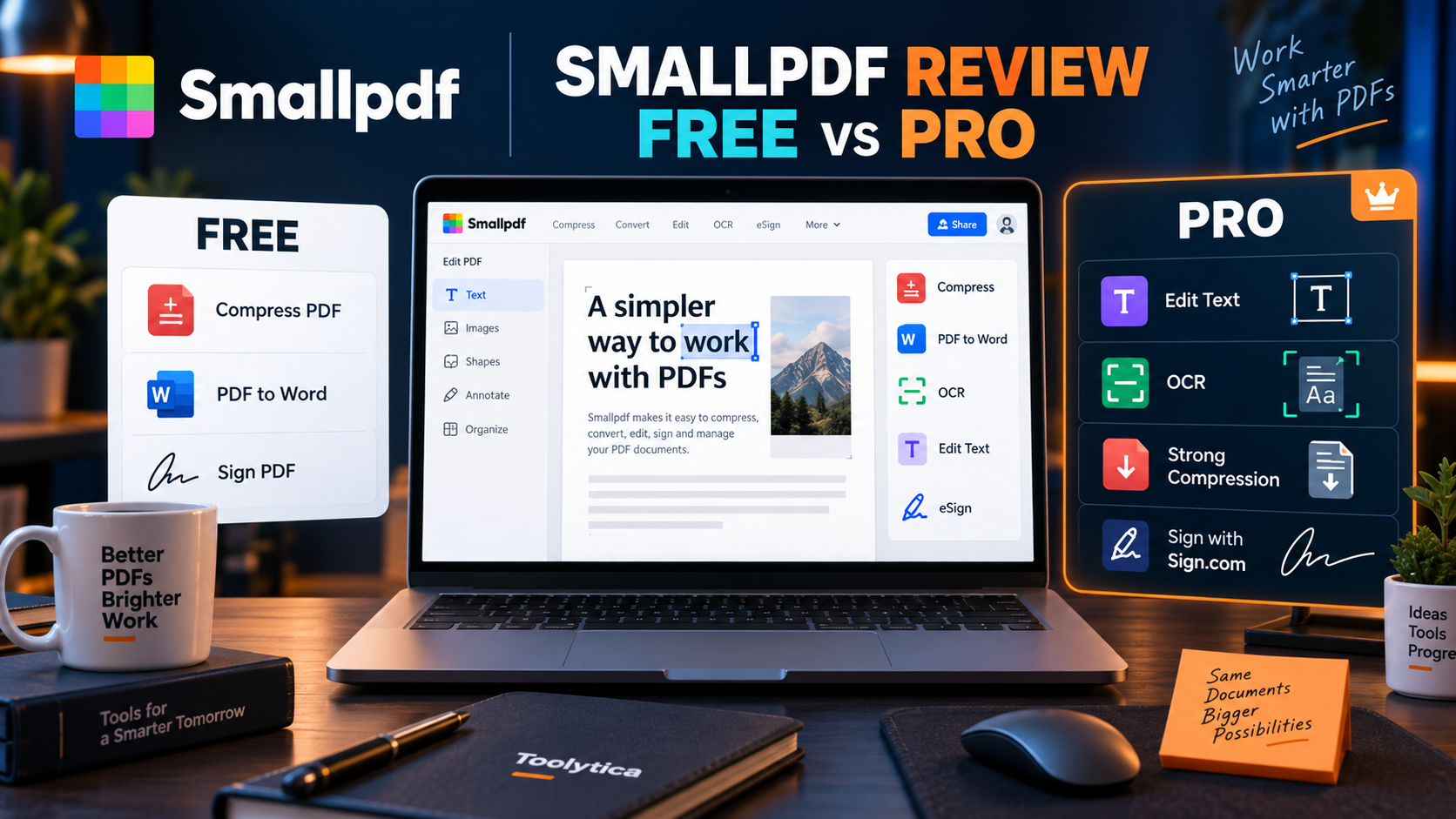
Our Smallpdf review finds that Pro is worth paying for if PDF work is a regular part of your week and you value a clean browser interface more than advanced desktop controls. The free version is genuinely useful for occasional compression, conversion, annotation, OCR, and signing, but its download limits arrive quickly. In our test session, two files downloaded successfully and the next completed task was blocked by a multi-hour countdown.
The paid plan makes the most sense for people who repeatedly convert files, need to edit existing PDF text, use stronger compression, or want unrestricted access across Smallpdf and Sign.com. It is harder to justify if you only fix one or two PDFs every few weeks, or if you need Adobe-level document comparison, redaction, forms, and compliance workflows.
Smallpdf review: the short verdict
Toolytica rating: 4.1/5
This is an editorial score derived from the criteria below, not a laboratory benchmark or a user-review average.
| Review criterion | Score | Why |
|---|---|---|
| Ease of use | 4.7/5 | Clear tool selection and minimal setup across every tested workflow |
| Everyday PDF workflows | 4.3/5 | Compression, conversion, annotation, OCR processing, and basic signing all ran successfully |
| Free plan | 3.4/5 | Useful tools, but the two-download pattern makes multi-file work unreliable |
| Pro value | 4.1/5 | Competitive €90 annual price if direct editing, OCR, strong compression, and Sign.com are used regularly |
| Platform and policy clarity | 4.0/5 | Strong web coverage and documented security controls, offset by inconsistent tool counts and Mac support information |
Smallpdf succeeds because it removes friction. The tools are easy to find, uploads are straightforward, and common jobs can be completed without learning a full PDF suite. In our tests, it compressed a 54.5 MB image-heavy PDF to about 8.5 MB, converted a three-page PDF to an editable DOCX, added a text annotation, and placed a typed signature without requiring an account.
The main compromise is that “free” describes access, not unlimited use. Smallpdf’s current pricing table marks many free workflows with a daily download limit, while its help center says non-registered and free users can process up to two conversions per day. Our own session matched the practical effect of that limit: two downloads worked, then the next export was stopped.
Smallpdf is best for
- People who need a fast, approachable collection of PDF tools in a browser.
- Students, freelancers, and small teams processing PDFs regularly but not managing complex publishing workflows.
- Users who frequently convert Office files, compress documents, annotate PDFs, or add basic electronic signatures.
- Windows users who want selected offline tools alongside the web application.
Skip Smallpdf Pro if
- You normally process no more than one or two documents in a day.
- You only need occasional annotations, basic compression, or a simple signature.
- You need precise professional prepress controls, advanced form creation, document comparison, or enterprise administration.
- You want a perpetual license rather than another subscription.
Smallpdf pricing in 2026
The prices below were displayed by Smallpdf to a France-based visitor on September 12, 2026. Check the official Smallpdf pricing page before subscribing because currency, taxes, promotions, and regional pricing can change.
| Plan | Price observed | Main limits or benefits |
|---|---|---|
| Free | €0 | Access to 30+ document tools, limited downloads, limited mobile access, and a Sign.com free account limited to two documents per month |
| Pro monthly | €10/month | Unlimited downloads and access to all listed tools, direct text editing, OCR, strong compression, unlimited AI tool access, unlimited mobile access, and Sign.com Premium |
| Pro annual | €90/year | Equivalent to €7.50/month, billed once per year; the same individual Pro feature set |
| Team monthly | €8/month per seat | Minimum two seats; priority support, centralized billing, and member access management |
| Team annual | €6/month per seat | Minimum two seats; Smallpdf displayed €144/year for two seats |
| Business | Custom | For 20 or more seats, with custom pricing and support arrangements |
The annual individual plan saves €30 compared with paying €10 for 12 separate months. That discount matters only if you expect to use Smallpdf for most of the year. For a short project, the monthly plan reduces commitment even though its effective monthly price is higher.
Smallpdf offers a seven-day Pro trial. Its help center says subscriptions renew automatically, and annual subscribers receive a reminder email 10 days before renewal. Cancellation is available from the Plan or Plan & Billing area of the account.
There is an important refund detail: Smallpdf’s current cancellation guide says refund requests are handled case by case. It does not publish a blanket money-back guarantee. Canceling a paid subscription keeps Pro active until the end of the billing period; canceling a trial removes Pro access immediately and the unused portion of that trial cannot be resumed. Read the official cancellation guide before entering payment details.
What is included in Smallpdf Free?
Smallpdf Free is not a decorative demo. It can complete useful work without payment, including basic compression, standard PDF-to-Word conversion, annotations, basic signing, and a browser-based OCR workflow. The limitation is the number of files you can retrieve, not merely the number you can upload.
Smallpdf’s public documentation is not perfectly consistent about the exact size of the tool library. The current pricing page says “30+” tools, while other official pages currently mention 40+ or 48 tools. We use the pricing page’s more conservative “30+” wording because it is the page directly tied to the plan comparison.
The numeric free limit is also described differently across official pages. The pricing table uses “daily download limit” without displaying a number. The help center says free and non-registered users can process up to two conversions per day. During our hands-on test, the first two downloads succeeded and the third completed workflow showed “You’re out of free downloads” with a multi-hour countdown.
This means the safest expectation is two downloadable tasks per day, not unlimited free processing. Do not build a deadline-sensitive workflow around the free tier unless you have tested your own account and region first.
How we tested Smallpdf
We created three synthetic documents containing no personal or confidential information:
- A three-page searchable PDF with headings, paragraphs, a table, a numbered list, page numbers, an editing target, and a signature line.
- A one-page raster-only scan with a reference code, date, and invoice amount for OCR testing.
- A six-page, image-heavy 54.5 MB PDF for compression.
We tested the public web application without logging in, starting a trial, or paying. Each result below separates what we directly observed from what Smallpdf advertises.
| Workflow | Test result | What the result means |
|---|---|---|
| Basic compression | 54.5 MB reduced to approximately 8.5 MB; Smallpdf displayed an 84% reduction | Strong size reduction is possible on image-heavy files, but this test did not download the compressed output for a page-by-page quality inspection |
| PDF to Word | Completed and downloaded successfully | The DOCX remained editable and preserved most simple document structure, but the numbered list formatting was degraded |
| OCR | Processing completed and produced a one-page output | The export was blocked after the free download allowance was reached, so OCR accuracy was not independently verified |
| Add text | “Reviewed in Smallpdf” was added in the editor | Adding a new text box works separately from editing the PDF’s existing text |
| Edit existing text | The Edit Text control displayed a Pro crown | Direct modification or deletion of existing PDF text belongs to Pro |
| Basic e-signature | A typed synthetic signature was created, positioned, and downloaded | Basic self-signing works without a digital seal |
| Digital seal | Offered through the seven-day trial | Verifiable sealing and a Certificate of Completion belong to the premium Sign.com workflow |
Compression test: excellent reduction, limited free control
Smallpdf’s free Basic compression took our image-heavy PDF from 54.5 MB to an estimated 8.5 MB. The result screen reported an 84% reduction. That is a meaningful improvement for email attachments, online forms, and cloud storage.
The interface also offered Moderate, Strong, and Custom compression levels, but those options were outside the basic free workflow. Smallpdf’s pricing table specifically lists Strong Compression as a Pro benefit.
We could not complete a visual inspection of every page in the compressed output because the file was not downloaded before the free limit intervened. The measured size reduction is confirmed; any claim about unchanged image quality would not be. For photographs, portfolios, or print-ready documents, compare the downloaded result with the original at 100% before deleting the source file.
Compression verdict: Basic is excellent for occasional sharing. Pro becomes more relevant when you need repeatable output, stronger compression, custom image quality, or batch processing.
PDF-to-Word test: usable, but not pixel-perfect
The standard PDF-to-Word tool accepted our searchable three-page PDF without requiring an account. Smallpdf generated a normal DOCX file that opened and remained editable.
The conversion preserved:
- All three pages.
- The main headings and paragraph order.
- The table’s rows, columns, dark header, and body shading.
- The synthetic reference code.
- Footer text and page numbers.
The main defect appeared on page 2. A three-item vertical numbered list was converted into a single horizontal line. The information survived, but the original structure did not.
This is a reasonable result for extracting and reusing content from a straightforward office document. It is not evidence that Smallpdf will reproduce contracts with complex columns, layered graphics, forms, or unusual fonts perfectly. Keep the source PDF and review every page after conversion.
For scanned PDFs, Smallpdf’s PDF-to-Word guide labels its integrated OCR conversion option as a Pro feature. That is separate from the standalone browser OCR tool we tested below.
Conversion verdict: Good for simple and moderately formatted documents, with manual cleanup likely for lists and complex layouts.
OCR test: accessible in the browser, accuracy not confirmed
We uploaded a 241 KB raster-only scan with no searchable text layer. Smallpdf completed the OCR process and reported a 256 KB, one-page output. It did so without asking us to create an account.
However, the export was the third attempted download in the active free session. Smallpdf blocked it and displayed a countdown. Because we could not inspect the searchable layer, we cannot confirm whether the tool recognized the reference code, date, and amount accurately.
That limitation matters. The standalone Smallpdf OCR page currently markets searchable and selectable output as free, while the pricing page lists OCR among Pro benefits and the PDF-to-Word page calls OCR for scanned conversion a Pro feature. The most defensible interpretation is that limited standalone OCR processing is available for free, while unrestricted OCR and OCR-integrated conversion are paid benefits.
OCR verdict: Promising for occasional scans, but verify critical names, totals, dates, and legal clauses manually. Our test confirms processing, not recognition accuracy.
PDF editing: annotation is free, existing text is Pro
Smallpdf’s editor opened all three pages and exposed tools for text boxes, drawing, highlighting, shapes, redaction, images, watermarks, and cropping. We added a new text box reading “Reviewed in Smallpdf” without subscribing.
The distinction appears in the toolbar: Add text is available for placing a new text box, while Edit Text carries a Pro crown. Smallpdf’s own PDF editor page confirms that a free account can add text, images, highlights, and drawings, but direct editing of existing PDF text requires Pro.
This is one of the most common sources of disappointment with online PDF editors. Adding a text layer on top of a document is not the same task as correcting the original sentence while preserving its font, spacing, and flow.
Editing verdict: Free is enough for annotations and simple form-like additions. Pay only if you repeatedly need to correct or delete existing text inside PDFs.
Electronic signatures: basic self-signing works
We selected “Sign myself,” chose the option without a digital seal, typed a synthetic signature, and placed it on the signature line of page 3. The signed PDF downloaded successfully without a login.
Smallpdf offered three signature creation methods: draw, type, or upload. It also separated basic signing from “Sign with digital seal.” The latter was presented as a premium option with a verifiable seal and Certificate of Completion through Sign.com.
The distinction is practical rather than cosmetic. A typed or drawn mark can be sufficient when a recipient simply asks you to sign a form. Workflows that require identity verification, a structured audit trail, access codes, or a completion certificate should use the premium signing service or another product chosen for the relevant legal and compliance requirements.
E-sign verdict: Convenient for simple self-signing. Do not confuse the free signature stamp with a verified digital-signature workflow.
Is Smallpdf safe?
Smallpdf’s Trust Center says the company is ISO/IEC 27001 certified, uses TLS encryption for file transfers, and complies with GDPR, CCPA, and Switzerland’s nFADP. Individual tool pages state that uploaded documents are automatically deleted after one hour unless the user chooses to save them to an account.
Those are meaningful controls, but they do not make every upload appropriate. Browser tools process documents on a third party’s infrastructure. Before uploading medical records, payroll files, identification documents, confidential contracts, or client data, follow your employer’s policies and assess whether local processing is required.
Windows users have an additional option. Smallpdf’s Windows desktop page says its desktop tools process documents offline and include conversion, compression, merging, unlocking, protection, and other functions. This can reduce cloud exposure for supported workflows.
Native macOS support is unclear. Smallpdf’s general download page still lists a Mac application, but its dedicated macOS page says the app has not been supported since October 1, 2021. We cannot confirm current supported Mac desktop status from those contradictory pages. Mac users should rely on the web version or verify support directly before adopting the desktop app.
Smallpdf also offers mobile applications for iOS and Android. The official download page lists scanning, annotation, compression, conversion, merging, splitting, saving, and synchronization on mobile, although the free pricing tier describes mobile access as limited.
Is Smallpdf Pro worth paying for?
The decision comes down to frequency and the type of editing you do.
Pro is probably worth it when
You process PDFs several days per week, regularly hit the free download ceiling, or need direct text editing. At €90 per year, the annual plan costs €7.50 per active month if you use it all year. For a freelancer billing clients, avoiding even a small amount of repeated cleanup or waiting can justify that price.
Pro also makes sense when you combine several paid functions: direct text editing, strong compression, batch processing, OCR, unrestricted downloads, mobile access, and Sign.com Premium. Buying it for one isolated feature is less compelling.
Stay with Free when
Your needs are occasional and predictable. If you compress one application form, convert a class handout, or sign a document from time to time, the free tools may already be enough. The interface does not add a watermark to the basic signed PDF we downloaded.
The free plan is less dependable for urgent multi-file work. Once the allowance is reached, finishing the processing does not guarantee that you can retrieve the output immediately.
Choose something else when
You need deeper document controls. Adobe Acrobat is a stronger fit for advanced editing, comparison, redaction, scanned-document correction, forms, and managed business workflows. It is also much more expensive: Adobe’s French page displayed Acrobat Pro at €23.99 per month on an annual commitment billed monthly, or €286.42 prepaid for one year when checked for this review. See our full Smallpdf vs Adobe Acrobat comparison before choosing between them.
If price is the main constraint, PDFgear says its Windows and Mac applications provide free direct text editing and OCR. We did not test PDFgear in this Smallpdf review, so treat that as an alternative to evaluate rather than a measured winner.
For a broader shortlist, compare our best PDF editors for personal use. If your goal is understanding a long document rather than modifying it, our best AI PDF summarizer guide is more relevant.
Smallpdf pros and cons
Pros
- Clean interface with little learning curve.
- Useful free compression, conversion, annotation, OCR, and signing workflows.
- Basic signing and standard PDF-to-Word conversion worked without an account in our tests.
- Strong 84% size reduction on our image-heavy compression file.
- Cross-platform browser access plus iOS, Android, and Windows applications.
- Pro combines the PDF suite with Sign.com Premium.
- Clear separation between basic signing and digitally sealed workflows.
Cons
- The free download limit appears quickly during multi-file work.
- Direct editing of existing PDF text is a Pro feature.
- Our PDF-to-Word output flattened a numbered list into one line.
- OCR processing completed, but the free limit prevented us from validating recognition accuracy.
- No published blanket refund guarantee; requests are handled case by case.
- Official pages disagree on the exact tool count and current macOS desktop support.
- Subscription only; no perpetual individual license is listed.
Final verdict
Smallpdf is one of the easiest ways to handle everyday PDF jobs without installing a complex application. Its strongest quality is not that it has the deepest feature set, but that compression, conversion, annotation, and signing feel approachable. Our hands-on tests support that conclusion.
Paying is worthwhile when the free limits repeatedly interrupt real work or when direct text editing, stronger compression, batch processing, OCR, and premium signing belong to the same workflow. The €90 annual plan is reasonably positioned for that kind of recurring use.
Occasional users should start with Free. Two successful daily outputs can cover many personal tasks, and paying €90 a year to avoid a limit you rarely reach would not be good value. Advanced professional users should compare Smallpdf with Adobe Acrobat before committing, especially when document fidelity, detailed redaction, forms, or regulated workflows matter more than simplicity.
Bottom line: Smallpdf Pro is worth paying for regular, convenience-focused PDF work. It is not necessary for occasional basic tasks, and it is not a full replacement for every advanced desktop PDF workflow.
Frequently asked questions
Is Smallpdf really free?
Yes, but free use is limited. The current pricing page gives access to 30+ document tools with daily download limits. Smallpdf’s help center says free and non-registered users can process up to two conversions per day. Our test session allowed two downloads before blocking the next output.
How much does Smallpdf Pro cost?
For a visitor in France on September 12, 2026, Smallpdf displayed €10 per month or €90 per year. The annual price equals €7.50 per month but is billed as one €90 payment. Verify your regional price before subscribing.
Can Smallpdf edit existing PDF text for free?
No. Free tools can add text boxes, images, highlights, and drawings. Directly editing or deleting existing PDF text is listed as a Pro feature.
Does Smallpdf have OCR?
Yes. The standalone OCR tool processed our raster-only scan without a login. However, unrestricted OCR and OCR inside PDF-to-Word conversion are presented as Pro benefits. We could not verify recognition accuracy because the download allowance had already been reached.
Can I sign a PDF for free with Smallpdf?
Yes, for basic self-signing. We created and downloaded a PDF with a typed signature without an account. A verifiable digital seal, Certificate of Completion, and broader Sign.com Premium workflow require paid access or the trial.
Does Smallpdf add a watermark?
The basic signed PDF downloaded during our test did not display a Smallpdf watermark. We did not test every export type, so this finding should not be generalized to every feature or future version.
Is Smallpdf safe for confidential documents?
Smallpdf publishes ISO/IEC 27001 certification, TLS file-transfer encryption, and GDPR, CCPA, and nFADP compliance. Tool pages say files are deleted after one hour unless saved to an account. For sensitive or regulated material, confirm that cloud processing is allowed by your organization and consider an offline workflow.
Can I cancel the Smallpdf free trial?
Yes. Smallpdf says the seven-day trial can be canceled from the account’s Plan & Billing area. Canceling the trial removes Pro access immediately, and it cannot be resumed. Subscriptions auto-renew unless renewal is turned off.
Does Smallpdf guarantee refunds?
No blanket refund guarantee is published in the current cancellation guide. Smallpdf says refund requests are evaluated case by case. Contact support promptly if you believe a charge is incorrect.