The best apps to plan study week is not necessarily the app with the prettiest weekly template.
It is the system that tells you three things without making you think too hard: what needs to be done, when you will do it, and where the relevant material lives.
For most students, those jobs are best handled by a small stack rather than one enormous dashboard. Use a task app to capture assignments, a calendar to reserve real study time, and a notes app to hold course material. The apps should support the routine, not become another course you need to maintain.
Quick verdict
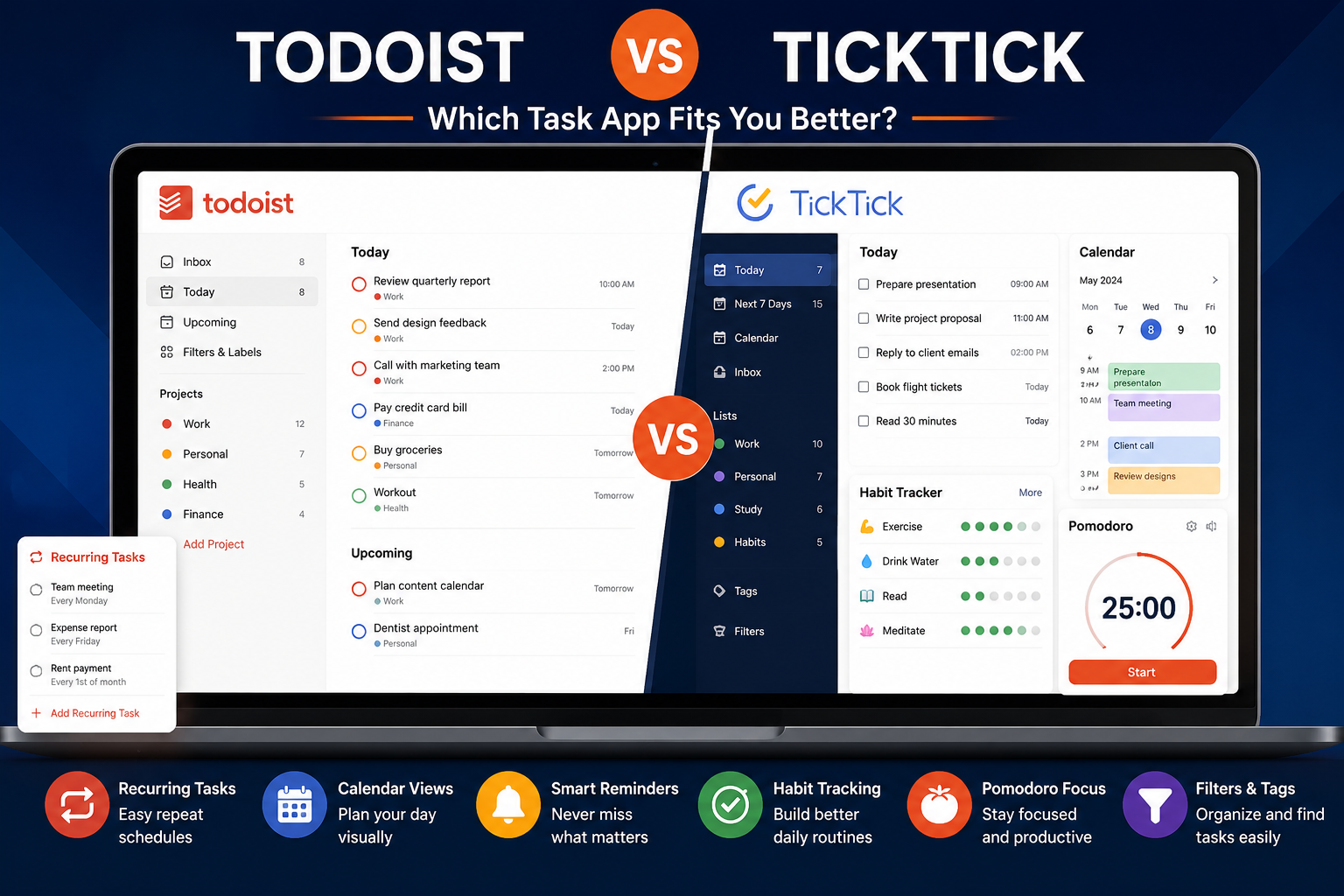
Todoist is the best task manager for planning a study week. Its quick capture, recurring dates, priorities, projects, and Google or Outlook Calendar integration make it easy to turn an assignment into concrete next actions. The free Beginner plan is enough for a simple setup; Pro becomes useful when you want Todoist’s visual calendar layout, task durations, deadlines, and more extensive reminders.
Notion is the best study headquarters. It can connect course pages, notes, readings, assignments, and a weekly dashboard. It is slower than Todoist for capturing a task in the middle of a lecture, but far better at holding context. Eligible university students and educators can receive a one-member Notion Plus workspace free through the Education program.
Google Calendar is the best place to time-block the week. Classes, shifts, appointments, travel, meals, and study sessions compete for the same hours. A calendar shows that reality better than a to-do list. Google Tasks now supports start and end times inside Calendar, so a student who wants very little setup may not need a separate paid task app.
TickTick is the strongest one-app alternative. It combines tasks, calendar views, habits, a Pomodoro timer, and an Eisenhower Matrix. The free version is useful but restricted; Premium unlocks the fuller calendar workflow and currently costs $49.99 per year.
Microsoft To Do is the best completely free choice for Microsoft-focused students. It includes My Day, lists, steps, due dates, reminders, recurring tasks, and Outlook task integration without a personal subscription fee.
Best apps to plan study week compared
| App | Best role in a study system | Useful free access | Current paid or student option | Main limitation |
|---|---|---|---|---|
| Todoist | Fast task capture and assignment planning | Beginner: 5 personal projects, reminders, recurring tasks, calendar integration | Pro: $7/month or $60/year | Visual calendar layout and task duration require Pro |
| Notion | Course dashboard, assignment database, and notes | Unlimited pages and blocks for an individual; 5 MB file limit | Education Plus is free for eligible higher-education users | Easy to overbuild; not the fastest task inbox |
| Google Calendar + Tasks | Time blocking and seeing real availability | Free with a personal Google account | Some Focus time and advanced Workspace features depend on the school or paid plan | Notes and project detail are basic |
| TickTick | Tasks, calendar, habits, and focus in one app | 9 lists, 99 tasks per list, basic calendar, reminders | Premium: $49.99/year; eligible education users can get one year for $37.99 | The most useful calendar features are paid |
| Microsoft To Do | Simple free tasks in the Microsoft ecosystem | Free with a personal Microsoft account | Included with supported school Microsoft 365 accounts | Less capable for visual weekly time blocking |
The prices and plan details in this article were checked on official pages on August 25, 2026. They can change. The most important choice is not which app wins the feature table; it is whether you want a three-part stack or an all-in-one app.
The simple stack we recommend
For most university and college students, start here:
- Todoist Beginner for assignments and next actions;
- Google Calendar or your school’s Outlook Calendar for classes and study blocks;
- Notion Free or Education Plus for course notes, readings, and project context.
This stack can cost nothing. It also gives each app a clear job.
Todoist answers, “What do I need to do?” Google Calendar answers, “When will I actually do it?” Notion answers, “Where are the instructions, notes, sources, and draft?”
That separation prevents a common problem: putting a 2,000-word essay on a to-do list as one intimidating checkbox. In a better system, Todoist holds actions such as “choose argument,” “find three sources,” and “draft introduction.” The calendar reserves time for those actions. Notion holds the brief, reading notes, citations, and draft outline.
There are good reasons to simplify further. If using three apps makes you forget where information lives, choose TickTick Premium for tasks, calendar, and focus, then keep notes in the app your school already uses. If you live in Microsoft 365, Microsoft To Do plus Outlook Calendar and OneNote may be a cleaner free combination. If your needs are basic, Google Calendar and Tasks can manage the whole week without another subscription.
The rule is simple: add an app only when it solves a recurring problem that the current system does not solve.
Why a task list alone does not plan a study week
A task list can tell you that six things are due on Friday. It cannot automatically create the hours needed to finish them.
This distinction matters because deadlines and workloads are different. “Submit economics essay Friday at 5 PM” is a deadline. Researching, outlining, drafting, checking references, and proofreading are separate work sessions. If all you record is the submission deadline, the task remains invisible until it becomes urgent.
A calendar fixes part of that problem by making time finite. When lectures, a part-time shift, commuting, sleep, meals, and exercise appear on the same weekly view, the fantasy of doing twelve hours of coursework on Thursday disappears quickly.
Notes add the final layer. A study block called “revise biology” is still vague if you spend its first ten minutes looking for the lecture slides, last week’s questions, and the page where you recorded the topics you misunderstood. Linking the task or calendar block to the relevant note reduces that restart cost.
The strongest study system therefore has four components:
- Capture: one trusted inbox for every assignment, reading, question, and administrative task.
- Clarify: turn vague obligations into visible next actions.
- Schedule: reserve realistic time around fixed commitments.
- Review: update the plan as new work arrives and estimates prove wrong.
The apps matter, but this loop matters more.
Todoist: best for capturing and organizing assignments
Todoist is our first choice when the hardest part of studying is keeping track of many small obligations across several courses. Opening an elaborate workspace every time a lecturer announces a reading creates friction. Todoist’s Smart Quick Add is designed for fast capture, including dates and recurring language in the task title.
A useful student structure is deliberately small:
- one Inbox for uncategorized capture;
- one project per course, up to the plan limit;
- one University Admin project for forms, fees, applications, and appointments;
- labels for contexts such as
@campus,@computer,@library, or@15minonly if they genuinely help; - priority levels for consequences, not emotions.
The current Beginner plan includes five personal projects, task reminders, list and board layouts, three filters, one week of activity history, and integrations. It also supports due dates, recurring work, priorities, subtasks, descriptions, and labels in the current comparison table. Five projects can be tight if you take many modules and want separate personal lists, but it is enough for a minimal semester setup.
Todoist Pro currently costs $7 per month or $60 per year, equivalent to $5 per month when billed annually. It raises the limit to 300 personal projects and adds features particularly relevant to weekly planning: a calendar layout, task duration, custom reminders, deadlines, 150 filters, and full reporting history. Todoist documents a seven-day Pro trial; yearly direct purchases are eligible for a refund within 30 days under its stated conditions. Todoist pricing and billing FAQ
The free calendar integration is more capable than it first appears
Todoist can connect to either Google Calendar or Outlook Calendar on Beginner, Pro, and Business. External calendar events then appear in Todoist’s Today and Upcoming views, while scheduled Todoist tasks can sync back into a dedicated calendar. The provider currently permits one connected calendar provider at a time, so you cannot connect Google and Outlook simultaneously without workarounds. External events are read-only inside Todoist and open in their original calendar for editing. Todoist Calendar integration
The paid calendar layout is a separate feature. It lets Pro users arrange tasks on a visual timeline and work with task durations directly in Todoist. Free users can still sync tasks and see events, but they do not get the same drag-and-drop weekly layout.
That distinction prevents a common pricing mistake. You do not need Pro merely to connect a calendar. Upgrade when you want to plan time inside Todoist itself, need more than five course projects, or repeatedly benefit from task durations and custom filters.
Best way to use Todoist for a study week
Write tasks as visible actions rather than subjects:
- Weak:
History essay - Better:
Choose history essay question - Better:
Find 3 academic sources for history essay - Better:
Draft 500 words of history essay introduction
Use the official submission date as a deadline, then assign work sessions before it. If you use Pro, Todoist’s separate deadline and scheduled date concepts help preserve the final due date while moving the planned work. On Free, place the non-negotiable deadline in the task title or description and use calendar blocks for the work sessions.
Todoist is not ideal for full lecture notes or a long research archive. Attach or link the relevant Notion, OneNote, Google Drive, or school-platform page instead of forcing the task manager to become a second notebook.
Todoist verdict
Choose Todoist if tasks arrive constantly and you need to capture them before they disappear. Beginner is the right starting point. Pro is worthwhile for students who actively use its weekly calendar layout—not for someone who only wants more colorful lists.
Notion: best for a study dashboard and connected notes
Notion is excellent at showing relationships. A course can connect to its assignments, each assignment can link to notes and readings, and a weekly view can filter work by date or status. This makes it a stronger study headquarters than a conventional to-do app.
The danger is that Notion is also fun to customize. A student can spend two hours choosing icons, importing templates, building progress charts, and changing database properties while avoiding the uncomfortable work the system was supposed to organize.
Start with four elements:
- a Courses database with the course name, instructor, schedule, and main links;
- an Assignments database with course, due date, status, and type;
- a Notes database linked to each course;
- a This Week page containing filtered views, not duplicated information.
That is enough. Add grade calculators, habit trackers, reading databases, or revision dashboards only after a recurring need appears.
Notion pricing and the Education plan
Notion Free costs $0 and provides unlimited pages and blocks for an individual workspace. The current plan table limits individual uploads to 5 MB each, page history to seven days, and external guests to ten. That is sufficient for text notes, assignment tracking, and links, but large lecture files can exceed the upload limit. Notion pricing
The Education Plus plan is one of the strongest student offers in this category. Eligible students and educators at accredited colleges or universities can receive a free one-member Plus workspace by signing in with an institutional email associated with an institution in the World Higher Education Database. Notion does not accept a student ID as a substitute for a valid educational email, and the offer is not available to K–12 users under the current terms.
The individual Education plan includes up to 100 guests, unlimited uploads, and 30-day page history. It is not a free multi-member class workspace: the individual version permits one member, although guests can be invited to specific pages. Verified student organizations have a separate application-based offer. Notion for Education
Notion AI should not be treated as fully included merely because the Education workspace is free. The current pricing table shows limited AI trials on Free and Plus, with separate credit-based or plan-dependent access for newer agent features. Check the allowance displayed inside the account before building a workflow that depends on automatic summaries or database autofill.
Best way to use Notion during the week
Keep planning views shallow. A weekly dashboard should show:
- assignments due in the next seven to fourteen days;
- readings not yet processed;
- one link to each active course;
- a small “waiting for” section for group work;
- an inbox for notes that have not been filed.
Do not manually copy every Todoist task into Notion. That creates two sources of truth. Instead, let Notion hold the assignment record and project context while Todoist holds the next actions. Put a Notion link in the Todoist description so one click opens the brief, notes, and resources.
Notion can manage tasks by itself if you enjoy databases and consistently open the workspace. It is less convincing when assignments arrive while you are walking between classes or when you need a reminder to appear immediately. A beautiful database that you forget to check is weaker than an ordinary list you trust.
Notion verdict
Choose Notion when your weekly planning problem is not only remembering work but connecting it to course information. Eligible higher-education users should check the free Education Plus offer before paying. Keep the workspace small enough that weekly maintenance takes minutes, not an evening.
For a deeper comparison of the two roles, see Notion vs Todoist. Students deciding between a workspace and a conventional notebook can also read Notion vs Evernote for students.
Google Calendar: best for realistic time blocking
A task app shows workload. A calendar shows capacity.
Google Calendar remains the easiest recommendation for students using Gmail, Google Classroom, or an Android phone, but its value is not limited to the Google ecosystem. It runs on the web, Android, and iOS and can display several calendars at once.
Create separate calendars only when color and visibility solve a problem. A useful arrangement might include:
- Classes and labs for fixed teaching hours;
- Study blocks for planned work;
- Personal commitments for shifts, exercise, travel, and appointments;
- the institution’s subscribed timetable if it offers one.
Avoid creating a separate calendar for every module unless you regularly hide and show them. Too many colors can make the week harder to scan.
Google Tasks now covers basic time planning
Google Tasks with a date appear in Google Calendar. Current support documentation also allows a task to have a start and end time, appear as a time block, send a notification, and hold a Google Drive attachment. Recurring tasks can appear on the calendar, although Google notes that an end time cannot be added to a recurring task. Google Calendar task support
This makes Google Calendar plus Tasks a credible free minimalist system. A student can keep assignments in course-specific task lists, assign dates and work periods, and complete them from the calendar. It is less powerful than Todoist for filters, priorities, projects, and fast natural-language organization, but fewer features can be an advantage when the alternative is spending too much time managing the system.
Anyone with a personal Google Account can use Calendar and create one appointment booking page, according to Google’s current product FAQ. Several advanced functions are paid or account-dependent. In particular, Google’s dedicated Focus time event type is limited to specified Workspace Business, Enterprise, Education, and nonprofit accounts; a personal user can simply create an ordinary private event called “Study block” instead. Google Calendar Focus time eligibility
Best way to time-block a study week
Begin with fixed commitments, not assignments:
- Add lectures, tutorials, labs, work shifts, appointments, and commuting.
- Protect sleep, meals, and at least some unplanned time.
- Place difficult study blocks in the periods when your attention is usually strongest.
- Use shorter blocks for administrative tasks, flashcards, and routine reading.
- Leave 15- to 30-minute buffers around travel or context switches.
- Stop planning when roughly 70% to 80% of genuinely available study time is allocated.
The remaining capacity is not wasted. It absorbs a lecture that runs late, a reading that takes twice as long as expected, a friend who needs help, an illness, or simple fatigue. A calendar packed to 100% is not ambitious; it is already behind.
Google Calendar verdict
Use Google Calendar as the visual truth of the week, even if another app stores the tasks. It is the strongest free time-blocking layer for most students. If your institution uses Microsoft 365 and already publishes everything in Outlook, use Outlook Calendar rather than maintaining a second academic calendar manually.
TickTick: best all-in-one study planner
TickTick is the clearest answer for a student who understands the three-part system but does not want three separate apps. It combines a task manager, multiple calendar views, task duration, reminders, habits, statistics, an Eisenhower Matrix, and a Pomodoro focus timer.
That combination makes practical sense. Capture the assignment, schedule a 60-minute block, start a focus timer, and record a recurring study habit without moving between products. TickTick also documents Google Calendar integration and the ability to subscribe to other calendars. TickTick features
TickTick pricing and education discount
The current Free plan includes nine lists, 99 tasks per list, list and Kanban views, natural-language processing, reminders, cross-platform sync, a basic calendar view, and limited habit capacity. These limits are generous enough to test the workflow but can become awkward across a full academic year.
TickTick Premium currently costs $49.99 per year, shown as less than $4.17 per month. It expands capacity to 299 lists and 999 tasks or notes per list and unlocks multiple calendar views, task duration, more reminders, richer filters, themes, and other advanced features. The direct pricing page states a 14-day refund window for qualifying purchases through Google Play, PayPal, or Stripe; Apple handles App Store refunds. TickTick pricing
Eligible students, faculty, and staff can apply for 25% off one year of Premium, currently reducing that year to $37.99. Approval requires an application and educational documents. The page describes the offer for one year, so do not assume the discounted price will continue automatically at every renewal. TickTick education discount
You may see temporary prices elsewhere on TickTick’s site or in an app store. The public Premium page displayed $49.99 per year when we checked, while a separate gift-card or promotional route may show a different amount. Use the final checkout for your region.
Best way to use TickTick for school
Create lists by course, connect the calendar your institution already uses, and make calendar blocks from task durations. Use the Pomodoro timer only when it helps you start; a timer is not proof of learning. Use habits for repeated behaviors such as “review lecture notes for 15 minutes,” not for every assignment.
TickTick’s main weakness is not missing functionality. It is that the free plan with basic calendar access may tempt you toward Premium before you know whether an all-in-one workflow suits you. Test it for at least one normal study week and one deadline-heavy week before paying.
TickTick verdict
Choose TickTick Premium if you want one app for tasks, time blocking, and focus. The annual price is lower than Todoist Pro’s current annual price, and the education offer can reduce the first eligible year further. Choose Todoist instead if faster task management, cleaner collaboration, and its Google or Outlook integration matter more than built-in habits and Pomodoro.
Microsoft To Do: best free choice for Microsoft students
Microsoft To Do is easy to underestimate because it does not sell a complex personal productivity philosophy. It provides lists, steps, notes, due dates, reminders, repeating tasks, sharing, and a daily focus view called My Day.
For a student already using an institutional Outlook account, that simplicity is valuable. Outlook tasks and To Do share the same underlying task data when the account is supported. Flagged emails can also feed into the task workflow in compatible Microsoft-hosted accounts, which is useful when instructors and administrators send action requests by email.
Microsoft states that To Do is free with a personal Microsoft account and syncs on the web, iOS, Android, and Windows. Supported school accounts require the relevant Microsoft 365 and Exchange Online licenses controlled by the institution. Microsoft To Do accounts Microsoft To Do product page
My Day is useful for separating the week’s full backlog from today’s realistic commitment. Larger assignments can be broken into steps, and the Planned smart list gathers scheduled work. Microsoft also supports natural-language recognition for due dates, reminders, and recurring patterns while creating a task, although availability and recognition can vary by language and platform. Microsoft To Do overview
The limitation is visual planning. To Do is strong at deciding what belongs today, but it is not as capable as Todoist Pro or TickTick Premium for arranging the entire week on a task calendar. Pair it with Outlook Calendar. Microsoft documents the ability to manage To Do inside Outlook and drag tasks toward the calendar in supported Outlook experiences, but the exact interface depends on the version deployed by the school.
Microsoft To Do verdict
Choose Microsoft To Do if your institution already lives in Outlook and OneNote, or if you want a genuinely free task manager with no upgrade decision. It is less customizable than the paid alternatives and often better for that reason.
A 30-minute weekly planning workflow
The following routine works with Todoist, TickTick, Microsoft To Do, or Google Tasks. Use Notion, OneNote, or another notes app for context, and use whichever calendar already holds your classes.
Minute 0–5: collect the truth
Open every place where new obligations appear:
- the learning management system;
- school email;
- course announcements;
- assignment briefs;
- your task inbox;
- group messages that contain real commitments;
- last week’s unfinished list.
Do not organize yet. Capture the obligation and its official deadline in one inbox. If an instructor says “read chapters four and five before Tuesday,” record that immediately rather than trusting memory.
Minute 5–12: turn obligations into actions
Process each item once. Decide whether it is:
- a task that can be completed in one session;
- a project requiring several actions;
- information that belongs in notes;
- something delegated or waiting on another person;
- irrelevant and safe to delete.
Break projects only far enough to reveal the next two or three steps. You do not need to predict every action in a six-week dissertation project. You need to know what can begin now.
Use action verbs: read, outline, calculate, email, compare, draft, revise, upload. “Chemistry” is a subject, not a task.
Minute 12–18: check the calendar before promising time
Switch to the weekly calendar. Confirm fixed commitments first. Include travel and work shifts, because a two-hour gap between classes may contain only 55 usable minutes once walking, food, and setup are considered.
Look for blocks that match the work:
- 90–120 minutes for writing, problem sets, or difficult concepts;
- 45–60 minutes for reading or structured revision;
- 15–30 minutes for flashcards, email, printing, uploads, and admin;
- a short review after a lecture while the context is still fresh.
Do not schedule a five-hour block called “study.” Give each block a defined result such as “solve questions 1–8” or “draft methods section.”
Minute 18–25: place the important work
Schedule the work with the highest consequence and longest lead time before filling small gaps. Start major assignments earlier than feels necessary, especially when research, group coordination, laboratory access, or instructor feedback can create delays.
Use at least one buffer block near the end of the week. If everything goes well, that block becomes free time or optional review. If something slips, you already know where it can move.
Avoid placing every difficult task at the end of the day because that is the only visible white space. Your calendar should reflect energy as well as availability.
Minute 25–30: prepare Monday
Choose no more than three meaningful outcomes for the first day. Open or link the materials needed for the first study block. If the first action is “read article,” attach the article. If it is “draft outline,” link the assignment brief and note page.
Finish by asking one question: If the week becomes messy, which commitment must still happen? Mark that item clearly. The purpose of a weekly plan is not to predict the future perfectly. It is to preserve priorities when reality changes.
An example of a realistic study week
Imagine a student with lectures on Monday, Tuesday, and Thursday; a part-time shift on Wednesday evening; a statistics problem set due Friday; and an essay due the following Monday.
| Day | Fixed commitments | Planned study blocks | Task outcome |
| Sunday | Weekly reset | 30-minute plan | Capture deadlines and prepare Monday |
| Monday | Lectures 10:00–15:00 | 16:00–16:45 lecture review | Clean notes and list unclear concepts |
| Tuesday | Seminar 11:00–13:00 | 09:00–10:30 statistics; 15:00–16:00 essay research | Complete first half of problem set; save three sources |
| Wednesday | Work 17:00–21:00 | 10:00–11:30 statistics; 14:00–14:30 admin | Finish calculations; email one question |
| Thursday | Lectures 09:00–14:00 | 16:00–17:30 essay outline | Build argument and section structure |
| Friday | Problem set due 17:00 | 09:00–10:00 check and submit; 14:00–15:30 essay draft | Submit statistics; draft first section |
| Saturday | Personal plans after 15:00 | 10:00–12:00 essay draft | Reach a defined word or section target |
| Sunday | Buffer and next reset | 10:30–11:30 proofreading if needed | Protect Monday submission |
Notice what is absent: there is no eight-hour “catch up” block, and the essay does not begin on Sunday night. Work is distributed, outcomes are specific, and a buffer remains.
Daily maintenance: five minutes is enough
A weekly plan will become inaccurate. That is normal.
At the beginning of each day, review the calendar and choose the most important task that fits the actual time and energy available. At the end of the day, complete finished items, move only the work that still matters, and capture anything new.
Do not repeatedly move the same task without examining it. A task that has been postponed three times may be too vague, too large, no longer important, or blocked by missing information. Rewrite it or remove it.
Keep the daily list short. Three meaningful academic outcomes plus small administrative items is often more realistic than fifteen equal-looking checkboxes. The calendar already holds fixed study blocks, so the task app does not need to become an hourly schedule as well.
How to connect tasks, calendar blocks, and notes
The three tools should point to each other without copying everything.
Use this model:
- Task: the next visible action and official deadline;
- Calendar block: the reserved time and intended outcome;
- Note: the material, thinking, instructions, and result.
For an essay, the Todoist task might be “Draft counterargument section,” scheduled for Thursday. The Thursday Google Calendar block might be “Essay — counterargument, 90 min.” Both can link to the same Notion assignment page containing the brief, outline, reading notes, and citation list.
Avoid two-way duplication unless an integration owns it. Manually recreating every task in Todoist, Notion, and Calendar creates three places to update when the plan changes. Let Todoist’s official calendar sync or TickTick’s calendar handle the duplicated display. Keep Notion as context rather than another daily checklist.
If you use a school-managed account, third-party integrations may require administrator approval or may expose calendar metadata to the connected app. Review the requested permissions and follow your institution’s policy. Todoist, for example, says its calendar integration needs broad calendar permissions to sync scheduled tasks and allows only one provider connection at a time. Do not connect an academic account merely because a tutorial assumes permission will be granted.
Common planning mistakes
Building the perfect dashboard before the semester starts
Start with one inbox, a weekly calendar, and course notes. A template should earn its place by saving time during a real week. If you cannot explain what a database property changes about your decisions, remove it.
Treating due dates as work dates
An assignment due Friday should not first appear on Friday. Store the official deadline, then schedule earlier work sessions. Major work needs at least one block before the final check-and-submit block.
Filling every empty hour
Unexpected work is guaranteed. Planning 100% of available time means the first delay breaks the entire week. Leave buffers and protect basic needs.
Using priorities for anxiety
Everything can feel urgent during a busy week. Priority should reflect consequence, lead time, and dependency. A group-project step may need to happen early because four people are waiting, even if its submission date is later.
Keeping assignments in several inboxes
Your learning platform, email, messages, notebook, and memory are sources—not planning systems. Process them into one trusted task inbox during the weekly review.
Paying before the free workflow fails
Todoist Beginner, Notion Free or Education Plus, Google Calendar, Google Tasks, and Microsoft To Do can cover a complete study system. Pay for a feature you repeatedly miss, such as integrated weekly calendar layout or higher capacity. Do not subscribe because a template video made the free app look incomplete.
Confusing focus tracking with learning
A Pomodoro timer can help you begin and protect breaks. It cannot tell whether you understood the chapter. End study blocks with evidence: solved questions, recall from memory, a draft, corrected mistakes, or an explanation you can reproduce without the notes.
Which study-planning setup should you choose?
You want the best balanced free setup
Use Todoist Beginner + Google Calendar + Notion Free or Education Plus. Keep five Todoist projects broad if the free limit is tight—for example, Current Courses, Assessments, University Admin, Personal, and Someday.
You want only one planning app
Use TickTick Premium if the integrated calendar and focus tools justify the annual fee. Test Free first. If you do not use the calendar view or Pomodoro, a simpler free task manager may be enough.
Your university uses Microsoft 365
Use Microsoft To Do + Outlook Calendar + OneNote. This reduces account switching and may fit institutional controls better than connecting several consumer apps. Confirm which integrations your school enables.
You love Notion and open it every day
Notion can manage courses, assignments, notes, and a weekly plan in one workspace. Add Google or Outlook Calendar for actual time blocking. Resist duplicating the same task in a separate manager unless quick capture or reminders are a real problem.
You frequently forget tasks as soon as they are mentioned
Choose Todoist. Capture speed matters more than dashboard flexibility. Put the app or widget where it is accessible in seconds and process the inbox later.
You are easily overwhelmed by complex apps
Use Google Tasks with Google Calendar or Microsoft To Do. A small system you check beats a sophisticated system you avoid.
You already have a reliable notes app
Keep it. Weekly planning does not require migrating years of notes. Add a task manager and calendar around OneNote, Apple Notes, Obsidian, Google Docs, or the learning platform you already trust.
For a broader selection beyond weekly planning, see our best productivity apps for students, best calendar apps for personal use, and best note-taking apps for personal use.
Final recommendation
The best apps to plan your study week are not the ones that promise to automate discipline. They are the ones that make the next decision easier.
For most students, we recommend Todoist for tasks, Google Calendar for time, and Notion for context. Begin with the free plans. Eligible higher-education students should claim Notion Education Plus, while Todoist Pro should be considered only when the visual calendar layout, task durations, extra projects, and advanced reminders solve a real weekly problem.
Choose TickTick Premium when a single app feels more sustainable than a stack. Choose Microsoft To Do with Outlook Calendar when the school already operates in Microsoft 365 or when complete simplicity matters more than customization.
Then stop comparing apps for a while.
Run the system through two normal weeks and one deadline-heavy week. Notice where tasks disappear, where plans become unrealistic, and where you duplicate information. Change one thing at a time.
A study planner should give more attention back to the course than it takes to maintain. If Sunday planning requires two hours of dashboard work, the system is not organized. It is another assignment.
Frequently asked questions
What are the best apps to plan your study week?
Todoist is best for capturing and organizing assignments, Notion for course dashboards and notes, Google Calendar for time blocking, TickTick for combining tasks and focus in one app, and Microsoft To Do for a simple free Microsoft-based workflow.
What is the best free study planner app?
No single answer fits every workflow. Todoist Beginner is the strongest free task manager in this group, Google Calendar and Tasks provide a complete free time-based system, Microsoft To Do is an excellent free list manager, and Notion Free is best for dashboards and notes. Eligible university students may receive Notion Plus free.
Is Todoist free for students?
Todoist has a free Beginner plan available to everyone, not a separate individual student plan. The current Beginner plan includes five personal projects, reminders, recurring tasks, and Google or Outlook Calendar integration. Pro costs $7 monthly or $60 annually when checked. We could not confirm a general individual Todoist student discount on the current official pricing and billing pages.
Is Notion free for students?
Eligible students at accredited colleges and universities can receive a free one-member Education Plus workspace using a valid institutional email. Notion currently requires the institution to be recognized through the World Higher Education Database and does not accept a student ID instead of an educational email. K–12 users are not eligible for this Plus offer but can use Notion Free.
Is TickTick free for students?
TickTick has a free plan for everyone. Eligible students, faculty, and staff can apply for 25% off one year of Premium, currently reducing that year from $49.99 to $37.99. Approval and educational documentation are required, and the public page describes a one-year discount rather than a guaranteed permanent renewal price.
Should I use Todoist or Notion for studying?
Use Todoist when quick task capture, reminders, and daily execution are the priority. Use Notion when assignments need to connect with course notes, readings, databases, and project context. Many students will get the best result by using Todoist for actions and Notion for information rather than forcing either app to do both jobs.
Is Google Calendar good for study planning?
Yes. Google Calendar is particularly useful for seeing classes and study sessions beside personal commitments. Google Tasks can appear in Calendar and now support defined start and end times. Some advanced event types, such as Focus time, require qualifying Workspace or school accounts, but ordinary calendar events work for time blocking.
How many hours should I schedule for studying?
There is no universal number that applies to every course, student, or week. Start from the workload specified by the institution, the difficulty of the material, your fixed commitments, and evidence from previous weeks. Schedule less than your theoretical maximum so the plan has room for delays and inaccurate estimates.
Should I plan every hour of the week?
No. Add fixed commitments and important study blocks, but leave buffer time. A completely full calendar cannot absorb a longer assignment, travel delay, illness, or changed deadline without collapsing.
What is the difference between a due date and a study block?
A due date is the final moment when work must be submitted or completed. A study block is an earlier period reserved for one part of that work. One assignment may have a single due date but several research, drafting, revision, and submission blocks.
Is time blocking better than a to-do list?
They solve different problems. A to-do list records obligations and next actions; time blocking reserves capacity. Use both when workloads are complex. A small Google Tasks or Microsoft To Do list may be enough when the week is simple.
Do I need a paid productivity app for university?
No. A complete stack can be built from Todoist Beginner or Microsoft To Do, Google or Outlook Calendar, and Notion Free or another existing notes app. Upgrade only when a paid feature repeatedly saves time or prevents missed work.