The best calendar apps for personal use is not necessarily the one with the most automation. It is the one that makes your real schedule easy to see, keeps work and personal accounts from colliding, reminds you at the right moment, and gives tasks an honest place in your week.
For most people, Google Calendar is the best overall choice. Outlook Calendar is the stronger default when email, Microsoft To Do and Windows already shape your day. Apple Calendar is the simplest answer for an Apple-centered household. Fantastical is the best premium interface for several calendar providers, Akiflow is the strongest option for deliberate manual time blocking, and Motion is the best fit when you want tasks to be scheduled and rescheduled automatically.
Quick Verdict
| Need | Best choice | Why |
| Best overall for most people | Google Calendar | Free core service, broad access, multiple calendars, Tasks and straightforward sharing |
| Best for Microsoft users | Outlook Calendar | Mail, Calendar and To Do fit naturally together, with support for several account providers |
| Best for Apple users | Apple Calendar | Multiple accounts, strong alerts and scheduled Reminders inside Calendar |
| Best premium multi-account calendar | Fantastical | Connects major providers and uses Calendar Sets to control what appears |
| Best for manual time blocking | Akiflow | Turns tasks from connected tools into deliberate calendar blocks |
| Best for automatic scheduling | Motion | Combines calendars and automatically replans scheduled tasks when priorities change |
If your decision is specifically between the two largest cross-platform options, read Google Calendar vs Outlook Calendar for Personal Planning.
How We Evaluated the Apps
We used the same three practical scenarios for every app:
Account handling: combine or switch between a personal account and a work account without losing track of the calendar receiving a new event.
Reminders: create an appointment, add an advance alert, and determine whether dated tasks or reminders appear beside events.
Time blocking: reserve 90 minutes for focused work, then assess whether the block must be moved manually or can be rescheduled automatically.
These checks separate three product categories that are often confused: a traditional calendar displays commitments, a calendar aggregator improves the interface across existing providers, and a planning system turns tasks into scheduled work. Paying for the third category makes sense only when the first two no longer solve the actual problem.
The Best Calendar Apps Compared
| App | Free | Paid starting point | Account handling | Reminders | Time blocking | Best for |
| Google Calendar | Yes | $0 for core personal use | Google accounts; third-party accounts on supported mobile setup | Events + Google Tasks | Manual; Tasks support start time and duration | Most people |
| Outlook Calendar | Yes | $0 core personal calendar | Microsoft, Gmail, Yahoo, iCloud and Exchange in new Outlook | Events + Microsoft To Do | Manual; task-to-calendar workflow varies by Outlook version | Microsoft users |
| Apple Calendar | Yes | $0 with Apple devices/account | iCloud, Google, Exchange and compatible accounts | Event alerts + scheduled Reminders | Manual | Apple households |
| Fantastical | Yes | $6.99/mo or $56.99/yr in US App Store | iCloud, Google, Exchange, Microsoft 365, Fastmail, CalDAV and more | Events + tasks; premium alert options | Manual with advanced views/templates | Calendar power users |
| Akiflow | Trial only | $34/mo or $19/mo billed yearly | Google Calendar + Outlook Calendar sync | Task dates and planning workflow | Purpose-built manual time blocking | Task-heavy planning |
| Motion | Trial | $19/seat/mo on annual Pro AI plan | Google, Outlook and iCloud combined | Reminder tasks + meeting/task notifications | Automatic task scheduling and replanning | Changing schedules |
Prices are current US list prices checked on 27 October 2026. Taxes, currencies, app-store billing and promotions can change checkout totals. Google, Microsoft and Apple do not require a separate paid calendar subscription for ordinary personal scheduling. Fantastical prices above come from the current US App Store listing. Akiflow and Motion prices come from their official pricing pages.
What the Workflow Checks Showed
| App | Account workflow | Reminder workflow | Time-blocking workflow | Verdict |
| Google Calendar | Easy account switching on Android; third-party account features can be limited | Event and task notifications; dated Tasks appear in Calendar | Strong manual setup because Tasks now support a start date, time and duration | Best free default |
| Outlook Calendar | Strong on Windows; new Outlook can add Microsoft, Gmail, Yahoo, iCloud and Exchange accounts | Calendar reminders plus To Do task reminders | Good manual blocking; some task workflows differ between new and classic Outlook | Best Microsoft fit |
| Apple Calendar | Multiple accounts appear in one app; confirm the default calendar before saving | Strong event alerts, time-to-leave and scheduled Reminders integration | Reliable manual blocks but no native automatic task scheduler | Best Apple fit |
| Fantastical | Best specialist layer for many providers; Calendar Sets simplify context switching | Event and task notifications, with richer premium controls on supported platforms | Excellent manual experience; automation remains secondary | Best paid traditional calendar |
| Akiflow | Connects Google and Outlook calendars inside one planning layer | Dates and due work are integrated into the planning routine | Best deliberate task-to-time workflow in this list | Best controlled time blocking |
| Motion | Combines Google, Outlook and iCloud calendars into one interface | Supports reminder tasks and calendar/task notifications | Best automatic replanning when priorities or meetings move | Best automation |
1 Google Calendar
Best for: Most people who want a free, cross-platform calendar without adding another subscription.
Google Calendar covers the core personal workflow: events, multiple calendars, schedule sharing, tasks and appointment schedules. Google’s current Calendar help documentation also documents offline use, account switching and calendar-sharing controls.
The most useful recent improvement for personal planning is deeper Google Tasks support. A task can have a start date and time, a planned duration and a deadline. Dated tasks appear in Calendar, and a task with a date and time triggers a notification at the scheduled time. That makes a free Google setup more capable for time blocking than the older “task due on a day” model.
Account handling is strongest when your calendars are Google accounts. On Android, the Calendar app can also show and switch to supported third-party accounts, although Google warns that features such as colors, tasks and syncing may not work identically for non-Google accounts. The practical risk is not access; it is creating an event in the wrong account. Always check the calendar field before saving a work or family event.
Where it falls short. Google Calendar still expects you to decide where work belongs. It can hold a 90-minute task or focus event, but it does not automatically rebuild the rest of your day when a meeting appears. That is the dividing line between a calendar and a planner such as Motion.
For a student-specific setup, see Best Apps to Plan Your Study Week.
2 Outlook Calendar
Best for: People whose personal planning already starts in Outlook email, Microsoft To Do or Windows.
The current new Outlook account setup accepts Microsoft work or school accounts, Outlook.com, Gmail, Yahoo, iCloud and Exchange accounts. Microsoft also describes new Outlook as a single place for email and calendars. That makes it a better personal option than older comparisons sometimes suggest.
For reminders, Outlook supports event reminders and Microsoft To Do task reminders. In new Outlook, Calendar and To Do reminders can appear in a separate notification window. You can set a default reminder for events and override it for an individual meeting or series.
Outlook is also suitable for manual time blocking, but the exact task-to-calendar workflow depends on the version. Microsoft documents dragging a task from the Daily Task List to Calendar in classic Outlook. New Outlook uses My Day and Microsoft To Do instead, and some classic Calendar views are not available. Do not promise an identical interface across Outlook versions.
Where it falls short. The product family is more complicated than Google Calendar because Outlook.com, new Outlook, classic Outlook, Microsoft 365 work accounts and Exchange can expose different features. The calendar is free for ordinary personal use, but the optional Microsoft 365 subscription is a broader productivity bundle rather than a necessary calendar upgrade.
Read the focused comparison: Google Calendar vs Outlook Calendar for Personal Planning.
3 Apple Calendar
Best for: People using iPhone, iPad and Mac who want a capable system without another account or subscription.
Apple’s Calendar guide for Mac confirms that several accounts can be added and managed in one place. Apple also supports iCloud Calendar access on Windows and through iCloud.com, although the native experience is strongest on Apple devices.
Reminder handling is Apple Calendar’s clearest personal advantage. Scheduled Apple Reminders can appear beside events, and on supported current systems they can be created, edited and completed inside Calendar. Event alerts can be set for a specific time, and Time to Leave can use location and traffic information when an event includes a location.
Time blocking remains manual: create an event or scheduled reminder for the work period and move it yourself if the day changes. That is appropriate for most personal schedules. Apple Calendar does not need to become an AI planner to be useful.
Where it falls short. Cross-platform access exists, but people who live equally on Android, Windows and Apple hardware may find Google Calendar or Outlook more consistent. Also check the default calendar when several accounts are connected; otherwise a personal event can be saved to a work account.
4 Fantastical
Best for: Calendar power users who want a better interface across several existing calendar providers.
Fantastical does not require a new calendar ecosystem. It connects to services including iCloud, Google, Exchange, Microsoft 365, Fastmail, Todoist and CalDAV. Its official feature and pricing page describes account connections, event and task creation, notifications, Calendar Sets, templates and synchronization across supported devices.
Calendar Sets are the reason to pay attention if work, family and freelance commitments are mixed together. A set can show one group of calendars and hide another, reducing the account-switching problem to a controlled view rather than a constant sign-in process.
Fantastical also supports natural-language event and task entry, task alerts, travel time and Time to Leave notifications. It remains primarily a calendar interface: it helps you create and view blocks efficiently, but it is not designed to make every scheduling decision for you.
The US App Store currently lists Flexibits Premium at $6.99 monthly or $56.99 annually and a 14-day trial. Regional pricing can differ. The free tier is useful for testing the interface, while premium is easier to justify when Calendar Sets, templates, scheduling and advanced alerts are used regularly.
Where it falls short. There is no dedicated Android phone app at the time of verification; Flexibits says Android phones and tablets are planned for 2027. If Android is essential today, do not buy on the assumption that the mobile app already exists.
5 Akiflow
Best for: People who already have tasks in several tools and want to decide exactly when those tasks will happen.
Akiflow combines tasks, subtasks, recurring work, priorities, labels, a daily planning ritual and time blocking. Its official pricing page lists Google Calendar and Outlook Calendar sync, two-way synchronization, desktop and mobile apps, integrations and availability sharing.
In the standard 90-minute focus-work scenario, Akiflow is the strongest control-first option. The point is not merely to create an event called “write report.” The task remains part of a planning system and becomes a real block after you decide when it should happen.
Akiflow has no permanent free plan. Pro costs $34 per month when billed monthly or $19 per month when billed yearly, charged as $228 annually. The seven-day trial requires a card and converts to the selected subscription unless cancelled. Its public pricing page says eligible university students and researchers can receive a discount after verification, but checkout should be rechecked before publication or purchase.
Where it falls short. It is expensive if you only need appointments and reminders. Google Calendar, Outlook or Apple Calendar can provide a functional manual system at no extra cost. Akiflow becomes rational when moving tasks into time is the recurring bottleneck, not when the goal is simply a prettier week view.
6 Motion
Best for: People whose schedule changes often enough that manual replanning has become a repetitive cost.
Motion’s official product page states that it combines Outlook, Google and iCloud calendars in one interface and automatically replans the day when priorities or availability change. Its calendar includes external events and auto-scheduled tasks rather than treating them as separate systems.
That changes the time-blocking workflow. You give a task a duration, deadline, priority and schedule, then Motion finds a place for it. When the plan changes, scheduled tasks can move. Meetings and fixed events remain constraints rather than items the system casually rearranges.
Motion also supports reminder-type tasks and notifications, but reminders are not its main value. The reason to pay is automatic scheduling across work and personal commitments. The current annual-billing view lists Pro AI at $19 per seat per month and includes calendar, task planning, projects, documents, integrations and supported mobile and desktop apps. A free trial is available; no permanent free individual tier is shown on the current pricing page.
Where it falls short. Automatic planning can produce a crowded schedule if you enter unrealistic durations or too many tasks. The software can rearrange commitments; it cannot create more hours. Users who prefer to choose every block themselves will usually be happier with Akiflow or a normal calendar.
Which App Handles Multiple Accounts Best
Choose based on whether you want to switch accounts, display them together, or add a planning layer above them.
Google Calendar is the easiest free starting point when most accounts are Google accounts. Supported third-party accounts can appear on Android, but some Google-specific functions may not carry over.
Outlook is strongest for a Windows user who wants mail and calendars from Microsoft, Gmail, Yahoo, iCloud or Exchange in one desktop app.
Apple Calendar is excellent when the devices are Apple-first and the accounts are iCloud, Google or Exchange.
Fantastical is the specialist choice when several providers must remain visible but separate through Calendar Sets.
Akiflow and Motion are not merely account switchers. They use connected calendars as inputs for task planning.
Which App Has the Best Reminders
Apple Calendar is the best free choice for people who want events and scheduled reminders visible together, especially when Time to Leave alerts are useful. Google Calendar is close behind because Google Tasks now supports dates, times, durations and notifications inside the calendar. Outlook is the better answer when tasks already live in Microsoft To Do.
Fantastical gives power users richer event and task alert controls on supported platforms. Akiflow and Motion should not be purchased for a louder notification. Their value is planning what happens before the reminder becomes urgent.
Which App Is Best for Time Blocking
For free manual time blocking, choose Google Calendar, Outlook Calendar or Apple Calendar. Create a block only when you intend to protect that time, and leave buffer space between commitments.
Choose Akiflow when you want tasks and calendar blocks in one deliberate daily-planning routine. Choose Motion when you want durations, deadlines and priorities to drive automatic scheduling. These are different philosophies: Akiflow helps you control the plan; Motion helps the plan adapt.
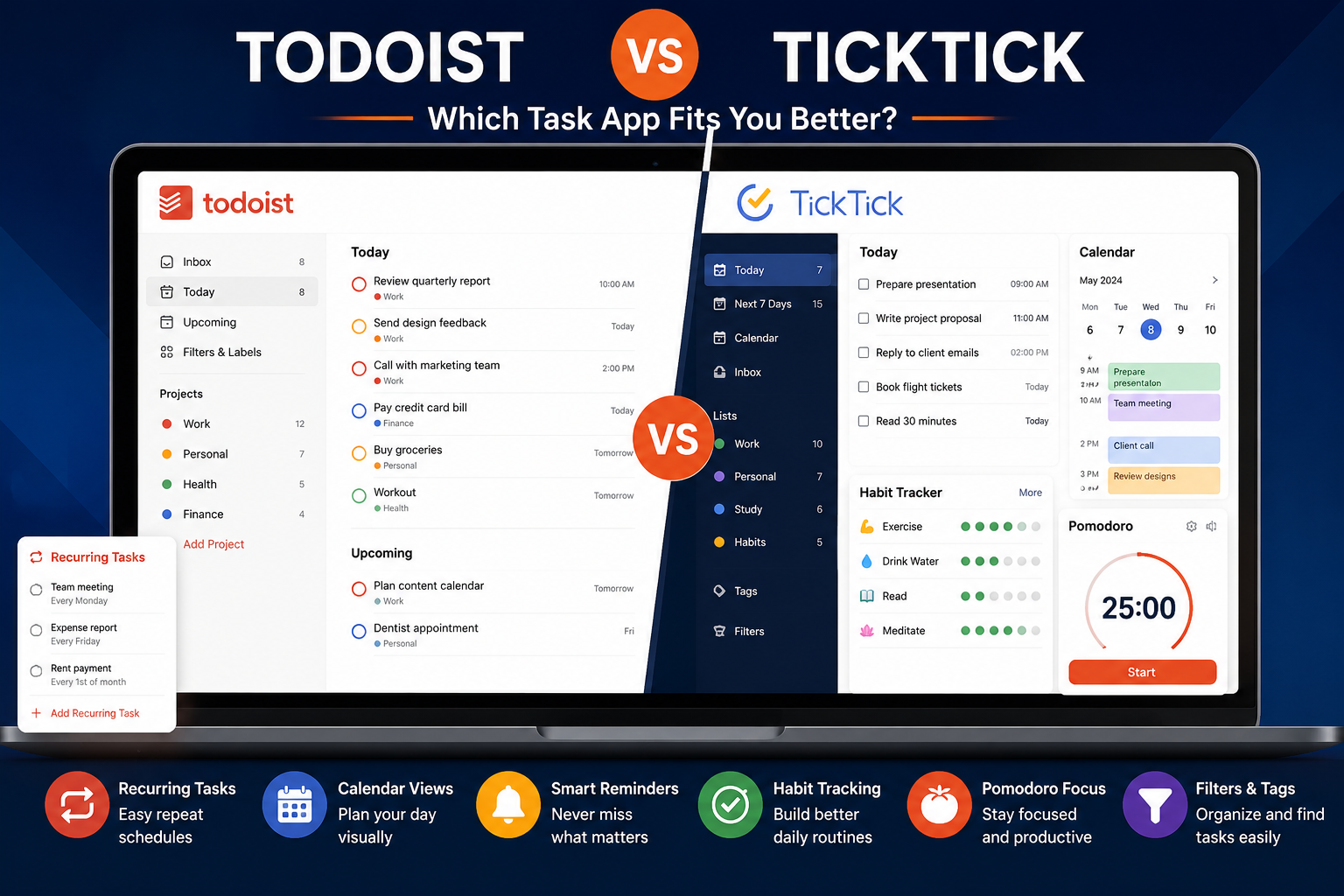
If a separate task manager would solve the problem more cheaply, compare Todoist vs TickTick before paying for a dedicated planner.
The Personal Setup We Recommend
For ordinary personal planning: Use Google Calendar, Outlook Calendar or Apple Calendar. Keep fixed appointments, recurring commitments, travel and a small number of protected focus blocks there.
For tasks plus time: Pair the calendar with Google Tasks, Microsoft To Do, Apple Reminders, Todoist or TickTick. Upgrade only when moving tasks into the week remains a recurring problem.
For controlled time blocking: Try Akiflow’s seven-day trial with a real week of work. Cancel before renewal if the daily planning ritual does not save enough time to justify the subscription.
For automatic planning: Try Motion with realistic task durations and both work and personal calendars connected. Judge it by whether it reduces rescheduling, not by how full it makes the calendar look.
Privacy and Calendar Data
Calendar entries can contain names, locations, meeting links, notes and attachments. Connecting a third-party planner or calendar interface therefore expands the number of services that may process calendar data. Review the requested permissions before connecting an account, remove integrations you no longer use, and avoid placing sensitive information in an event title when it is not necessary.
We cannot confirm that one app is categorically “the most private” for every user and configuration. The providers use different architectures, account integrations and policies, and privacy outcomes depend on which accounts and permissions you connect.
Final Recommendation
Google Calendar remains the best calendar app for personal use for most people. It is free for core personal scheduling, broadly accessible, supports multiple calendars and sharing, and now gives Google Tasks a more useful place in the calendar through start times and planned duration.
Choose Outlook instead when Microsoft email, To Do and Windows are already central. Choose Apple Calendar when the household is Apple-first and integrated Reminders matter. Pay for Fantastical when several calendar providers need a better interface, Akiflow when you want direct control over task-to-time planning, or Motion when automatic replanning solves a demonstrated problem.
The right upgrade path is simple: begin with the free calendar closest to your existing accounts. Add a task manager if necessary. Pay for a planning layer only after you can name the weekly friction it removes.
Frequently Asked Questions
What is the best calendar app for personal use?
Google Calendar is the best default for most people because its core personal service is free, widely accessible and integrated with Google Tasks. Outlook is better for Microsoft users, while Apple Calendar is the natural choice for Apple-first households.
What is the best free calendar app?
Google Calendar, Outlook Calendar and Apple Calendar all cover ordinary personal scheduling without a separate calendar subscription. The best choice depends primarily on the accounts and devices already in use.
Which calendar app is best for multiple accounts?
Fantastical is the strongest paid specialist for combining providers and controlling views with Calendar Sets. Outlook is a strong free desktop option for Microsoft, Gmail, Yahoo, iCloud and Exchange accounts. Google Calendar and Apple Calendar also support multiple accounts, with platform-specific limitations.
Which calendar is best for reminders?
Apple Calendar is particularly strong because scheduled Reminders can appear beside events and event alerts can include Time to Leave. Google Calendar is also strong because dated Google Tasks appear in Calendar and can trigger notifications.
What is the best calendar app for time blocking?
Google Calendar, Outlook and Apple Calendar are sufficient for manual time blocking. Akiflow is better for a structured task-to-calendar workflow, while Motion is better when tasks should be scheduled and rescheduled automatically.
Is Fantastical worth paying for?
It is easiest to justify when several calendar providers, Calendar Sets, templates, natural-language entry and advanced alerts are used frequently. Occasional users should test the free tier before subscribing.
Is Akiflow better than Motion?
Akiflow is better for people who want to control where tasks are placed. Motion is better for people who want automatic scheduling and replanning. Neither is automatically better for a simple appointment calendar.
Do I need an AI calendar?
Usually not. An AI planner becomes useful when manually rebuilding the schedule is a frequent, measurable problem. Appointments, recurring events and basic focus blocks are normally handled well by a free calendar.