Best Productivity Apps for Students in 2026
Best Productivity Apps for Students: Quick Verdict
A good student productivity system should make university feel simpler.
Unfortunately, productivity apps have a habit of doing the opposite. It is easy to spend an evening building a beautiful Notion dashboard, color-coding a calendar, configuring recurring tasks, testing three Pomodoro timers, and ending the night having studied absolutely nothing.
So this guide starts from a different premise:
You probably do not need the most powerful productivity app. You need the smallest system that reliably tells you what to do, when to do it, and where your notes are.
For most students, these are the strongest choices:
| What You Actually Need | Best Choice |
|---|---|
| One workspace for notes, assignments and semester planning | Notion |
| Fastest way to manage assignments and deadlines | Todoist |
| Tasks + calendar + Pomodoro in one app | TickTick |
| Lecture notes, handwriting and diagrams | Microsoft OneNote |
| Deep, connected long-term notes | Obsidian |
| Class schedule and time blocking | Google Calendar |
| Best free student value | Notion Education + Google Calendar |
| Simplest overall setup | Todoist + Google Calendar + your existing notes app |
My overall pick is Notion for students who genuinely want one central academic workspace.
But that comes with an important qualification: Notion is not automatically the best choice for every student. If your main problem is forgetting assignments, Todoist is easier. If you handwrite lecture notes on a tablet, OneNote makes more sense. And if procrastination is the issue rather than organization, TickTick’s built-in focus tools may help more.
That distinction is what matters.
Do Not Build a Second University Inside Your Productivity App
Before comparing apps, separate the four jobs a student productivity system actually needs to perform.
You need somewhere to keep notes and reference material, somewhere to track things you must complete, somewhere to see time commitments, and ideally a low-friction way to decide what deserves your attention today.
Those jobs do not necessarily have to live inside one application.
That is why a carefully configured Notion workspace can be excellent for one student and a complete distraction for another. Notion can technically manage classes, lecture notes, assignments, readings, exams, projects and calendars. But every layer you add creates something else that has to be maintained.
A simpler student might get better results from OneNote for lectures, Todoist for assignments and Google Calendar for time.
The goal is not to build the cleverest system.
It is to stop wondering where your chemistry notes went while an essay deadline quietly approaches.
The Best Student Productivity Apps Compared
| App | Free Plan | Student Offer | Best Student Use |
|---|---|---|---|
| Notion | Yes | Free Education Plus for eligible college/university students | All-in-one academic workspace |
| Todoist | Yes | No major dedicated education plan required | Assignments and deadlines |
| TickTick | Yes | 25% off annual Premium for eligible students | Study planning and focus |
| OneNote | Yes | Often available through school Microsoft accounts | Lecture notes and handwriting |
| Obsidian | Yes | 40% off Sync and Publish | Connected study notes |
| Google Calendar | Yes | Core use is free | Schedule and time blocking |
One detail immediately stands out: students can build an excellent system without paying anything.
The paid features become useful mainly when you want sophisticated calendar views, large file storage, cross-device synchronization beyond what the free plan provides, AI functions, or more advanced organization.
1. Notion: Best All-in-One Productivity App for Students
Notion is the obvious place to start because it can absorb almost every part of student life.
A single workspace can contain course pages, lecture notes, assignment databases, reading lists, revision checklists, group-project material and a semester dashboard. Its databases support subtasks, dependencies and custom properties, while Notion Calendar can connect calendars alongside your tasks. The current Free plan remains unlimited for pages and blocks when used individually, though individual uploads are limited to 5 MB and page history is seven days.
That flexibility is powerful.
It is also Notion’s biggest trap.
Where Notion Works Brilliantly for Students
Imagine you have five courses.
Instead of creating five unrelated folders, you create one Courses database. Each course connects to an Assignments database. Every assignment has a deadline, status, course, type and priority. Your dashboard then automatically shows what is due this week.
Open the history course and your lecture notes sit beside its assignments. Open the statistics course and you see the exam date, revision topics and attached material.
This is where Notion feels substantially different from a conventional to-do app.
You are not only storing tasks. You are connecting information.
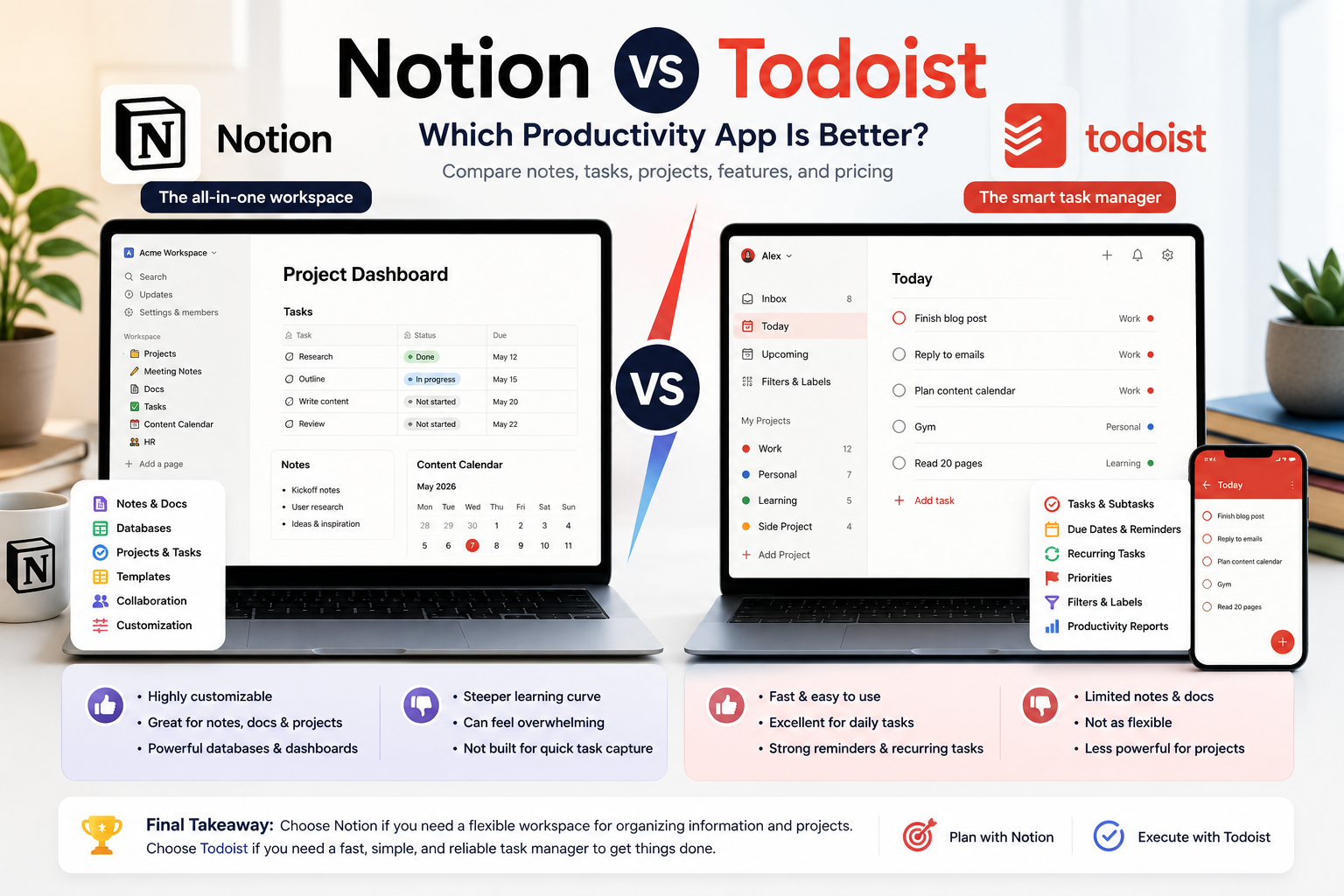
Our Notion vs Todoist comparison goes deeper into this distinction: Notion is fundamentally better at building a workspace around information, while Todoist is designed around completing tasks.
The Student Plan Is Exceptionally Good
Eligible university and college students can currently receive Notion’s Plus plan for free using an institutional email address from an accredited institution recognized through WHED. The individual Education Plus workspace is limited to one member but supports up to 100 guests, unlimited uploads and 30 days of page history.
This is important because Notion’s normal US Plus price is currently listed at $10 per member per month.
For an eligible student, that makes Notion unusually strong on value.
There is one limitation worth understanding before recommending it blindly: Education Plus does not mean unlimited Notion AI. Notion currently treats AI usage on the Free and Plus plans as a limited trial; broader ongoing AI capabilities sit higher in the plan structure.
That is an easy detail to miss in older student guides.
Notion Is Becoming Better Offline, Too
Notion’s current pricing documentation now lists offline use across desktop and mobile plans. Free users can choose pages to download for offline access, while paid tiers can automatically download recent and favorite pages.
That makes it more practical for commuting, unreliable campus Wi-Fi or reviewing material away from a connection than older descriptions of Notion suggest.
Where Notion Starts Wasting Your Time
Notion becomes counterproductive when organization turns into a hobby.
If you spend longer configuring properties, formulas, icons and dashboard widgets than reviewing what is actually due, the tool has won and you have lost.
A student does not need an elaborate “second brain” on the first day of class.
Start with three things: courses, assignments and notes.
Add complexity only when a real problem appears.
Notion Verdict
Best for: Students who want notes, assignments and academic planning connected in one place.
Skip it if: You want to open an app, type “Essay Friday 5pm,” and immediately return to studying.
2. Todoist: Best for Students Who Just Need to Get Things Done
Todoist is much less ambitious than Notion.
That is precisely why many students will use it more consistently.
You open it, capture an assignment, give it a deadline and move on.
Todoist’s current free Starter plan includes five personal projects, due dates and times, priorities, subtasks, task reminders, three custom filter views, one week of activity history, email/calendar integrations and 5 MB file uploads.
For a student, five projects can be enough if you avoid creating one project for every microscopic part of your life.
For example, you could use:
University, Personal, Applications, Admin, and Someday.
Inside University, labels or sections can separate subjects.
That works better than building twenty projects simply because the software allows you to.
Todoist’s Strength Is Capture Speed
The difference becomes obvious at the end of a lecture.
Your professor says:
Read chapters 7 and 8 before Thursday and submit the reflection by Sunday.
In Notion, you may open the database, select the course, choose an assignment type, set the status and enter the deadline.
In Todoist, you can capture the task almost immediately using natural-language-style quick entry and continue packing your bag.
For students whose problem is forgetting work rather than organizing knowledge, this distinction is significant.
Todoist has also expanded its capture options with reminders, integrations and voice-oriented entry tools on its current plans.
When Todoist Pro Becomes Worth Paying For
The free plan is enough for many students.
Pro becomes more interesting when you want the dedicated calendar layout, task duration, more extensive filtering, custom reminders, full history and a dramatically higher project limit. Todoist currently prices Pro at $7 when billed monthly or $60 per year, which works out to $5 per month on annual billing.
Do not upgrade simply because you like Todoist.
Upgrade when the free plan creates a specific problem.
For example, if your course load would benefit from visually dragging study tasks into a calendar and assigning durations, the Pro calendar becomes much easier to justify.
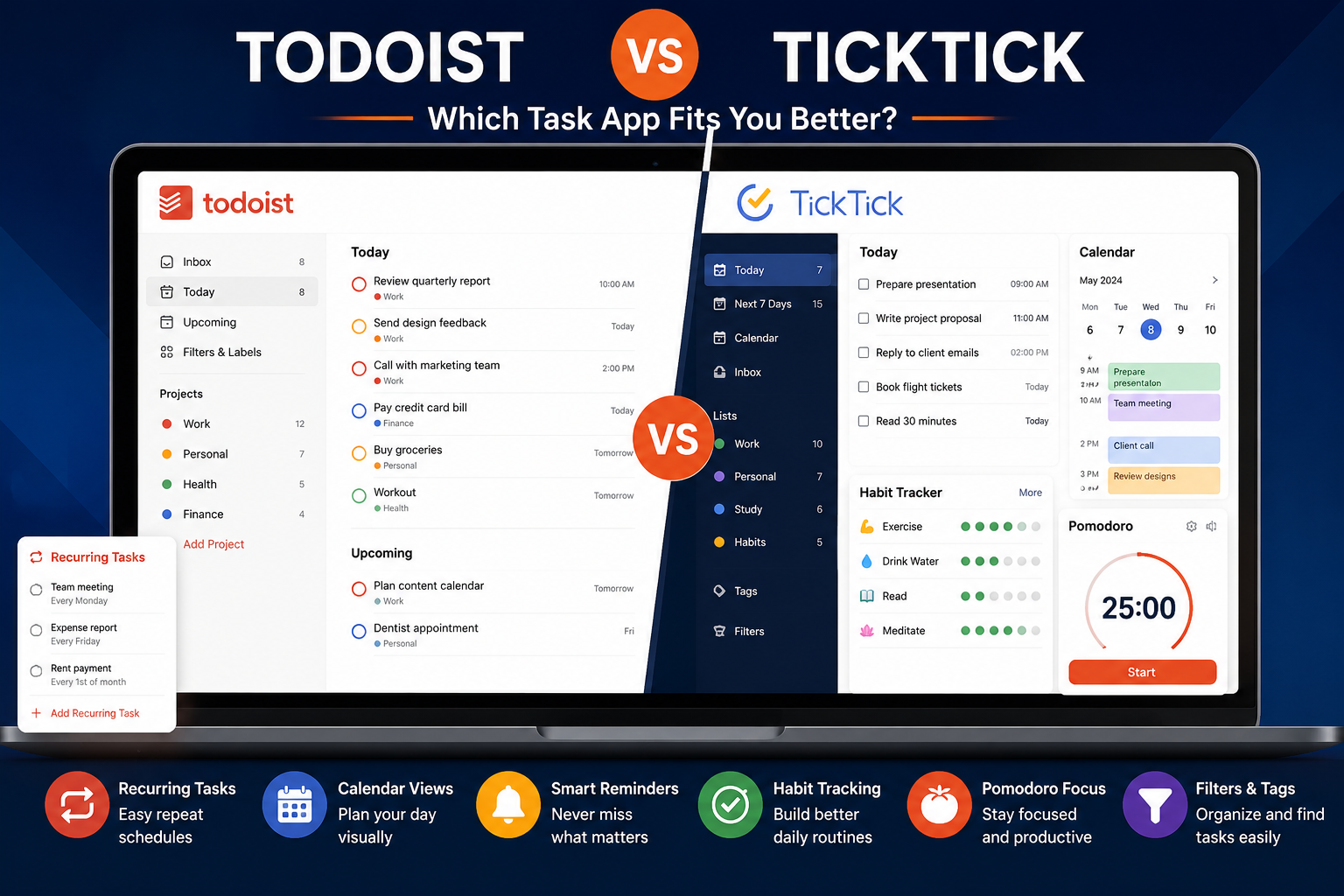
Our Todoist vs TickTick comparison is particularly relevant here because TickTick offers a different philosophy: more productivity tools inside one application versus Todoist’s cleaner task-first approach.
Todoist Verdict
Best for: Students who want deadlines out of their head and into a reliable task manager.
Skip it if: Lecture notes and study material need to live beside the assignments themselves.
3. TickTick: Best for Students Who Need Help Starting the Work
There is a subtle difference between knowing what needs to be done and actually sitting down to do it.
TickTick is the app in this guide that addresses both.
Its platform combines task lists with calendar planning, habit tracking, an Eisenhower Matrix and a built-in Pomodoro focus system. TickTick describes its Pomodoro workflow around focused sessions—typically 25 minutes followed by a short break—while its wider app integrates tasks, calendars and habits into the same environment.
That combination fits student life surprisingly well.
You can create:
Finish economics essay
and then start a focus session against that actual task rather than opening a completely separate Pomodoro app.
That sounds like a small convenience.
During exam season, small conveniences are often the difference between using a system and abandoning it.
TickTick Makes More Sense Than Todoist for Some Students
Suppose you want to see assignments on a calendar, track a daily reading habit and use Pomodoro sessions while revising.
Todoist can handle the assignments beautifully, but you would need other tools for parts of that routine.
TickTick’s product is intentionally broader. Its current feature set includes calendar views, task management, reminders, habits, Pomodoro, statistics and cross-platform integrations.
Premium unlocks the complete calendar feature set, including additional calendar views, task start and end dates and subscriptions to external calendars. TickTick’s public upgrade page currently advertises an annual Premium offer at $35.99, discounted from a displayed $49.99 standard annual price. Because this is explicitly presented as a limited-time offer, the checkout price should be rechecked before publication or purchase.
TickTick Has a Real Student Discount
Eligible students and educators can currently apply for a 25% discount on the annual Premium plan. TickTick’s education page lists the discounted annual price as $26.99 and requires education verification. The discount lasts one year and can be reapplied for, subject to the program’s eligibility rules.
That makes TickTick one of the more interesting paid choices in this article.
At roughly the cost of a couple of coffees each semester, a student can combine a task manager, study calendar, habit tracker and focus timer instead of subscribing to several products.
TickTick Verdict
Best for: Students who want tasks, study scheduling and focus sessions in one app.
Skip it if: You already have a calendar and only need a beautifully simple task list.
4. Microsoft OneNote: Best for Lecture Notes and Handwriting
OneNote is easy to overlook because it has existed for so long.
For actual classroom use, that maturity is a strength.
The fundamental structure of notebooks, sections and pages maps naturally to education. A notebook can represent a semester, sections can represent subjects, and pages can represent lectures or topics.
More importantly, OneNote does something database-focused productivity apps never feel quite as natural at doing: free-form notes.
You can type beside an image, annotate diagrams, draw arrows, handwrite equations and place material around a large canvas rather than forcing everything into rigid blocks.
Microsoft’s supported OneNote versions are free to download and use, with optional premium functionality unlocked through Microsoft 365. OneNote is available across Windows, macOS, web, iPhone, iPad and Android.
OneNote Is Particularly Good With a Tablet
On supported tablets, OneNote lets students write and draw using a finger or compatible stylus, choose different pens and highlighters, sketch diagrams and annotate material directly on the page.
For mathematics, engineering, chemistry, medicine or any subject where notes contain diagrams and equations rather than paragraphs alone, that matters.
Typing everything into a structured productivity database can feel ridiculous when the lecturer is drawing an electrical circuit or deriving an equation on the board.
OneNote lets the notes look more like the class.
The Free Version Is Enough for Most Students
A free Microsoft account currently includes 5 GB of OneDrive cloud storage, as well as access to web and mobile Microsoft apps including OneNote.
Students who already receive Microsoft 365 through their university may have significantly more storage and desktop-app access through their institution.
For people purchasing it independently in the US, Microsoft 365 Personal currently costs $9.99 per month or $99.99 per year and includes 1 TB of cloud storage plus desktop Word, Excel, PowerPoint, Outlook and OneNote with supported Copilot capabilities.
I would not buy Microsoft 365 purely to unlock more OneNote features unless you also need the wider Office package.
And What About AI?
Microsoft continues to expand Copilot inside OneNote. Current supported capabilities include summarizing notes, creating task lists, rewriting material and generating content from existing notes, while newer “Take notes with Copilot” functionality is rolling out and can pull information from Microsoft 365 documents, messages and emails into a OneNote canvas for eligible users.
These capabilities require eligible Microsoft 365/Copilot access and should not be confused with the basic free OneNote experience.
If note-taking is your main concern, our Best Note-Taking Apps for Personal Use guide compares OneNote with broader alternatives outside a student-only context.
OneNote Verdict
Best for: Lectures, handwritten notes, diagrams and students already using Microsoft 365.
Skip it if: You want your notes to behave like interconnected databases or a structured knowledge graph.
5. Obsidian: Best for Students Building Knowledge Over Several Years
Obsidian is not the easiest app in this guide to recommend to a first-semester student.
It may be the most interesting one for someone studying a subject where ideas keep connecting over several years.
Unlike cloud-first tools, Obsidian stores your notes locally and works around Markdown files inside what it calls a vault. The core application is currently free without usage limits and does not require registration.
That local-first model changes the experience.
Instead of thinking:
Which folder does this note belong in?
you can think:
What other concepts does this connect to?
That can work exceptionally well for subjects such as law, philosophy, medicine, history, computer science or research-heavy postgraduate study where material from one course repeatedly reappears somewhere else.
Obsidian Is Better as a Knowledge Tool Than a Semester Planner
You can install plugins and turn Obsidian into a task manager, calendar, project manager and almost anything else.
I would not recommend doing that immediately.
Its real advantage is long-term notes.
Imagine creating one note for contract formation, another for consideration, another for remedies, and linking them naturally as concepts reappear across modules.
Two years later, those notes can still form part of the same knowledge structure.
That is a fundamentally different purpose from a Todoist task disappearing after you check it off.
Obsidian Pricing Is Student-Friendly
The core application is free. Obsidian’s optional first-party Sync service currently costs $4 per user per month when billed annually or $5 when billed monthly. Sync includes cross-device synchronization, end-to-end encryption, version history and shared vault capabilities.
Students and educators can currently receive 40% off Obsidian Sync and Publish after education verification.
You do not have to pay for Sync to use Obsidian itself.
That distinction is important because many students can start completely free and decide later whether first-party synchronization is worth paying for.
Obsidian Verdict
Best for: Students building deep, linked notes they want to keep beyond one semester.
Skip it if: You want something immediately intuitive for deadlines and daily planning.
6. Google Calendar: The Boring App You Probably Need Anyway
Google Calendar is not exciting.
That is part of its appeal.
You should not have to open a complicated productivity dashboard just to answer:
When is my statistics lecture?
Google Calendar handles events, recurring classes, multiple calendars, shared schedules and tasks. A standard Google Account can be used to create events, assign tasks, share schedules and maintain multiple calendars.
Students can also create tasks directly in Calendar, assign dates, start times, durations and deadlines, and see dated tasks alongside scheduled events.
For most students, that is enough.
If calendar planning is your main priority, our guide to the best calendar apps for personal use compares dedicated options beyond general productivity platforms.
The Calendar Should Hold Time, Not Your Entire Life
A useful distinction is:
Calendar = when something happens.
Task manager = what needs to happen.
Your Tuesday chemistry lecture belongs in Google Calendar.
“Complete chemistry problem set” belongs in Todoist, TickTick or Notion.
If you decide to study chemistry from 7pm to 8:30pm tonight, that can return to the calendar because you have turned an intention into a block of time.
This prevents the common mistake of creating twenty all-day calendar entries that are really just unfinished tasks.
Google offers more advanced scheduling features through eligible Google One and Workspace subscriptions, but ordinary student use does not require them. Some advanced appointment-scheduling functionality is explicitly reserved for eligible paid plans.
Google Calendar Verdict
Best for: Class schedules, exam dates and realistic time blocking.
Skip it if: You are trying to replace a real task manager with a calendar full of vague reminders.
The Free Plans Are Better Than Most Students Need
Here is the part I would pay attention to before subscribing to anything.
| Tool | What You Can Realistically Do for $0 |
|---|---|
| Notion | Unlimited individual pages and blocks, databases, basic Notion Calendar, limited AI trial |
| Notion Education | Eligible higher-ed students get Plus free |
| Todoist | 5 projects, reminders, priorities, subtasks, basic integrations |
| TickTick | Core task management and productivity workflow |
| OneNote | Full basic note-taking across supported platforms |
| Obsidian | Core app completely free |
| Google Calendar | Events, schedules, multiple calendars and tasks |
Notion is the standout because eligible university students receive Plus without paying.
TickTick deserves attention because its education discount reduces annual Premium by 25%.
Obsidian offers a 40% education reduction on its optional Sync and Publish services while leaving the core application free.
Todoist is less student-specific, but its free Starter tier already includes enough core functionality to operate as a serious assignment manager.
In other words, you should have a specific reason before paying for student productivity software.
The Student Setup I Would Recommend
I would not install all six apps.
For most students, I would use three layers:
Google Calendar for fixed commitments, Todoist or TickTick for actionable work, and Notion, OneNote or Obsidian for information.
That is enough.
The Simplest Setup
Use Google Calendar + Todoist + OneNote.
Classes and exams go into Calendar. Assignments and study tasks go into Todoist. Lecture notes go into OneNote.
Almost no configuration is required.
The All-in-One Setup
Use Notion + Notion Calendar.
Build one Courses database, one Assignments database and course pages for your notes.
This is particularly attractive for university students eligible for the free Education Plus plan.
The Procrastination Setup
Use TickTick + OneNote.
TickTick controls tasks, schedule and focus sessions. OneNote holds the actual course material.
This avoids creating a sophisticated workspace when the real problem is starting the work.
The Knowledge-Heavy Setup
Use Obsidian + Todoist + Google Calendar.
Obsidian becomes your long-term academic knowledge base. Todoist handles deadlines. Calendar handles time.
This is the setup I would favor for multi-year degrees where today’s notes may still matter two or three years from now.
A 30-Minute Back-to-School Setup
You do not need a Sunday afternoon productivity ritual.
Start by putting your fixed semester timetable into your calendar as recurring events. Add confirmed exam dates and important institutional deadlines.
Then create one task-management location and enter every assignment you already know about. Do not add elaborate priorities until you have actual competing deadlines.
Finally, choose one home for your notes and create only the subjects you are currently studying.
That is the entire system.
Use it for a week.
If something repeatedly annoys you, fix that problem.
Do not redesign everything because somebody on YouTube has a prettier dashboard.
Where AI Fits Into a Student Productivity System
AI is useful, but it should sit on top of your study system rather than become the system itself.
For example, you might take lecture notes in OneNote or Notion, then use an AI assistant to summarize difficult material, generate practice questions, explain a concept differently or convert raw notes into a revision structure.
The source material should remain accessible independently of the AI output.
That matters because generated summaries can omit nuance, misunderstand terminology or make confident factual errors.
Students comparing general-purpose assistants can read our ChatGPT vs Claude guide, which looks more closely at prompt following, document work and factual research.
Notion and Microsoft are also integrating AI directly into their productivity products, but current access varies by plan. Notion limits AI usage on Free and Plus plans to trial access, while eligible Microsoft 365 subscriptions can unlock Copilot features in OneNote.
Do not pay for an app solely because the pricing page says “AI.”
Ask whether the AI feature solves something you were already doing manually.
What Students Should Actually Pay For
Pay when the upgrade removes friction you encounter every week.
Todoist Pro makes sense if the calendar layout and task-duration planning genuinely improve your workload planning. Its current pricing is $7 monthly or $60 annually.
TickTick Premium is easier to justify when you use its deeper calendar tools and want the integrated focus workflow, particularly because eligible students can reduce the annual price through the education offer.
Obsidian Sync is worth considering when you use Obsidian seriously across a laptop, tablet and phone and want first-party encrypted synchronization.
Microsoft 365 is worth paying for when Word, Excel, PowerPoint, OneDrive and OneNote collectively matter—not simply because you want a premium note-taking app. Microsoft’s current US Personal plan is $9.99 monthly or $99.99 annually and includes 1 TB of storage.
And eligible university students should check the Notion Education offer before paying for Notion Plus at all.
Final Recommendation
There is no single best productivity app for students because student productivity is not one job.
Notion is my overall recommendation for students who want one connected workspace and are willing to maintain it. The free Education Plus offer makes it particularly compelling for eligible university students.
Todoist is the safer recommendation for students who simply want to stop forgetting assignments. It is faster, less distracting and easier to maintain.
TickTick is the better choice when procrastination and study planning are part of the problem, because tasks, calendar planning and Pomodoro-style focus live closer together.
OneNote remains one of the best actual classroom tools, particularly for tablet users, handwritten notes, equations and diagrams.
Obsidian is the most interesting long-term choice for students who want their notes to become a connected knowledge base rather than a collection of semester folders.
And Google Calendar should probably be part of the system regardless of which of the others you choose.
The important part is not downloading the right six apps.
It is knowing where three things live:
When do I have to be somewhere?
What do I need to finish?
Where is the information I need to do it?
If your system answers those questions in a few seconds, it is already doing its job.
Frequently Asked Questions
What Are the Best Productivity Apps for Students in 2026?
For most students, Notion is the strongest all-in-one choice, Todoist is best for task management, TickTick is excellent for combining planning and focus, OneNote works particularly well for lecture notes, Obsidian is strong for connected knowledge, and Google Calendar remains the simplest way to manage time.
Is Notion Free for Students?
Eligible students at accredited colleges and universities can currently receive a one-member Notion Education Plus plan free of charge by using an eligible institutional email address. The offer includes features such as unlimited uploads, up to 100 guests and 30-day page history.
Notion AI is not fully unlimited under that Education Plus access; Free and Plus plans currently receive limited AI trial usage.
Is Todoist Free Enough for College?
For many students, yes.
Todoist Starter currently includes five personal projects, reminders, priorities, subtasks, three filters, basic integrations and a week of activity history. Pro becomes more useful if you need the calendar layout, task durations, extensive filters or deeper history.
Is TickTick Better Than Todoist for Students?
TickTick is better when you want task management, calendar planning, habit tracking and Pomodoro-style focus in one product. Todoist is better when you prefer a more focused task-management experience.
Eligible students can currently receive 25% off TickTick’s annual Premium plan.
For a detailed comparison, see Todoist vs TickTick.
Is OneNote Still Free?
Yes. Microsoft states that supported OneNote versions can be downloaded and used for free, while certain premium capabilities require an optional Microsoft 365 subscription.
Is Obsidian Free for Students?
Obsidian’s core application is free for everyone, not only students. Optional Obsidian Sync and Publish subscriptions cost extra, and eligible students and educators currently receive a 40% discount on those services.
Should Students Use Notion or OneNote?
Choose Notion when organization and relationships between notes, assignments and projects matter most.
Choose OneNote when the act of taking notes is more important—particularly if you use handwriting, diagrams or a stylus.
Our Best Note-Taking Apps for Personal Use guide covers the broader trade-offs.
How Many Productivity Apps Should a Student Use?
Usually two or three are enough.
A calendar, a task manager and a note system cover nearly everything. Using six overlapping productivity apps often creates more administrative work rather than less.
What Is the Best Free Productivity Setup for a Student?
For an eligible university student, Notion Education Plus + Google Calendar is difficult to beat on value.
For someone who prefers separate tools, Todoist Free + OneNote + Google Calendar creates a capable system without requiring a subscription.