Descript Review 2026: Is It Worth It for Beginner Creators?
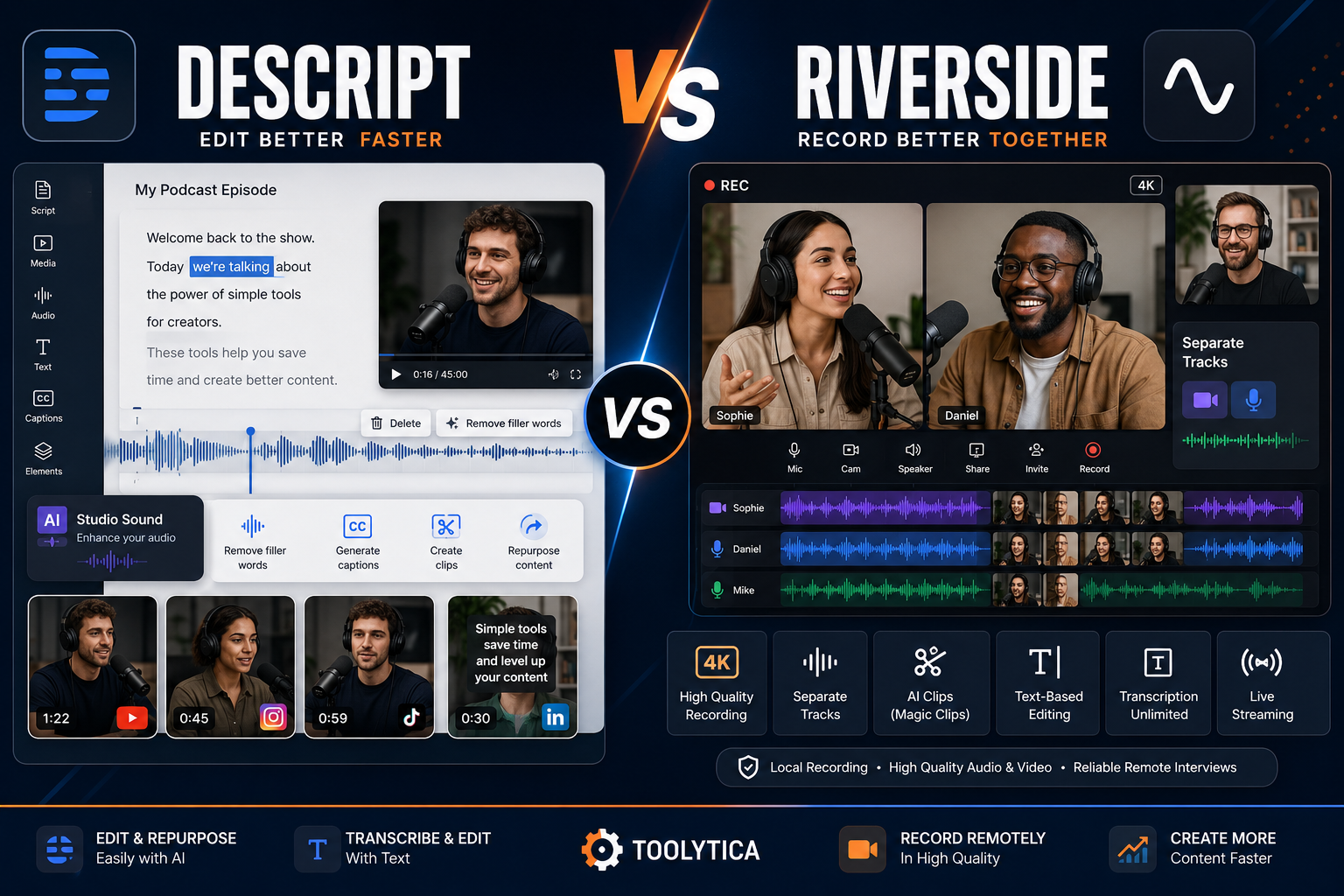
Descript makes an unusual promise: edit a podcast or video by editing its transcript. Delete a sentence from the text and the corresponding media disappears. Move a paragraph and the recording moves with it. For a beginner who understands documents better than timelines, that can remove one of the most intimidating parts of content production.
The promise is real, but it does not make Descript the easiest answer for every type of creator.
Descript is worth it for beginner podcasters, interviewers, educators, screen-recording creators, and people making talking-head videos. Its combination of transcription, text-based editing, captions, audio cleanup, screen recording, remote recording, and AI-assisted repurposing can replace several separate tools in a speech-led workflow.
It is less compelling for mobile-first creators, highly visual short-form editors, or anyone who needs advanced color, motion graphics, audio routing, codecs, and export controls. Descript has a timeline, scenes, layers, and effects, but its greatest advantage appears when spoken words form the structure of the project. If the edit is driven mainly by rhythm, imagery, animation, or music, a conventional editor may be a better long-term fit.
The practical verdict is:
- Use the Free plan to learn the workflow, not as a permanent production plan.
- Choose Hobbyist for occasional 1080p podcasts, tutorials, or talking-head videos.
- Choose Creator when you publish regularly, need 4K, use a substantial amount of AI, or want advanced timeline exports.
- Choose Riverside when remote recording quality and guest production come before editing.
- Choose CapCut for a mobile-first, effects-heavy social workflow.
- Choose DaVinci Resolve when you want deeper professional video control and accept a steeper learning curve.
- Choose Audacity when the job is audio-only and the budget is zero.
| Review Category | Toolytica Rating |
|---|---|
| Beginner accessibility | 4.6/5 |
| Transcript-based editing | 4.8/5 |
| Podcast and spoken-audio workflow | 4.6/5 |
| General video editing | 4.0/5 |
| AI assistance | 4.4/5 |
| Pricing and free access | 3.8/5 |
| Export and platform flexibility | 3.7/5 |
| Overall | 4.3/5 |
Descript Review: The Short Answer
Descript is an audio and video editor built around a transcript. It automatically turns recorded speech into editable text, keeps that text synchronized with the underlying media, and lets the creator make many editorial decisions as if working in a document.
That does not mean Descript has no timeline. It includes multitrack audio, scenes, visual layers, captions, transitions, animations, layouts, stock media, screen recording, remote Rooms, and conventional timing controls. The transcript is the front door rather than the entire building.
For beginners, that front door matters. Removing a bad take no longer requires identifying the right shape in an unfamiliar waveform. The creator can read the sentence, delete it, and preview the result. Filler words, long pauses, repeated takes, and transcript corrections are also easier to find when the spoken content is visible.
Descript becomes particularly useful when one recording needs to become several assets. A video interview can produce a cleaned full episode, animated captions, short clips, show notes, a summary, a YouTube description, and social copy in the same environment. Its Underlord assistant and individual AI tools can help with those steps.
The catch is that Descript’s current plans meter both imported or recorded media and AI use. Beginners must understand two separate allowances, and simply chatting with Underlord consumes credits. The Free plan also exports video at no more than 720p with a Descript watermark. It is a meaningful product test, but not a generous forever-free production setup.
Descript at a Glance
| Feature | Current Position |
| Core workflow | Edit audio and video by editing the synchronized transcript |
| Best use cases | Podcasts, interviews, tutorials, screen recordings, talking-head videos, repurposed clips |
| Desktop platforms | macOS and Windows |
| Browser version | Available at web.descript.com; some recording behavior differs from desktop |
| Mobile workflow | Mobile browser upload is a Labs feature; Descript Rooms is not supported on mobile |
| Transcription | 25 listed languages on current plans; multitrack transcription included |
| Free media allowance | 60 media minutes per month |
| Free AI allowance | 100 AI credits as a one-time allocation in current plan documentation |
| Free video export | Up to 720p; Descript watermark |
| First paid plan | Hobbyist: $24 monthly or $16/month equivalent on annual billing |
| 1080p export | Hobbyist and above |
| 4K export | Creator and above |
| Main limitation | Quotas, desktop-first workflow, and less control than a full professional editor |
Plans, limits, product documentation, and alternative pricing were checked on August 29, 2026. Prices may vary by location, currency, tax, promotion, and billing channel. Always confirm the total and renewal terms shown at checkout.
How This Descript Review Was Researched
This is a documentation-based editorial review. Toolytica did not run a controlled transcription-accuracy benchmark, render identical projects on multiple computers, or compare Descript’s AI output against every competing editor.
The review uses Descript’s live pricing table, current Help Center, privacy policy, terms, security page, and product documentation. Limits are treated as facts only when the company publishes them. Claims such as “industry-leading accuracy” are identified as vendor positioning, not converted into independent findings.
The ratings are Toolytica editorial judgments based on the needs of beginner creators: learning difficulty, how many production steps the tool consolidates, current plan limits, pricing clarity, export flexibility, platform access, and the amount of manual review still required. They are not customer-review averages.
This distinction matters because no transcription engine is accurate in every acoustic environment, and no AI editing tool can determine the creator’s intent every time. A fast first draft is useful. It is not the same as a finished edit.
What Makes Descript Different?
Most video editors teach the creator to think in tracks and time. Descript begins with language.
When a file is added to a script, Descript transcribes the speech and links every word to the relevant section of audio or video. Deleting text removes the linked media from the composition. Cutting and pasting a sentence moves the media with it. The source remains available because the edit is non-destructive.
This changes the first editing pass.
A conventional editor asks a beginner to scrub through a timeline, recognize waveform patterns, set in and out points, and make ripple edits. Descript lets that person read the conversation and remove the parts that do not belong. It is closer to editing an article than cutting tape.
That advantage is strongest in projects where the words carry the structure:
- a two-person podcast;
- an expert interview;
- a webcam presentation;
- a course lesson;
- a software tutorial with narration;
- a video essay built from a script;
- an internal training video;
- a long conversation that will become short social clips.
It is weaker when the transcript is only a small part of the creative decision. A music video, travel montage, cinematic short, gameplay edit, motion-graphics piece, or highly stylized vertical video may depend more on visual timing, compositing, keyframes, effects, color, and sound design. Descript can still participate, but it is no longer solving the hardest part of the job.
What Is the Learning Curve Like for a Beginner?
Descript is easier to enter than a professional nonlinear editor, but “edit like a document” should not be mistaken for “nothing to learn.”
A beginner still needs to understand the difference between the script track and visual layers, how scenes divide a project, how layouts control what appears on screen, and when a transcript change corrects text rather than cuts media. Audio levels, caption styling, aspect ratios, transitions, B-roll, and export settings still require decisions.
The good news is that those concepts can be learned in a practical order.
A Sensible First-Project Workflow
- Record or import a short piece of spoken media.
- Correct names, technical terms, speaker labels, and punctuation in the transcript.
- Read the transcript once without editing.
- Remove false starts, off-topic sections, and repeated answers manually.
- Shorten only the pauses that genuinely slow the piece.
- Apply Studio Sound lightly and compare it with the original.
- Add captions and divide the video into clear scenes.
- Add only the B-roll, titles, and graphics the viewer needs.
- Watch the entire export with headphones before publishing.
That order prevents a common beginner mistake: running every AI cleanup tool before understanding the material. Removing all filler words can make natural speech feel unnaturally tight. Aggressive audio enhancement can make a voice sound processed. Automatic clips can select a coherent passage that is not the passage the creator wants to represent the episode.
Descript makes edits easier to apply. It does not remove the need to listen.
Transcript-Based Audio and Video Editing
Text-based editing is the reason to choose Descript over a general editor.
The transcript is not a detached subtitle file. It controls the underlying composition. If a creator deletes a sentence, that time is removed from the edit. If the transcription is wrong but the audio is correct, Descript provides a correction mode that changes the displayed word without changing the media. It can also correct repeated occurrences, punctuation, capitalization, and speaker labels.
This distinction between correcting and deleting is important. Replacing a misspelled name should not remove the speaker’s audio. Removing a bad sentence should.
The workflow is especially effective for long recordings. It is faster to scan a 45-minute interview as text than to listen from the beginning every time the creator needs to locate one idea. Search also becomes a practical navigation tool: find a topic or phrase, then jump directly to that moment in the media.
Scenes, Layers, and the Timeline
Descript divides the script into scenes and allows visual elements to be attached to them. A scene might show the speaker, a screen recording, a title, a slide, or B-roll. Layers can include video, images, shapes, text, captions, and audio.
There is also a timeline for precise timing and multitrack work. This matters because a transcript cannot represent everything. Music, nonverbal reactions, visual cutaways, sound effects, and graphics still exist in time.
For a beginner, the combination is more forgiving than either extreme:
- the transcript handles the broad editorial cut;
- scenes organize visual changes;
- the timeline handles the exceptions that need precision.
The limitation is depth. Descript’s current export controls offer MP4 video and High, Medium, or Low quality presets, but not the detailed bitrate and codec controls expected in a high-end finishing workflow. Creator and Business plans can export timelines for further work in tools including Premiere Pro, Final Cut Pro, Pro Tools, Logic, Audition, Reaper, and Samplitude. That makes Descript useful as a rough-cut environment, but those exports are not included on Free or Hobbyist.
Transcription and Captions
Descript’s current pricing table lists transcription in 25 languages on every plan. It also includes multitrack transcription, which is useful when separate participant tracks need accurate speaker organization.
The company markets its transcription as highly accurate and fast. This review does not repeat that as a measured result. Accuracy depends on microphone quality, background noise, accents, crosstalk, room echo, specialist vocabulary, names, and how many people speak at once.
Expect a correction pass before publishing captions or a transcript. Pay particular attention to:
- people’s names;
- company and product names;
- medical, legal, scientific, or technical terms;
- numbers, dates, prices, and percentages;
- speaker labels during interruptions;
- punctuation that changes meaning;
- words spoken over music or noise.
Descript can export subtitle files in SRT or VTT format, including optional speaker labels and controls for characters and lines per card. It can also burn dynamic captions into a video and customize the font, colors, highlighting, and position.
The caption tools are one of Descript’s practical beginner strengths. They connect transcription, correction, styling, and export without requiring a separate captioning service. The responsible workflow is still to read the final captions while watching the video. Automatic text can be grammatically plausible and factually wrong.
Audio Editing and Studio Sound
Descript is particularly strong when the creator wants a polished spoken-word result without learning a full digital audio workstation.
Its editing tools include multitrack audio, level and volume controls, fades, music and sound-effect layers, filler-word removal, shorter word gaps, retake removal, and Studio Sound. Local audio export is available in formats including MP3 and WAV.
Studio Sound
Studio Sound uses AI to reduce background noise and improve vocal clarity. It can make a basic microphone or imperfect room more usable, which is valuable to a creator recording at home.
It is an enhancement tool, not a replacement for recording well. Heavy processing can emphasize artifacts, flatten the natural room sound, or produce a voice that feels detached from the video. Start with a moderate amount, compare before and after, and listen through both headphones and ordinary speakers.
Studio Sound also consumes AI credits on current plans. Descript’s Help Center currently lists it at 10 credits per use, but re-running it or invoking tools through Underlord may add consumption. Credit costs can change, so the usage panel is the authoritative place to check before processing a long project.
Filler Words, Gaps, and Retakes
Removing “um,” “uh,” repeated words, and false starts can accelerate a first pass. Descript currently prices Remove Filler Words at 10 AI credits per use in its usage documentation, with Remove Retakes and Shorten Word Gaps also listed at 10 credits per use.
Do not remove every hesitation automatically. Pauses can communicate thought, emotion, and emphasis. A podcast edited into uninterrupted speech is not always easier to listen to. Apply the tools, preview the edit points, and restore the ones that damage rhythm or meaning.
Video Editing for Talking Heads, Tutorials, and Social Clips
Descript’s video editor is most comfortable when a main speaker or narrated screen recording provides the backbone.
Creators can add titles, images, B-roll, captions, transitions, animations, shapes, music, templates, and stock media. Aspect ratios can be changed for different platforms. Screen and webcam recordings can be created inside Descript, and the editor can turn a long source into shorter clips.
This is enough for many beginner channels:
- software walkthroughs;
- educational explainers;
- podcast video;
- founder updates;
- simple product demos;
- interview excerpts;
- short clips from a webinar;
- presenter-led YouTube videos.
Where the Video Editor Feels Limited
Descript does not expose the same depth as DaVinci Resolve, Premiere Pro, or Final Cut Pro. It is not the natural first choice for advanced color grading, detailed keyframe animation, complex masking, large effect chains, sophisticated multicamera finishing, or precise delivery specifications.
Its local video export is MP4, and the current quality controls use High, Medium, and Low presets. That is friendlier for beginners but less suitable for a production workflow requiring a specific codec, bitrate, chroma format, or mastering standard.
Descript’s own Quick Design documentation is candid: the feature works best on single-speaker, simple-timeline content and produces a rough cut that still needs media swaps, pacing changes, and text review. Complex or multitrack compositions can be less predictable.
That is a fair description of Descript’s AI video workflow generally. It can remove repetitive setup and create a strong first version. It should not be treated as an automatic final editor.
Underlord and Descript’s AI Tools
Underlord is Descript’s AI co-editor. It can work across a project, respond to instructions, and call editing or generation tools. Descript also provides individual actions for audio cleanup, clips, summaries, scripts, titles, show notes, social posts, captions, translation, eye contact, green screen, avatars, and generated media.
For a beginner, the best AI functions are the ones that reduce mechanical work:
- identify potential highlights;
- remove obvious retakes;
- draft show notes from an edited episode;
- produce a first YouTube description;
- create captions;
- suggest short clips;
- improve a noisy voice recording;
- reformat a finished idea for another channel.
The riskiest use is delegating editorial judgment. Underlord does not know which caveat a guest considered essential, which joke should remain, whether a generated image fits the brand, or whether a summary has preserved the speaker’s position.
How AI Credits Work
Descript’s current plans use a shared AI-credit pool for tools such as Underlord, Studio Sound, Green Screen, Eye Contact, AI Speech, avatars, and generated video.
The system has several details worth understanding:
- unused monthly credits do not roll over;
- even ordinary chat messages to Underlord consume a small number of credits;
- using a tool through Underlord may add reasoning credits on top of the tool’s own cost;
- some actions have fixed published costs, while generated media varies by length and model;
- Creator and Business plans can buy top-ups, while Free and Hobbyist currently cannot;
- project-level collaborators cannot consume AI credits or media minutes; full usage requires a Drive-level Editor role.
Current examples in Descript’s Help Center include 30 credits for Create Clips, 15 for Edit for Clarity, 10 for Remove Filler Words, 10 for Studio Sound, 10 for Eye Contact, and about four credits per minute for Smart Zoom. These are planning figures, not permanent promises. Check the in-product cost because Descript says costs may vary.
The credit system is flexible, but it also makes the subscription less predictable than a simple unlimited-feature plan. A creator who uses only transcript editing may barely notice it. A creator repeatedly generating video, avatars, speech, and clips can spend the allowance much faster.
AI Speech, Voice Cloning, and Regenerate
Descript’s AI Speakers can generate narration from stock voices or a custom model of the creator’s voice. A custom speaker can be trained from a short authorized recording and used to correct mistakes or generate new speech without re-recording.
This can be genuinely useful for a one-word correction, a changed number, or a short bridging phrase. It is less reliable as a substitute for performing an entire emotionally nuanced script. Tone, pacing, pronunciation, and continuity still need review.
Descript requires consent for custom voices. Its ethics statement says the voice owner must provide verbal consent verification, and its terms prohibit unauthorized voice cloning. The current privacy policy also deserves attention: AI Speaker training data may be stored and used in de-identified research datasets, and employees or contractors may listen to samples for quality testing and misuse monitoring.
Video Regenerate can also modify a short A-roll passage so revised speech and the speaker’s visual performance match more smoothly. The current beta is limited: it works on single-speaker A-roll, is English-only, has a 250-character limit per action, and requires consent for facial modification. It is a repair tool, not a general way to rewrite a multi-person interview after recording it.
Recording: Screen Recorder and Descript Rooms
Descript includes two recording directions.
Screen and Editor Recording
The desktop recorder can capture a microphone, camera, screen, and computer audio. It is practical for tutorials, demos, lessons, and async updates because the recording arrives in the same environment used to transcribe and edit it.
Current sessions are limited to four hours. Windows does not currently support 4K screen recording. In the browser version, screen recording can capture audio from the selected browser tab rather than system-wide audio, so desktop is the safer option for a tutorial that depends on sound from multiple applications.
Descript Rooms
Rooms is a browser-based remote recording space for up to 10 participants. Current documentation says it can record video up to 4K when the camera and system support it and can generate separate 48 kHz lossless WAV files when enabled in a Chromium-based browser.
Rooms media usage is counted by session length rather than multiplied by participant count. A one-hour session with five people consumes 60 media minutes, not 300. That is a sensible billing rule.
Remote recording quality still depends on equipment, browser support, processing power, available disk space, and successful uploads. Guests should remain connected until their local files finish uploading. Record a short test before an important interview.
Rooms is not supported on mobile devices. This is a meaningful limitation if guests expect to join and record from phones. Riverside remains the more natural comparison when remote guest production, separate tracks, and the recording studio experience are the primary purchase reasons. See Toolytica’s Descript vs Riverside comparison for the workflow differences.
Descript Pricing in 2026
Descript currently offers Free, Hobbyist, Creator, Business, and custom Enterprise plans. The live pricing page shows annual monthly equivalents first and higher month-to-month prices beside them.
Current Descript Plans
| Plan | Annual Rate | Monthly Rate | Media Allowance | AI Credits | Maximum Local Video Export | Best Fit |
| Free | $0 | $0 | 1 hour/month | 100 one-time | 720p, watermarked | Learning the workflow |
| Hobbyist | $16/editor/month | $24/editor/month | 10 hours/month | 400/month | 1080p, no watermark | Occasional solo publishing |
| Creator | $24/editor/month | $35/editor/month | 30 hours/month | 800/month | 4K, no watermark | Regular creators and advanced AI use |
| Business | $50/editor/month | $65/editor/month | 40 hours/month | 1,500/month | 4K, no watermark | Teams, brand controls, translation, support |
| Enterprise | Custom | Custom | Custom | Custom | 4K | Large organizations and custom controls |
The annual rates are per editor per month on an annual billing selection. That corresponds to $192 for Hobbyist, $288 for Creator, and $600 for Business before tax if the full year is charged on that cycle. Confirm the actual total and billing date at checkout rather than budgeting from the monthly equivalent alone.
Paid subscriptions renew automatically according to the selected billing cycle. Descript says subscriptions can be canceled from the subscription page, but the public pricing page does not present a broad money-back guarantee. Read the checkout terms before committing to an annual plan.
What Counts as a Media Minute?
Media minutes are consumed when content is uploaded or recorded in Descript, whether or not the user chooses to transcribe it. That includes audio, video, Rooms sessions, editor recordings, screen recordings, and still images; Descript currently counts a still image as one second.
Unused monthly media minutes do not roll over.
This matters because the allowance is not simply “transcription hours.” Importing a finished video for visual editing uses media minutes even if its transcript is irrelevant. Reusing a file from Descript’s Media Library can avoid processing it again, so frequent creators should organize reusable intros, logos, music, and B-roll rather than re-uploading them.
Free Plan: Useful Test, Weak Long-Term Setup
The current Free plan includes:
- 60 media minutes per month;
- 100 one-time AI credits;
- text-based editing and 25-language transcription;
- captions, scenes, transitions, and basic editing;
- a 5 GB cloud-storage limit;
- file uploads up to 1 GB;
- local and web-link video export up to 720p;
- one-hour maximum video share pages;
- a Descript watermark on video exports;
- limited access to Underlord and AI tools;
- the first five stock-media results per search.
This is enough to learn whether editing through a transcript feels natural. It is not a strong plan for a continuing YouTube channel or client work. One hour of imported or recorded media can disappear during a single podcast session, the initial AI credits do not renew under the current documentation, and watermarked 720p video is mainly a trial output.
Some Descript tool pages still display snippets suggesting 100 free AI credits per month or watermark-free free export. The live plan comparison and current migration documentation instead show 100 one-time credits and no watermark-free video export on Free. This review uses the detailed current plan documentation. Verify the allowances inside a newly created account if Descript changes the rollout again.
Hobbyist: The Sensible Beginner Plan
Hobbyist is the strongest default for a solo beginner who publishes occasionally. It raises the media allowance to 10 hours per month, supplies 400 AI credits monthly, removes the watermark, raises export to 1080p, expands cloud storage to 100 GB, and allows file uploads up to 10 GB.
It also includes Underlord and tools such as Studio Sound, filler-word removal, Create Clips, custom AI Speech, and Video Regenerate within the credit allowance.
The limitations are important:
- no AI-credit or media-minute top-ups;
- no 4K export;
- no advanced timeline export;
- only one included seat;
- first 12 stock results per search rather than the unlimited Creator library;
- one-hour maximum for video share pages.
At $24 month to month, Hobbyist is not cheap for someone producing one short clip. At $16 per month on annual billing, it is more reasonable, but the annual commitment should follow a real test rather than precede one.
Creator: Best for Regular Publishing
Creator increases the allowance to 30 media hours and 800 AI credits per month. It supports 4K export, up to 1 TB of cloud storage, file uploads up to 20 GB and 5K resolution, advanced media formats, unlimited stock search results, timeline export, and the option to buy top-ups.
It can scale to three editors, although extra editors are billed separately. That phrase matters: “scale to a team of three” does not mean three seats are included in the $24 annual-equivalent price.
Creator is worth the difference when at least one of these conditions applies:
- the channel publishes weekly or more often;
- raw recordings regularly exceed 10 hours per month;
- 4K delivery matters;
- the creator uses AI tools enough to exhaust 400 credits;
- projects need to move into Premiere, Final Cut, Pro Tools, Logic, Audition, or another supported finishing tool;
- reusable stock media is part of most videos;
- individual uploads exceed Hobbyist’s 10 GB limit.
Do not upgrade only because the plan is named Creator. A beginner making two 1080p tutorials per month may get no practical benefit from it.
Business and Enterprise
Business adds 40 media hours, 1,500 AI credits, up to five paid editor seats, 2 TB storage, Brand Studio controls, proofread translation and dubbing in 30-plus languages, custom avatar generation, and priority support with an SLA.
Those are organizational features. They rarely justify $50 per editor per month on annual billing for an individual beginner.
Enterprise is relevant when a company needs custom media and credit pools, SSO, SCIM, audit logs, procurement terms, data controls, custom retention, onboarding, and a dedicated customer-success relationship.
Export Limits and File Handling
Descript can export local video, audio, GIFs, transcripts, and subtitle files, publish share pages, and send content to supported integrations. The current plan differences are substantial.
| Limit | Free | Hobbyist | Creator | Business |
| Local video resolution | 720p | 1080p | 4K | 4K |
| Watermark-free video | No | Yes | Yes | Yes |
| Video share-page duration | 1 hour | 1 hour | 3 hours | 3 hours |
| Audio export duration | Unlimited | Unlimited | Unlimited | Unlimited |
| Maximum upload size | 1 GB | 10 GB | 20 GB | 50 GB |
| Cloud storage | 5 GB | 100 GB | 1 TB | 2 TB |
| Batch export | No | No | Yes | Yes |
| Timeline export | No | No | Yes | Yes |
Descript does not upscale source quality. A 720p recording exported at 4K does not acquire real detail. The larger file only contains an enlarged version of the original pixels.
Direct YouTube export is supported, with the same plan-dependent resolution and duration limits, but it currently works only from Descript for Web. YouTube Shorts, brand channels, and shared-access channels are not supported by the direct workflow. Creators can always download the file and upload it manually.
The simpler export controls are good for a beginner who wants an MP4 without studying codecs. They are a limitation for a professional with a delivery specification. Creator’s timeline export is the bridge when Descript is used for the transcript cut and another application handles finishing.
Collaboration and Teams
Descript supports comments and live collaboration on every current plan. That sounds simple, but the roles have different capabilities.
A project-level Editor can make edits and export a shared project, but cannot upload media, record, or use features that consume AI credits or media minutes. Those actions require a Drive-level Editor. Paid editor seats add allowances to a shared pool, and extra seats are billed.
For a solo creator working with a reviewer, this can be efficient: invite the reviewer to comment at exact timestamps instead of collecting feedback in email. For a production team, calculate seat cost rather than reading the top-line plan price as the total.
Privacy, Security, and AI Training
Audio and video projects may contain unreleased work, client information, guest conversations, faces, voices, and personal data. Descript’s privacy settings deserve the same attention as its editing tools.
Descript says project information is treated as confidential and that automated processing does not involve human project access unless the user consents or access is legally required. Its privacy policy also says projects may be used to analyze and improve the service, including AI, but users can disable the Share Data with Descript setting to opt out of having projects used for service improvement.
The company states that it is SOC 2 Type II compliant. That is a useful security control, not a guarantee that every sharing choice is private. Published projects marked public may be indexed and viewed publicly. Use “anyone with the link” or project-restricted access when appropriate, and remove published pages when they are no longer needed.
AI Speakers receive special treatment. Descript requires consent, may create voiceprints for authentication and fraud prevention, and says those voiceprints can be retained until their purpose is satisfied or for up to three years after the account was last accessed, whichever comes first. The privacy policy also permits de-identified AI Speaker training data in research datasets and human quality review of samples.
For client, employee, student, patient, or confidential interview material:
- obtain recording consent;
- confirm who is authorized to upload the files;
- review the Share Data setting;
- avoid creating an AI voice without the speaker’s explicit authorization;
- use restricted project sharing;
- delete unused recordings and voice models according to the agreement governing the work.
Descript’s Main Limitations
1. Two Quotas Make Cost Harder to Predict
Media minutes and AI credits solve different problems, but beginners must watch both. A user can have enough recording time and no AI credits, or unused AI credits and no media minutes. Neither monthly pool rolls over.
2. The Free Plan Is a Trial in Practice
One media hour, a one-time AI allowance, 720p export, and a watermark are enough for evaluation but restrictive for ongoing public work.
3. Transcript Accuracy Still Needs Human Review
Names, numbers, jargon, accents, overlapping speech, and noisy rooms can produce errors. A readable transcript is not proof that every word is correct.
4. AI Cleanup Can Over-Edit Natural Speech
Removing every pause, filler, retake, and digression can make a conversation sound artificial or change its meaning. Automation needs a preview pass.
5. Advanced Video Finishing Lives Elsewhere
Descript handles common creator video well, but DaVinci Resolve, Premiere Pro, and Final Cut offer deeper color, compositing, effects, audio, and export control.
6. It Is Desktop-First
The full desktop app is for macOS and Windows. The browser editor exists, but some recording behavior differs. Rooms is not supported on mobile, and mobile upload remains a Labs workflow rather than a complete mobile editor.
7. Cloud Processing and Uploads Matter
Recorded and imported media is uploaded and processed. A slow connection, limited disk space, or a guest closing a recording tab before upload completes can disrupt the workflow. Important sessions need a test and a recovery plan.
8. The Best Features Consume Credits
Studio Sound, clips, eye contact, generated media, AI speech, and Underlord are central to Descript’s appeal. They are not unlimited merely because the plan includes them.
Descript Pros and Cons
Pros
- Text-based editing makes speech-led projects approachable.
- Transcript, captions, audio, video, recording, and repurposing live in one product.
- Non-destructive editing allows removed media to be restored.
- Strong spoken-audio tools for podcasts, interviews, and tutorials.
- Studio Sound and filler-word tools can save substantial cleanup time.
- Screen recording and Rooms reduce tool switching.
- Dynamic captions and subtitle export are built in.
- Underlord can coordinate multi-step edits and content repurposing.
- Creator supports 4K, large uploads, top-ups, and professional timeline exports.
- Comments and timestamped review links simplify feedback.
Cons
- Free video export is limited to watermarked 720p.
- Free AI credits are currently a one-time allocation.
- Media minutes are consumed by uploads and recordings, not only transcription.
- AI-credit usage can be difficult to predict and does not roll over.
- Hobbyist cannot buy top-ups or export professional timelines.
- Local video export lacks detailed codec and bitrate controls.
- No full mobile editing workflow; Rooms is unsupported on mobile.
- Complex visual, color, and motion work is better in a traditional editor.
- Transcript and AI output still require human review.
- Pricing scales per editor, so team cost rises beyond the advertised base rate.
Descript Alternatives
The right alternative depends on which part of Descript attracted the creator in the first place.
| Alternative | Better When | Current Cost Position | Main Tradeoff vs Descript |
| Riverside | Remote interviews, separate local tracks, guest production, podcast hosting | Free; Pro shown at $29 monthly or $24/month billed $288 annually | Recording-first workflow; Descript remains stronger as a transcript-led all-in-one editor |
| CapCut | Mobile and desktop short-form video, effects, templates, TikTok workflows | Free editor; Pro price varies by region, device, account, and checkout | Better social-native effects, but less centered on long spoken-content editing |
| DaVinci Resolve | Advanced editing, color, visual effects, motion graphics, Fairlight audio, Linux | Resolve 21 is free; Studio 21 is $295 | Far deeper control, much steeper learning curve |
| Audacity | Free offline audio recording and multitrack editing | Free and open source | Audio-only and no integrated text-based video workflow |
Descript vs Riverside
Choose Riverside when the recording session is the product: remote guests, separate local tracks, studio management, live production, and podcast hosting. Its current Pro plan includes up to 4K, 48 kHz audio, unlimited transcription, and 15 hours of separate-track downloads.
Choose Descript when editing and repurposing matter at least as much as recording. It is better suited to the creator who wants to revise the conversation as text, clean it, add scenes and captions, then create clips and supporting copy.
The products overlap more than they once did, so the deciding question is not “Which has AI?” Both do. It is “Is the hard part capturing the conversation or reshaping it afterward?”
Descript vs CapCut
Choose CapCut for fast, visually expressive, mobile-friendly social content. Its templates, effects, curves, keyframes, format tools, and direct TikTok orientation better match creators who build through images and rhythm.
Choose Descript for spoken structure, long recordings, podcasts, tutorials, and the transcript-to-content workflow.
CapCut does not publish one universal Pro amount; its current Help Center says the final price varies by region, device, account, promotion, taxes, and platform. Check the actual checkout amount rather than using a price from an old comparison.
Descript vs DaVinci Resolve
Choose DaVinci Resolve when learning a professional timeline is part of the goal. The free version includes editing, color, visual effects, motion graphics, Fairlight audio, and output up to 60 fps at Ultra HD 3840 × 2160 under Blackmagic Design’s current description.
Choose Descript when speed and speech-led editing matter more than deep technical control. A useful hybrid is to make the interview or podcast rough cut in Descript Creator, then export the timeline for finishing in Resolve or another professional editor.
Descript vs Audacity
Choose Audacity when the work is audio-only, local, and budget-sensitive. It is free, open source, runs on Windows, macOS, and Linux, and provides multitrack recording and editing.
Choose Descript when transcription, captions, video, remote recording, review links, and AI cleanup justify a subscription. Audacity offers more direct waveform editing but does not provide Descript’s integrated document-style workflow.
For a broader starter stack, see Toolytica’s guide to the best tools for new content creators.
Who Should Use Descript?
Descript Is a Strong Fit For
- beginner podcasters who want to edit conversations by reading them;
- YouTubers making tutorials, reviews, interviews, explainers, or talking-head videos;
- educators producing lessons and screen recordings;
- founders and small teams creating product demos and updates;
- creators repurposing long recordings into short clips and written assets;
- people who value captions and transcript export;
- editors using Descript for the rough cut before professional finishing;
- teams that need timestamped comments and browser-based review.
Descript Is Not the Best Fit For
- mobile-only creators;
- editors whose work is driven mainly by music, montage, animation, or complex effects;
- colorists and finishing editors who need detailed technical delivery controls;
- Linux users who want a native desktop app;
- creators who need an unrestricted free plan;
- teams unwilling to upload sensitive media to a cloud service;
- people expecting AI to finish content without a review pass;
- projects requiring guests to record through Descript Rooms on phones.
Which Descript Plan Should a Beginner Choose?
Start With Free If You Are Still Testing the Editing Model
Import a 10- to 20-minute recording, correct the transcript, make cuts, add captions, try one or two AI tools, and export it. That is enough to learn whether the transcript workflow fits the way you think.
Do not begin with a critical client episode. The Free plan’s limits and watermark make it better for a private test.
Choose Hobbyist for Occasional Public Content
Hobbyist is the best value point for most solo beginners. Ten media hours can cover several short tutorials or a small monthly podcast schedule, 1080p is sufficient for ordinary web video, and 400 credits allow meaningful use of cleanup tools.
Track consumption during the first month. If 400 credits or 10 media hours are consistently insufficient, Hobbyist cannot accept top-ups; Creator becomes the practical upgrade.
Choose Creator Only When the Limits Affect Real Work
The name should not decide the purchase. Upgrade for measurable reasons: more than 10 hours of monthly media, 4K delivery, larger files, heavier AI use, unlimited stock search, timeline export, or the need to buy top-ups.
Skip Business Unless You Need Team Controls
An individual creator rarely needs Brand Studio, proofread multilingual dubbing, priority SLA support, or up to five paid editor seats. Business is an organizational plan, not the “serious creator” badge.
Is Descript Worth It for Beginner Creators?
Yes—when the content is built around speech.
Descript solves a real beginner problem rather than merely adding AI to a conventional editor. Reading and revising a transcript is a more familiar starting point than manipulating a dense timeline. The product then keeps transcription, captions, audio cleanup, video scenes, screen recording, remote recording, sharing, and repurposing close together.
That consolidation can justify the subscription. A creator is not only buying an editor; they are avoiding the setup and handoffs between a transcription service, caption tool, audio cleaner, screen recorder, review platform, clip generator, and video editor.
The value falls when those functions are not needed. A silent travel montage does not benefit much from text-based editing. A mobile TikTok creator may move faster in CapCut. A future filmmaker will learn more transferable high-end skills in DaVinci Resolve. An audio hobbyist with time and no budget can produce excellent work in Audacity.
For the right beginner, the recommended path is simple:
- Test one complete project on Free.
- Watch the exported result from beginning to end.
- Note the media minutes and AI credits the project used.
- Estimate a normal month of production.
- Subscribe to Hobbyist month to month if the workflow saved enough time.
- Move to annual billing only after the monthly usage pattern is clear.
- Upgrade to Creator only when a specific limit is blocking real work.
Final verdict: Descript is one of the most approachable all-in-one editors for beginner creators making spoken content. Hobbyist is the best starting paid plan; Creator is the better production plan for frequent publishing. It is not a universal replacement for a professional editor, and its AI still needs a human editor.
Frequently Asked Questions
Is Descript really easy for beginners?
It is easier to begin than a professional timeline editor when the project contains substantial speech. Deleting and moving words edits the linked media, so the first cut feels like editing a document. Beginners still need to learn scenes, layers, captions, audio levels, and exports.
Can Descript edit both video and audio?
Yes. Descript supports video, multitrack audio, screen recording, remote Rooms, scenes, visual layers, captions, music, sound effects, and local exports. Its strongest workflows are podcasts, interviews, tutorials, and talking-head video.
Is Descript free?
Descript has a Free plan with 60 media minutes per month, 100 one-time AI credits in the current plan documentation, 5 GB storage, and video export up to 720p with a watermark. No card is required to start. The limits make it better for evaluation than continuous production.
How much does Descript cost?
Hobbyist is currently $24 per editor month to month or $16 per editor per month on annual billing. Creator is $35 monthly or $24 per month on annual billing. Business is $65 monthly or $50 per month on annual billing. Prices were checked August 29, 2026 and may vary with tax, location, and promotion.
Does Descript have unlimited transcription?
Current plans list transcription in 25 languages, but imported and recorded media consumes the plan’s media-minute allowance. Free includes one media hour per month, Hobbyist 10, Creator 30, and Business 40. Calling the transcription feature unlimited without mentioning the media allowance would be misleading.
Does Descript remove filler words automatically?
Yes. Remove Filler Words can identify and remove words such as “um” and “uh.” It consumes AI credits under current plans and should be reviewed because some hesitations are natural or meaningful.
Can Descript export without a watermark?
Paid Hobbyist, Creator, and Business plans can export video without a Descript watermark. The current Free plan cannot. Free is limited to 720p; Hobbyist supports 1080p; Creator and Business support 4K.
Is Descript good for podcasts?
Yes. It combines multitrack transcription, text-based editing, audio cleanup, music and effects, remote recording, show-note generation, clips, and audio export. Riverside may be better when the remote recording studio is the top priority, while Audacity is a stronger zero-cost offline option.
Can Descript replace Premiere Pro or DaVinci Resolve?
It can replace them for many simple speech-led creator projects. It does not offer the same depth in color, motion graphics, compositing, audio post-production, or delivery controls. Descript Creator can export timelines for finishing in supported professional applications.
Does Descript work on mobile or Linux?
Descript has native desktop apps for macOS and Windows plus a web editor. Mobile upload is currently a Labs feature rather than a full mobile editor, and Rooms is not supported on phones. Linux users can investigate the browser version, but there is no native Linux desktop app listed in the current installation documentation.
Are Descript’s AI voices safe to use?
Use them only with explicit authorization. Descript requires consent for custom voice models and prohibits cloning unauthorized voices. Creators should also read the privacy terms about voiceprints, de-identified research data, and quality-review access before creating a custom voice.
Toolytica Recommendation
Best overall choice for a beginner: Descript Hobbyist, after completing a Free project.
Best for regular creators: Descript Creator, when 4K, 30 media hours, heavier AI usage, top-ups, or timeline export are necessary.
Best alternative for remote interviews: Riverside Pro.
Best alternative for mobile short-form video: CapCut.
Best advanced free video alternative: DaVinci Resolve.
Best free audio-only alternative: Audacity.
Tool Spotlight — Descript: Try one short project on the Free plan before paying. If transcript editing meaningfully shortens the first cut, Hobbyist is the sensible paid entry point. Check the media-minute and AI-credit totals inside the project before choosing annual billing.