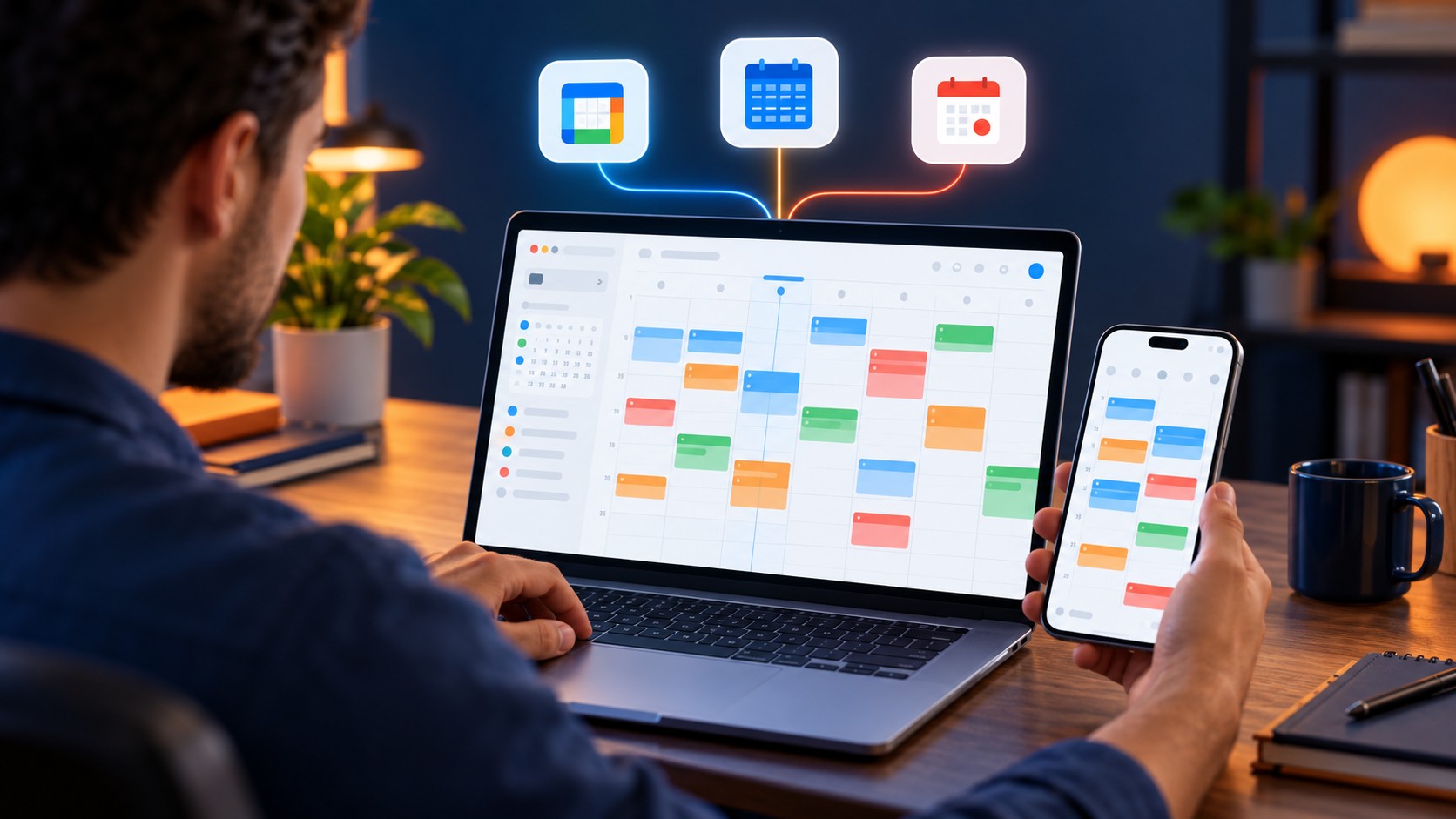
The best calendar apps for multiple accounts is the one that can show your real schedule without hiding which account owns each event. That sounds simple until a personal Google calendar, a Microsoft 365 work calendar and an iCloud family calendar all need to coexist on Windows, Mac, iPhone and Android.
For the broadest no-cost setup on Windows and mobile, Outlook is the strongest starting point. Apple Calendar is the simplest free answer on iPhone, iPad and Mac. Fantastical is the most polished paid calendar layer for Apple devices and Windows. Morgen is the strongest cross-platform planning layer when Windows, macOS, Linux, iOS and Android all matter. OneCalendar is the simpler aggregator, while Google Calendar is best when the accounts are mostly Google accounts.
If you only need a general personal calendar rather than provider consolidation, start with our Best Calendar Apps for Personal Use guide.
Quick Verdict
| Need | Best choice | Why |
| Best free option for mixed accounts on Windows | Outlook | Adds Microsoft, Gmail and iCloud accounts; mobile can combine calendars |
| Best free option on Apple devices | Apple Calendar | Combines iCloud, Google, Exchange and compatible CalDAV accounts |
| Best polished paid calendar | Fantastical | Strong provider coverage, Calendar Sets and native Mac, Windows, iPhone and iPad apps |
| Best cross-platform planning layer | Morgen | Google, Outlook and iCloud in one view across desktop, browser and mobile |
| Best simple cross-platform aggregator | OneCalendar | Broad provider list with apps for Windows, Apple devices and Android |
| Best when every account is Google | Google Calendar | Multiple Google accounts and calendars with no extra subscription |
How We Checked Multiple Account Support
The comparison uses four practical account combinations rather than a raw feature count:
- Two Google accounts: a personal Gmail calendar plus a work or school Google account.
- Google plus Microsoft: a personal Google calendar plus Outlook.com, Microsoft 365 or Exchange.
- Google plus iCloud: a personal or work Google calendar plus an iCloud family calendar.
- Google plus Microsoft plus iCloud: all three providers visible in one interface on desktop and mobile.
A calendar earned a strong result only when official documentation confirmed that the accounts could be added and managed in the same app. A subscribed ICS feed is useful for visibility, but it is not equivalent to a full account connection: updates can be delayed and editing may be limited or unavailable.
Account Combination Results
| Account combination | Strongest route | Practical result |
| Two Google accounts | Google Calendar | Best native fit on Android, iPhone and iPad; Google documents adding and switching accounts in the mobile app. |
| Google plus Outlook | Outlook or Apple Calendar | Outlook is strongest on Windows and mobile; Apple Calendar is simplest on Mac, iPhone and iPad. |
| Google plus iCloud | Apple Calendar, Outlook or OneCalendar | Apple Calendar leads on Apple devices; Outlook and OneCalendar are more practical on Windows or Android. |
| Outlook plus iCloud | Outlook or Apple Calendar | Outlook documents iCloud support on Windows, Mac and mobile; Apple Calendar handles Exchange and iCloud on Apple devices. |
| Google plus Outlook plus iCloud | Fantastical, Morgen, Outlook or OneCalendar | Choose by platform and workflow: polished calendar, planning layer, free Microsoft route or simple aggregator. |
The Best Calendar Apps Compared
| App | Provider coverage | Platforms | Free access | Best for |
| Outlook | Microsoft, Gmail, Yahoo, iCloud, Exchange | Windows, Mac, iOS, Android | Yes | Free mixed-account setup |
| Apple Calendar | iCloud, Google, Exchange, CalDAV and others | Mac, iPhone, iPad; web/Outlook route on Windows | Yes | Apple households |
| Fantastical | iCloud, Google, Exchange, Microsoft 365, Fastmail, CalDAV | Mac, Windows, iPhone, iPad | Yes; Premium available | Premium calendar control |
| Morgen | Google, Outlook, iCloud, Fastmail, Zoho, CalDAV | Windows, macOS, Linux, browser, iOS, Android | 14-day trial | Cross-platform planning |
| OneCalendar | Google, Outlook, Microsoft 365, Exchange, iCloud, CalDAV and more | Windows, macOS, iPhone, iPad, Android | Free download | Simple aggregation |
| Google Calendar | Multiple Google accounts; shared and subscribed calendars | Web, Android, iPhone, iPad | Yes | Google-first users |
Prices and platform availability were checked on 27 October 2026. Regional stores, promotions and employer policies can change what is available. Recheck every checkout page immediately before publication or purchase.
1 Outlook
Best for: Windows and mobile users who want a no-cost place for Microsoft, Google and iCloud calendars.
Microsoft’s current Outlook for Windows account guide documents adding another account and selecting a primary account. Separate support pages confirm Gmail and iCloud setup in new Outlook, while Microsoft’s cloud-sync documentation covers non-Microsoft accounts in Outlook for iOS, Android, Mac and supported Windows configurations.
The strongest proof for a mixed mobile setup is Microsoft’s Outlook mobile calendar guidance, which explains that an iCloud account can be added so its events appear beside other Outlook calendars. Microsoft also documents combining calendars in Outlook mobile rather than treating every account as a separate app.
Outlook is therefore the strongest free recommendation when the device mix includes Windows or Android. It can keep work and personal calendars visible together, and the account colour or calendar selector reduces the risk of saving an event to the wrong provider.
Important limitation. Outlook.com in a browser is not the same as the Outlook desktop or mobile apps. Microsoft says new third-party connected accounts can no longer be added inside Outlook.com. Use a supported Outlook app when you need full Gmail or iCloud account aggregation.
Privacy consideration. Microsoft states that supported non-Microsoft account data can be synchronized to the Microsoft Cloud to enable Outlook features. Review that data route before connecting a personal Google or iCloud account to a work-managed Outlook environment.
2 Apple Calendar
Best for: People who use iPhone, iPad and Mac and want a free unified calendar without adding another subscription.
Apple’s Mac Calendar account guide explains how to add calendar providers, while the iPhone account guide confirms provider accounts and CalDAV support. Apple specifically documents iCloud, Microsoft Exchange and other compatible services; Google also documents adding Google Calendar to Apple Calendar.
This is the cleanest setup for an Apple-first household: iCloud family events, a personal Google calendar and a Microsoft work calendar can be visible in the same native app. The critical setting is Default Calendar. Confirm it before creating events so a private appointment does not land in a managed work account.
Windows access is less direct. Apple documents using iCloud for Windows with classic Outlook and accessing iCloud Calendar in a browser on a tablet or computer. Apple does not provide an equivalent native Apple Calendar app for Android in the current official documentation.
Where it falls short. Apple Calendar is excellent inside Apple’s ecosystem but is not the best choice when Android is the primary phone or when the same dedicated app must work on every desktop platform.
3 Fantastical
Best for: People who want a polished calendar interface and stronger control over several providers on Apple devices and Windows.
Fantastical’s Windows account settings documentation lists iCloud, Google, Exchange, Microsoft 365, Todoist, fruux, Meetup and CalDAV accounts. The current product page lists Mac, Windows, iPhone and iPad among the supported platforms.
Fantastical is valuable when the problem is not merely seeing several calendars, but controlling which calendars appear for a specific context. Calendar Sets can separate personal, work, family and freelance views without repeatedly disconnecting accounts.
The Flexibits pricing page confirms a permanent Free tier and a 14-day Premium trial. The current US App Store listing shows Flexibits Premium at $6.99 per month or $56.99 per year. Regional pricing can differ.
Platform caveat. Flexibits does not list a dedicated Android app on its current platform page. We cannot confirm Android availability from an official source, so Android users should choose Outlook, Morgen or OneCalendar instead of assuming Fantastical provides the same mobile coverage.
4 Morgen
Best for: People who need the same multi-provider planning layer across Windows, macOS, Linux, browser, iPhone and Android.
Morgen’s Google Calendar integration page says that Google accounts can appear alongside Outlook, iCloud, Fastmail and Zoho accounts in a unified view. Its product documentation also lists native desktop and mobile coverage and positions the app as a planning layer above the calendars you already own.
Morgen goes beyond aggregation. It can bring tasks into the same planning surface, create time blocks and use its planner to suggest where work fits. That makes it useful when the calendar problem is double-booking plus daily execution, but excessive if all you need is to view appointments.
The official pricing page lists a 14-day trial with no card required, $30 per month with monthly billing, or $15 per month when billed yearly. The pricing page says unlimited calendar and task integrations are included. There is no permanent free individual plan after the trial.
Privacy consideration. Morgen says it is Swiss-hosted and GDPR compliant. That statement comes from the vendor’s own pricing page; it does not by itself prove that every configuration is more private than every competing app.
5 OneCalendar
Best for: People who want a simpler cross-platform calendar aggregator without turning the calendar into an AI planner.
The OneCalendar product page lists Google Calendar, Outlook, Office 365, Exchange, iCloud, CalDAV, Yahoo and several other providers. It also lists apps for Android, iPhone, iPad, Mac and Windows.
That combination makes OneCalendar particularly useful for an Android user who still needs an iCloud family calendar, or a Windows user who wants a straightforward consolidated schedule. The company publishes setup guides for iCloud on Android and Google or Microsoft accounts on Windows.
OneCalendar can be downloaded for free. Its Premium feature page says Premium is a one-time purchase and that a separate licence is required for each platform group. The official pages reviewed do not publish one stable cross-platform price. Could not confirm the current amount; check the relevant app store before publication.
Where it falls short. The interface is designed for calendar consolidation, not deep task management or automatic scheduling. That simplicity is a benefit only when planning automation is not required.
6 Google Calendar
Best for: People whose personal, work and school calendars are all Google accounts.
Google’s add another account guide confirms that more than one account can be added to the Calendar app on Android, iPhone and iPad. Its account-switching guide explains how enabled calendars can be shown or hidden in the grid.
This is the lowest-friction option when every identity already uses Google. You keep native event editing, Google sharing and Google Tasks without giving another provider access to calendar data.
For non-Google calendars, Google officially documents shared calendars and subscriptions from a URL. That can make an external schedule visible, but it is not the same as adding a full editable Outlook or iCloud account. We cannot confirm full native two-way Outlook and iCloud account aggregation in Google Calendar web from the current official documentation.
Where it falls short. Google Calendar is a strong multiple-Google-account app, not the clearest universal hub for Google, Microsoft and Apple providers together.
Best Choice by Desktop Platform
Windows
Start with Outlook if you want a free app and already use Microsoft email or Windows. Choose Fantastical for a more refined calendar-first interface. Choose Morgen when tasks and time blocking must sit above several accounts. OneCalendar is the simpler low-complexity alternative.
Mac
Start with Apple Calendar because it is built in and supports several provider types. Fantastical is the strongest premium calendar layer. Morgen is better when the goal is cross-platform planning rather than a purely native Mac experience.
Linux
Morgen is the clearest dedicated cross-platform option in this shortlist because its official pricing page lists Linux and browser access. Google Calendar and Outlook web remain browser options, but Outlook.com does not provide the same third-party account aggregation as the Outlook apps.
Best Choice by Mobile Platform
iPhone and iPad
Apple Calendar is the easiest free choice for iCloud, Google and Exchange accounts. Outlook is stronger when Windows and Microsoft 365 are central. Fantastical provides the most polished calendar-focused upgrade, while Morgen adds planning and task integrations.
Android
Use Google Calendar when the accounts are Google accounts. Use Outlook for a free mixed-provider setup, especially when Microsoft and iCloud calendars must coexist. Choose Morgen for deeper planning or OneCalendar for a simpler unified calendar. Apple does not document a native Apple Calendar app for Android.
Mistakes to Avoid When Combining Calendars
- Saving an event to the wrong default calendar. Check the account or calendar field before every new personal or work event.
- Treating an ICS subscription as real-time two-way sync. A subscription may be delayed and may not allow editing.
- Connecting a managed work account without checking employer policy. Administrators can restrict third-party OAuth access.
- Assuming every platform has identical features. Outlook, Fantastical and Apple Calendar expose different capabilities on different operating systems.
- Connecting every account to every app. Each connection expands the number of services that can process calendar data.
Privacy and Account Permissions
Calendar entries can reveal names, locations, travel, meeting links, client relationships and personal routines. A unified calendar is convenient because one app receives broad visibility. That is also the privacy tradeoff.
Review every permission requested during sign-in, remove connections that are no longer used and avoid putting unnecessary sensitive information in event titles. For work accounts, confirm that the employer allows third-party access. For iCloud connections that require an app-specific password, use a unique generated password rather than the primary Apple Account password.
We cannot confirm that one app is categorically the safest for every user. Privacy depends on the connected accounts, device security, employer controls, cloud architecture and permissions granted.
Final Recommendation
Outlook is the best free calendar app for multiple accounts when Windows or Android is part of the setup. It offers the broadest practical bridge between Microsoft, Google and iCloud without requiring a dedicated calendar subscription.
Apple Calendar is the better free answer when every important device is made by Apple. Fantastical is the premium upgrade for people who care about calendar views and context control. Morgen is the better cross-platform choice when planning tasks across calendars matters as much as viewing events. OneCalendar is the simplest broad-provider aggregator. Google Calendar remains the correct answer when every account is already Google-based.
Before paying, connect the exact personal, work and family accounts you use, create one test event in each calendar, edit it from desktop and mobile, and verify which account becomes the default. The best app is the one that keeps ownership obvious and prevents double-booking without creating a new administration job.
Frequently Asked Questions
What is the best calendar app for multiple accounts?
Outlook is the strongest free choice for mixed Microsoft, Google and iCloud accounts on Windows and mobile. Apple Calendar is best on Apple devices. Fantastical offers the strongest polished paid interface, while Morgen provides the broadest planning layer across desktop and mobile platforms.
Can Outlook show Google and iCloud calendars together?
Yes, on supported Outlook apps. Microsoft documents Gmail and iCloud account setup and explains that iCloud events can appear beside other calendars in Outlook mobile. Outlook.com in a browser has different limitations and no longer accepts new connected third-party accounts.
Can Apple Calendar show Google and Outlook calendars?
Yes. Apple documents adding calendar accounts on Mac, iPhone and iPad, including iCloud, Microsoft Exchange and compatible providers. Google also provides official instructions for adding Google Calendar to Apple Calendar.
Can Google Calendar combine Outlook and iCloud accounts?
Google documents adding multiple Google accounts and subscribing to external calendars. We cannot confirm full native two-way Outlook and iCloud account aggregation in Google Calendar web from the official documentation reviewed. Outlook, Apple Calendar, Fantastical, Morgen or OneCalendar are clearer mixed-provider choices.
What is the best calendar app for iCloud on Android?
Outlook and OneCalendar both publish official instructions or support information for iCloud calendars on mobile, and Morgen lists iCloud alongside Android support. Apple does not document a native Apple Calendar app for Android.
Is Fantastical worth paying for?
It is easiest to justify when several providers must remain visually separated through Calendar Sets and when the calendar is a central daily workspace. Outlook or Apple Calendar is usually sufficient for a basic free combined view.
Is Morgen better than Fantastical for multiple accounts?
Morgen is better when Linux, Android, task integrations or planning automation matter. Fantastical is better when the priority is a refined calendar interface on Mac, Windows, iPhone and iPad. Neither is automatically better for a simple appointment calendar.
How do I avoid creating events in the wrong account?
Set a deliberate default calendar, keep account colours distinct, include the account name in calendar labels and confirm the calendar field before saving. Test the setup from both desktop and mobile because defaults can differ by device.