Best Tools to Organize Personal Documents
Quick Verdict
Most people trying to organize personal documents do not need a filing cabinet, a subscription suite, or a weekend project.
They need to scan a lease, keep track of an insurance policy, find a warranty six months later, and make sure none of it disappears with a lost phone.
For ordinary personal use, our recommendations are:
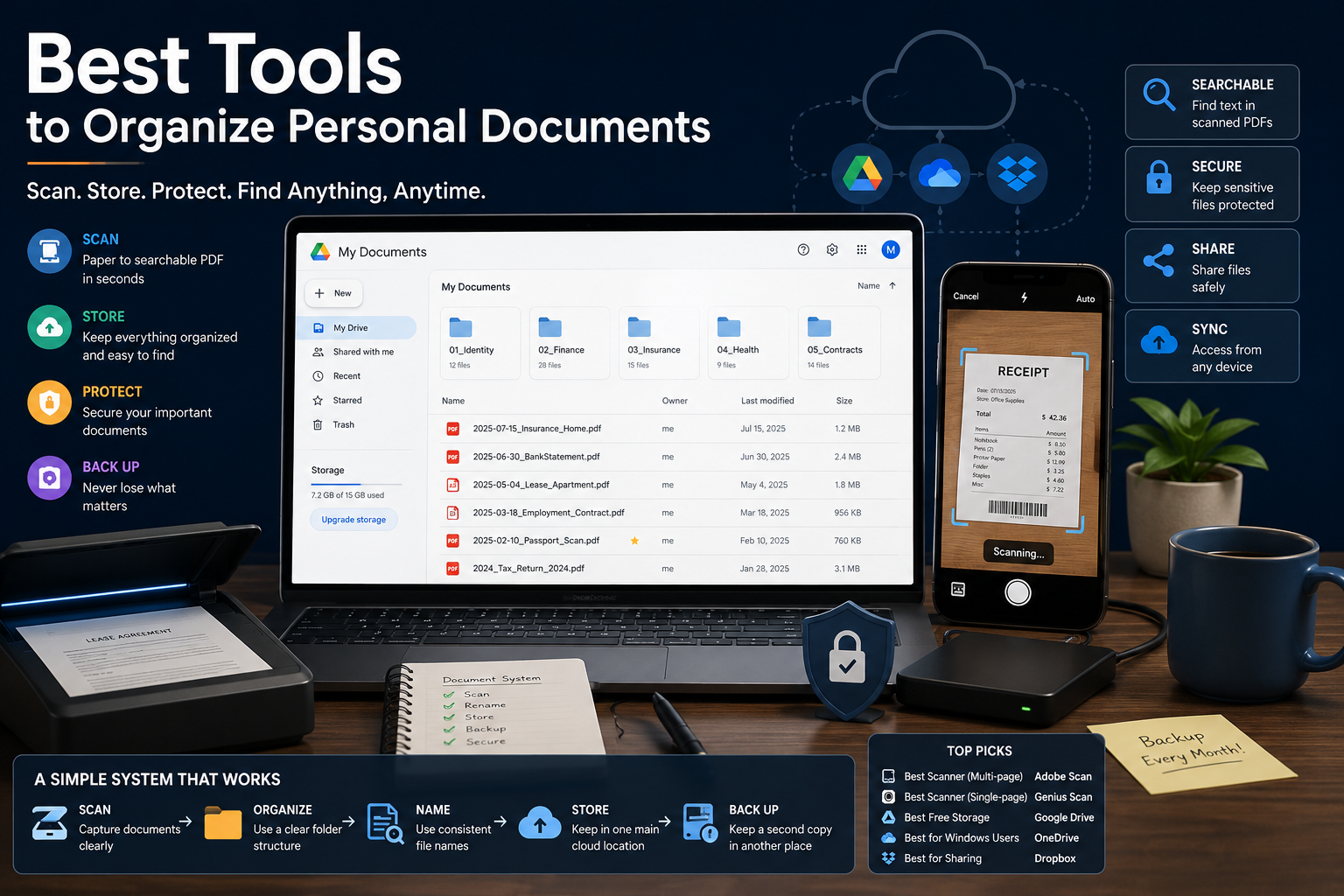
| What You Need to Do | Best Choice |
|---|---|
| Scan multi-page contracts or IDs with clean OCR | Adobe Scan |
| Scan a single receipt or page in two taps | Genius Scan |
| Store scans somewhere free and widely compatible | Google Drive |
| Keep documents alongside files you already share | Dropbox |
| Stay inside the Microsoft ecosystem | OneDrive |
| Edit, merge, or sign an existing PDF | See our PDF editor guide below |
Adobe Scan is the strongest free scanner when accuracy and searchable text matter more than speed.
Genius Scan is faster for a single receipt or page and stores documents locally by default.
Google Drive remains the most broadly useful place to store scans, though its free allowance is shifting for some new accounts, as we cover below.
Dropbox makes sense mainly if you are already using it for other files.
OneDrive is the natural landing spot for Windows and Microsoft 365 users, especially since Microsoft retired its own scanning app in 2026.
Scanning, Storing, and Backing Up Are Three Different Jobs
This is the distinction that most “organize your documents” advice skips.
Scanning turns a physical document into a digital file. Storing decides where that file lives and whether you can find it again in six months. Backing up decides whether losing one device also means losing the document.
Photographing a lease with your camera app does the first job badly (no searchable text, no consistent naming) and skips the other two entirely. A document sitting only on your phone, in an app that doesn’t sync, has been scanned but never actually stored or backed up — you’ve just moved the risk from paper to pixels.
Treating these as one step is why “I’ll organize my documents” so often turns into a folder of unlabeled photos that nobody opens again.
Best Tools to Organize Personal Documents: The Fast Decision
Choose Adobe Scan when you’re digitizing contracts, IDs, or anything where OCR accuracy and multi-page capture matter.
Choose Genius Scan when you want the fastest possible single-page capture and prefer documents to stay on your device by default.
Choose Google Drive when you want one free, universally compatible place to store scans that anyone can open.
Choose Dropbox when your other files are already there and you don’t want a second cloud habit.
Choose OneDrive when you’re a Windows or Microsoft 365 user, particularly if you used to rely on Microsoft Lens.
Choose a dedicated PDF editor — not a scanning app — the moment you need to merge, redact, or heavily edit what you’ve already scanned.
Adobe Scan: Best Free Scanner for Accuracy
Adobe Scan turns your phone into a scanner that produces genuinely searchable PDFs, not just photos with a document-shaped crop.
Its OCR (optical character recognition) handles multi-page contracts, ID cards, and receipts well, and the app is free to download and use for everyday scanning.
There is one limit worth knowing before you rely on it: the free tier’s OCR is capped at 5 pages per scan session, with a premium subscription raising that to 100 pages and unlocking high-speed batch capture for scanning stacks of documents in one pass. For most personal use — a lease here, a warranty there — the free cap rarely gets in the way. It matters more if you’re digitizing years of paperwork in one sitting.
Adobe Scan Is Best For
- Multi-page contracts and administrative documents
- IDs, receipts, and business cards
- Anyone who wants searchable text, not just an image
- Occasional scanning where the 5-page free OCR limit is rarely hit
Genius Scan: Best for Fast, Single-Page Scans
Genius Scan, made by the French developer The Grizzly Labs, is built around speed rather than depth: point, capture, done.
The free version is fully functional for everyday scanning. The one-time-purchase Plus upgrade (no subscription) removes the watermark and resolution cap on exports, and adds automatic perspective correction, hands-free auto-capture, batch scanning, PIN or Face ID locking, and optional sync to the developer’s own Genius Cloud.
By default, Genius Scan keeps documents on your device rather than pushing them to the cloud automatically — worth knowing if privacy-by-default matters more to you than convenience.
Genius Scan Is Best For
- Fast single-page receipts and notes
- People who want local-first storage by default
- Anyone who prefers a one-time purchase over a subscription for the full feature set
Why You Won’t Find Microsoft Lens on This List
If you’ve used Microsoft’s ecosystem for years, Microsoft Lens (formerly Office Lens) was probably your default scanner. It no longer exists.
Microsoft retired Lens in three stages through early 2026: the app entered official retirement on January 9, it was pulled from the App Store and Google Play on February 9, and all scanning functionality was switched off on March 9. Existing installs can still open previously saved scans, but nothing new can be captured.
Microsoft’s own guidance points former Lens users toward the scanning feature built into the OneDrive mobile app. The trade-off is real: unlike Lens, OneDrive’s scanner uploads directly to the cloud and doesn’t support saving a scan locally first. If that matters to you, Adobe Scan or Genius Scan are closer replacements for how Lens actually worked.
Where Your Scans Should Live: Cloud Storage Options
Scanning solves half the problem. Where the file ends up solves the other half — and this is where “organize personal documents” plans quietly fall apart, because scans get scattered across whichever app captured them.
Google Drive: The Default Choice for Most People
Google Drive remains the most broadly compatible free option, and its 15GB free allowance (shared across Drive, Gmail, and Photos) is generous enough for a personal document archive, which takes up far less space than photos or video.
One caveat worth flagging: Google has been testing a reduced 5GB starting allowance for some newly created accounts in 2026. Existing accounts aren’t affected yet, and Google hasn’t made this an official, universal policy — but don’t assume a brand-new account automatically gets the historical 15GB without checking current terms.
Dropbox: Best If You’re Already Using It for Other Files
Dropbox’s free Basic plan includes 2GB, expandable to 16GB through its referral program. That’s tight if you’re storing photos too, but scanned documents alone take up very little of it.
Dropbox mainly makes sense here if you already have an account for other files — starting a new one solely for document scans is a harder sell than Google Drive’s larger free tier.
OneDrive: The Natural Choice Post-Lens
OneDrive’s free tier includes 5GB, and it’s the most natural landing spot if you’re already inside Windows or Microsoft 365 — especially now that it’s Microsoft’s official recommended replacement for Lens’s scanning feature.
Storage Limits at a Glance
Figures verified in July 2026. Free-tier limits change over time — confirm current terms before counting on a specific figure.
| Provider | Free Storage | Shared With |
|---|---|---|
| Google Drive | 15GB (5GB rolling out for some new accounts) | Gmail, Google Photos |
| Dropbox | 2GB (up to 16GB via referrals) | Nothing — Dropbox-only |
| OneDrive | 5GB | Nothing — OneDrive-only |
PDF Editing Still Has Its Own Job
Scanning and storing get a document into your system. Editing, merging, or signing it afterward is a different task, and it’s worth using a tool built for it rather than whatever your scanner happens to bundle in.
For a full breakdown of free and paid options, read our Best PDF Editors for Personal Use guide, which compares Adobe Acrobat, Smallpdf, PDFgear, UPDF, Sejda, iLovePDF, and Foxit.
If you’re specifically deciding between the two most common everyday picks, our Smallpdf vs Adobe Acrobat comparison breaks down which one fits occasional use versus heavier professional workflows.
And if a document needs a signature rather than an edit, see our Best E-Signature Tools for Personal Documents for the difference between simply signing a PDF yourself and sending it out for someone else to sign.
Backup Is Not Optional
If your only copy of a scanned passport or property deed lives on one phone, you don’t have a backup — you have a single point of failure with a nicer interface than a paper folder.
The simplest reliable setup for personal use: let automatic cloud sync do the backing up. As long as scans upload the moment they’re captured, a lost or broken phone doesn’t cost you the archive.
For documents you genuinely cannot afford to lose — passports, deeds, wills — keep a second copy in a different provider than your primary one. Free tiers make this realistic at no extra cost: a Google Drive primary archive with a Dropbox or OneDrive secondary copy costs nothing and removes a single point of failure.
Common Mistakes When You Organize Personal Documents
Scanning to Camera Roll Instead of a Dedicated App
A photo isn’t a document. It has no searchable text, no consistent format, and it’s mixed in with everything else on your camera roll.
Naming Files Inconsistently
“IMG_4471.pdf” tells you nothing in six months. A format like 2026-03-14_Insurance_Home-Policy.pdf sorts chronologically and stays searchable for years.
Relying on One Device as the Only Copy
If a scan sits on your phone before it syncs, a lost phone means a lost document — not a backed-up one.
Assuming a Free Storage Tier Will Always Look the Same
Google’s 2026 testing of a reduced free allowance for new accounts is a reminder that free-tier terms shift. Check current limits rather than relying on what used to be true.
Never Testing the Restore
Confirm you can actually open a document from your cloud folder on a different device. An untested backup is a hope, not a system.
What to Check Before You Store Sensitive Documents
Personal document archives often contain more sensitive material than people initially plan for — passports, bank statements, medical forms, signed leases.
Before settling on a storage setup, check:
- Whether two-factor authentication is available on the storage account itself
- How long deleted files remain recoverable versus permanently gone
- Whether the provider encrypts files in transit and at rest (standard practice among Google Drive, Dropbox, and OneDrive)
- Whether you actually need the file in the cloud at all, or whether a locally-stored, PIN-protected scan is safer for that specific document
No provider’s security page removes the need to think about what you’re uploading and why.
Setups I Would Actually Recommend
For a Small, Ongoing Pile of Papers
Use Adobe Scan for anything that needs OCR, Google Drive as the single home for everything, and turn on automatic backup. Nothing else is necessary.
For Digitizing Years of Old Paperwork at Once
Use Adobe Scan’s premium OCR tier or Genius Scan Plus for batch capture, since scanning hundreds of documents one at a time against a 5-page free OCR cap will get tedious fast.
For Microsoft 365 Users Who Lost Lens
Use the OneDrive mobile app’s built-in scanner for continuity with your existing Microsoft workflow, and accept that scans now go straight to the cloud rather than staying local first.
For Anyone Who Wants Local-First Privacy
Use Genius Scan, which keeps documents on-device by default rather than auto-uploading, and pair it with manual, deliberate uploads to cloud storage only for the documents that need a backup copy.
Final Recommendation
The right setup to organize personal documents depends less on brand recognition and more on how much you’re scanning and how much you already trust one ecosystem.
Choose Adobe Scan when OCR accuracy and multi-page capture matter most.
Choose Genius Scan when speed and local-first storage matter more than depth.
Choose Google Drive as the default home for your archive unless you have a reason not to.
Choose Dropbox only if you’re already using it elsewhere.
Choose OneDrive if you’re a Windows user, especially post-Lens.
My recommendation for most people is deliberately simple: one scanning app, one cloud folder, automatic backup turned on, and a second copy of anything irreplaceable. Everything past that is optimization, not necessity.
FAQ
What’s the Fastest Way to Organize Personal Documents I’ve Already Let Pile Up?
Batch-scan in one sitting using Adobe Scan’s premium tier or Genius Scan Plus, and apply your file-naming convention as you go — renaming hundreds of files afterward is the step most people abandon.
Do I Need to Pay for Anything to Organize Personal Documents Properly?
No. Adobe Scan, Genius Scan’s free tier, and Google Drive’s free allowance cover the full workflow for most households. Paid tiers matter once volume or storage space becomes the actual bottleneck.
What Replaced Microsoft Lens?
Microsoft points former Lens users to the scanning feature inside the OneDrive mobile app. The main difference is that OneDrive uploads scans directly to the cloud rather than offering Lens’s local-first storage.
Is It Safe to Store IDs and Financial Documents in Cloud Storage?
Google Drive, Dropbox, and OneDrive all encrypt data in transit and at rest, which is standard practice for sensitive files. Enabling two-factor authentication on the storage account itself matters at least as much as which provider you pick.
Is Google Drive’s Free Storage Really Shrinking?
For some new accounts, Google has been testing a 5GB starting allowance instead of the historical 15GB, as of 2026. Existing accounts haven’t been affected so far, but it’s worth checking current terms rather than assuming the old figure still applies universally.
Should I Use One Cloud Provider or Several?
One as your primary archive is enough for day-to-day use. For truly irreplaceable documents, a second copy in a different provider removes the single point of failure at no extra cost.
Can I Just Use My Phone’s Camera App Instead of a Scanner App?
You can, but you’ll lose searchable OCR text and consistent formatting, and photos get mixed in with the rest of your camera roll. A dedicated scanner app is a small habit change with a large payoff.