Smallpdf vs Adobe Acrobat: Quick Verdict
Smallpdf and Adobe Acrobat can both edit, convert, compress, organize, and sign PDF documents.
But they are not designed for exactly the same type of user.
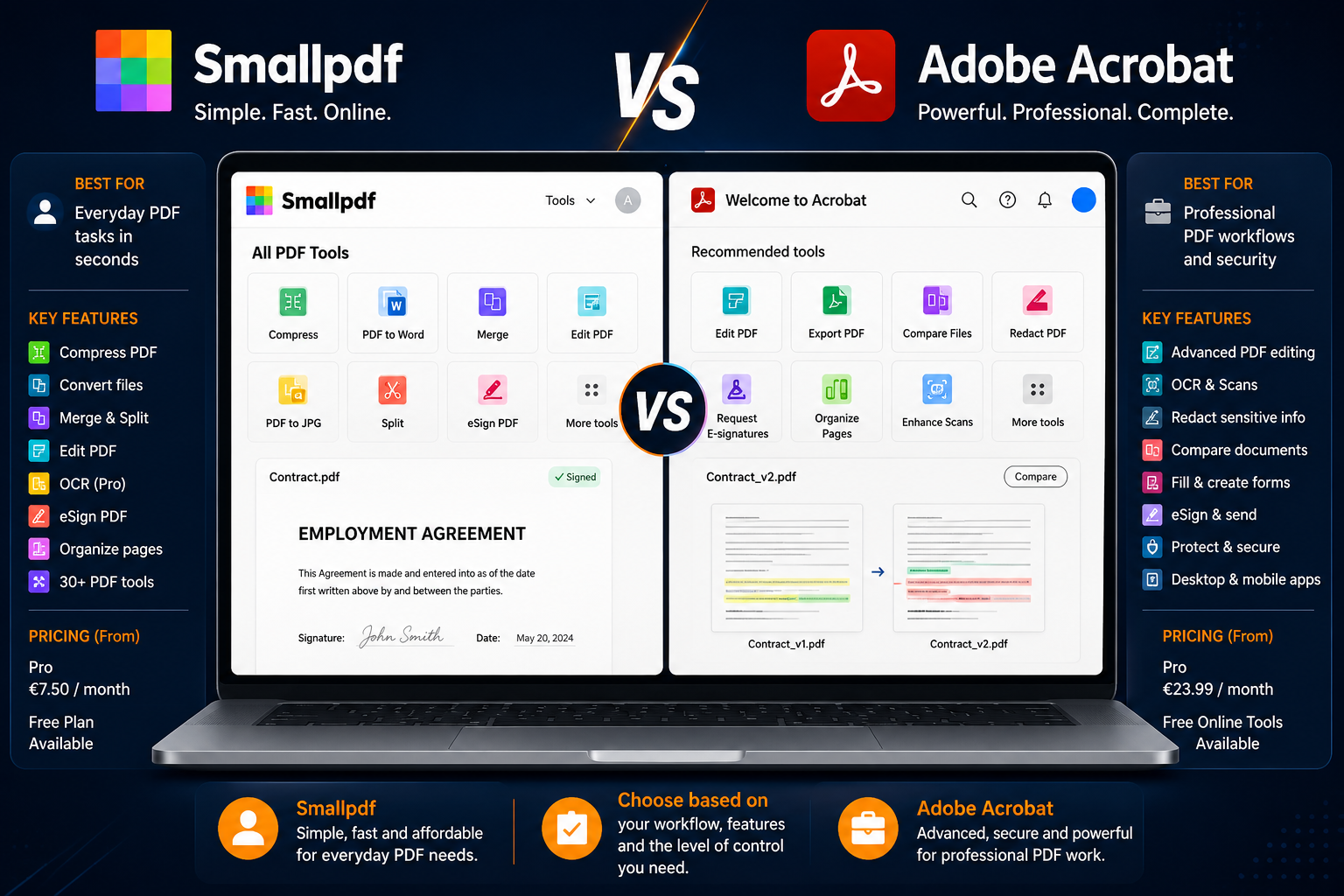
Smallpdf is better for people who want a simple, browser-first PDF toolkit for everyday tasks such as compression, conversion, merging, splitting, OCR, signatures, and light editing.
Adobe Acrobat is better for users who regularly work with complex documents and need advanced editing, OCR, document comparison, redaction, security, forms, and professional PDF workflows.
The simplest recommendation is:
- Choose Smallpdf for quick everyday PDF tasks.
- Choose Smallpdf if you prefer working in a browser.
- Choose Smallpdf if simplicity matters more than advanced controls.
- Choose Adobe Acrobat if you edit PDFs professionally.
- Choose Adobe Acrobat Pro for redaction and document comparison.
- Choose Adobe Acrobat if you work frequently with forms, contracts, scans, or complex documents.
- Start with a free option if you only edit PDFs occasionally.
For most personal users, Smallpdf is easier and more affordable.
For professionals and heavy PDF users, Adobe Acrobat is the stronger overall tool.
Smallpdf vs Adobe Acrobat at a Glance
| Criteria | Better Choice | Why |
|---|---|---|
| Best for simple PDF tasks | Smallpdf | Faster and easier for everyday workflows |
| Best for advanced editing | Adobe Acrobat | More complete editing environment |
| Best for browser use | Smallpdf | Browser-first experience |
| Best for professional workflows | Adobe Acrobat | More advanced document controls |
| Best for compression | Smallpdf | Very easy compression workflow |
| Best for advanced OCR | Adobe Acrobat | Deeper scanned-document workflow |
| Best for document comparison | Adobe Acrobat | Native comparison functionality |
| Best for redaction | Adobe Acrobat | Professional redaction tools |
| Best for occasional users | Smallpdf | Easier and more affordable |
| Best for contracts and complex documents | Adobe Acrobat | Stronger security and advanced document tools |
| Best for beginners | Smallpdf | Lower learning curve |
| Best for power users | Adobe Acrobat | More advanced capabilities |
| Best overall value for personal use | Smallpdf | Strong balance of convenience and price |
| Best overall capability | Adobe Acrobat | More complete professional feature set |
What Is Smallpdf?
Smallpdf is an online PDF platform designed to make common document tasks simple.
Its tool collection covers more than 30 PDF workflows, including conversion, compression, editing, signing, merging, splitting, page organization, and other document operations.
The main advantage of Smallpdf is convenience.
You can open the website, upload a document, complete a task, and download the result without learning a complex desktop application.
Typical Smallpdf workflows include:
- Compressing PDFs;
- Converting PDF to Word;
- Converting Word to PDF;
- Merging files;
- Splitting documents;
- Editing text;
- Adding annotations;
- Running OCR;
- Signing PDFs;
- Organizing pages;
- Protecting or unlocking PDFs;
- Using AI-powered PDF tools.
Smallpdf Pro provides unlimited access to its tool collection, OCR, editing, strong compression, unlimited downloads, AI-powered tools, and mobile access according to its current pricing information.
Smallpdf Is Best For
- Personal PDF tasks;
- Students;
- Freelancers;
- Remote workers;
- Occasional PDF users;
- Browser-first workflows;
- File compression;
- Simple conversion;
- Light editing;
- E-signatures;
- Quick OCR;
- Users who want minimal setup.
What Is Adobe Acrobat?
Adobe Acrobat is a more complete PDF platform built for both everyday users and professional document workflows.
Depending on the plan, Acrobat can handle tasks such as:
- Editing text and images;
- PDF conversion;
- OCR;
- Page organization;
- Forms;
- Electronic signatures;
- Password protection;
- Redaction;
- Comparing PDF versions;
- Advanced document workflows;
- AI-assisted document analysis.
Adobe’s official feature documentation distinguishes Acrobat Pro from Standard through advanced capabilities including redaction, document comparison, digital signature management, and broader conversion functionality.
Adobe also provides free online tools for selected workflows, including editing, signing, and OCR.
Adobe Acrobat Is Best For
- Professionals;
- Businesses;
- Lawyers and consultants;
- Administrative teams;
- Users working with contracts;
- Complex PDF editing;
- Advanced OCR;
- Sensitive documents;
- Redaction;
- Form creation;
- Document comparison;
- Frequent PDF workflows.
The Main Difference Between Smallpdf and Adobe Acrobat
The main difference is depth.
Smallpdf is designed to make PDF tasks easy.
Adobe Acrobat is designed to manage PDF workflows comprehensively.
Smallpdf is better when the task is: I need to compress, convert, merge, sign, or lightly edit this file quickly.
Adobe Acrobat is better when the task is: I need to professionally edit, secure, compare, redact, OCR, manage, and review this document.
Smallpdf emphasizes convenience.
Adobe emphasizes control.
This difference explains most of the comparison.
Smallpdf vs Adobe Acrobat Pricing
Prices can vary by country, currency, tax rules, promotions, billing cycle, and platform.
The prices below are based on the pricing screenshots reviewed for this comparison.
Always verify current pricing before subscribing.
Smallpdf Pricing Reviewed
| Plan | Price Shown | Best For |
| Free | €0/month | Occasional basic tasks |
| Pro Monthly | €10/month | Short-term or flexible use |
| Pro Yearly | €7.50/month, billed €90/year | Regular individual use |
| Team Yearly | €6/user/month, based on the configuration shown | Small teams |
| Business | Custom | Larger organizations |
The Smallpdf Pro plan shown includes:
- Unlimited access to more than 30 tools;
- Unlimited document downloads;
- Text editing;
- OCR;
- Strong compression;
- Unlimited AI-powered tool access;
- Unlimited mobile app access.
Smallpdf also confirms that Pro unlocks unlimited tool access and features such as OCR and batch conversion.
Adobe Acrobat Pricing Reviewed
| Plan | Price Shown | Best For |
| Acrobat Standard | €18.14/month incl. tax | Core PDF editing |
| Acrobat Pro | €23.99/month incl. tax | Advanced PDF workflows |
| Acrobat Studio | €30.24/month incl. tax | PDF, AI, and broader productivity workflows |
The prices shown in the screenshots corresponded to annual subscriptions billed monthly.
Pricing Verdict
Smallpdf is clearly the more affordable option for most individual users.
At the prices reviewed:
- Smallpdf Pro yearly equivalent: €7.50/month;
- Acrobat Standard: €18.14/month;
- Acrobat Pro: €23.99/month;
- Acrobat Studio: €30.24/month.
That price difference matters.
For someone who mainly needs:
- Compression;
- Conversion;
- Basic editing;
- OCR;
- Signatures;
- Page organization;
Smallpdf is likely the better value.
Adobe Acrobat becomes easier to justify when advanced features are genuinely part of your regular workflow.
For example:
- Redaction;
- PDF version comparison;
- Advanced forms;
- Professional document protection;
- Complex scanned documents;
- Sensitive contracts.
Smallpdf Free vs Adobe Free Tools
Both ecosystems provide some free access, but the experience is different.
Smallpdf Free
The free Smallpdf tier provides access to basic document tools with usage and download limitations.
This is useful for someone who occasionally needs to:
- Compress a PDF;
- Convert a document;
- Merge files;
- Complete a basic editing task.
Smallpdf’s support information explains that the free service includes limited access to basic tool features, while Pro removes those restrictions and unlocks advanced functionality.
Adobe Free Tools
Adobe also offers selected browser-based PDF tools.
These include workflows for:
- Online PDF editing;
- OCR;
- Filling and signing PDFs.
Adobe’s free online editor supports basic actions such as adding text and comments, while its online OCR tool can make scanned PDF text searchable.
Free Plan Verdict
For users who want one easy place for multiple everyday PDF tasks, Smallpdf has the clearer free-tool experience.
Adobe’s free online tools are useful, but Acrobat’s real strength appears in its paid desktop and advanced workflows.
Winner: Smallpdf for casual free use.
PDF Editing
Both tools can edit PDFs, but Adobe Acrobat is stronger.
Smallpdf is useful for:
- Adding text;
- Editing supported text;
- Highlighting;
- Annotating;
- Adding shapes;
- Adding images;
- Making straightforward changes.
Its editor can also work with OCR-processed content after scanned documents are converted into editable text.
Adobe Acrobat is better suited to deeper editing tasks involving existing document content and complex PDF structures.
For routine corrections, Smallpdf may be enough.
For frequent, detailed editing, Acrobat is more appropriate.
Winner: Adobe Acrobat
OCR
OCR converts image-based text into searchable or editable text.
This matters when working with:
- Scanned contracts;
- Administrative paperwork;
- Receipts;
- Old documents;
- Printed forms;
- Image-only PDFs.
Smallpdf offers OCR as part of its PDF toolkit and Pro capabilities. Its OCR tool converts image-based PDF content into searchable and selectable text.
Adobe Acrobat Pro includes OCR functionality for converting scanned documents into editable and searchable PDFs.
For occasional scans, Smallpdf may be enough.
For regular professional scanning and complex document workflows, Adobe Acrobat is the stronger choice.
Winner: Adobe Acrobat for advanced OCR.
PDF Compression
Smallpdf is the more natural choice for straightforward compression.
Its compression workflow is designed to be easy and accessible directly through the browser.
Basic compression is available without Pro, while Pro unlocks Strong Compression and unlimited access.
Adobe can also optimize PDF files, but for the user whose main task is simply: Make this PDF smaller so I can email or upload it.
Smallpdf is easier.
Winner: Smallpdf
File Conversion
Both platforms handle PDF conversion.
Smallpdf offers tools for converting PDFs and common document formats through its browser-based toolkit.
Adobe Acrobat supports conversion between PDF and formats including Word, Excel, PowerPoint, and images.
The difference is workflow depth.
Smallpdf is better for quick conversions.
Adobe is better for users already working deeply inside the Acrobat environment.
For occasional users:
Winner: Smallpdf
For advanced professional document workflows:
Winner: Adobe Acrobat
Electronic Signatures
Both tools support signing workflows.
Smallpdf’s Sign PDF tool allows users to add signatures, initials, text, and dates before downloading or sharing the completed document.
Adobe also provides PDF filling and signing functionality through Acrobat’s tools.
For simple personal signatures, either can work.
For broader professional document workflows where signing is combined with forms, security, and advanced document management, Adobe is more complete.
Winner: Tie for simple use. Adobe for advanced workflows.
Document Comparison
Adobe Acrobat wins clearly.
Acrobat Pro includes a native feature for comparing two versions of a PDF and identifying changes.
This can be important for:
- Contracts;
- Legal documents;
- Policy documents;
- Technical specifications;
- Business proposals;
- Revised reports.
Smallpdf does not provide the same native document-comparison workflow. Its own guidance suggests conversion-based workarounds using external comparison tools such as Microsoft Word.
Winner: Adobe Acrobat
Redaction
Adobe Acrobat is the better choice for professional redaction.
Redaction is different from drawing a black rectangle over text.
A real redaction workflow should permanently remove sensitive information.
Adobe Acrobat Pro includes advanced redaction functionality.
Smallpdf also offers a redaction tool designed to permanently remove selected information from PDFs.
For occasional redaction, Smallpdf may be sufficient.
For regular handling of sensitive or professional documents, Adobe Acrobat is the safer recommendation because redaction is integrated into a broader professional document workflow.
Winner: Adobe Acrobat
Page Organization
For straightforward page organization, both tools are capable.
Smallpdf makes it easy to:
- Rearrange pages;
- Delete pages;
- Add pages;
- Rotate pages;
- Split documents;
- Merge documents.
These tools are part of its current PDF toolkit.
Adobe offers similar functionality within the Acrobat environment.
For quick browser-based organization:
Winner: Smallpdf
For organization as part of a larger professional editing workflow:
Winner: Adobe Acrobat
Ease of Use
Smallpdf wins for simplicity.
The platform is built around individual tasks.
You choose what you want to do:
- Compress;
- Convert;
- Merge;
- Edit;
- Sign;
- OCR.
Then upload the document and follow the workflow.
Adobe Acrobat offers more power, but that comes with a more complex interface and a larger feature set.
For beginners and occasional users:
Winner: Smallpdf
Browser vs Desktop Workflow
Smallpdf is naturally suited to browser-based work.
This is useful for:
- Chromebook users;
- Shared computers;
- Quick administrative work;
- Users moving between devices;
- People who do not want to install software.
Smallpdf also offers mobile app access and document management across devices.
Adobe Acrobat is stronger when PDF editing is part of a regular desktop workflow.
Choose Smallpdf if you want quick browser access.
Choose Adobe Acrobat if PDF work is a central part of your professional activity.
AI PDF Features
Both companies are expanding beyond traditional PDF editing.
Smallpdf Pro includes access to AI-powered tools according to its current plan information.
Adobe offers AI Assistant functionality as part of its broader Acrobat ecosystem and related plan configurations. Acrobat also positions AI features around document questions, summaries, and document insight workflows.
However, an important distinction is necessary.
A PDF editor and an AI PDF summarizer are not always the same thing.
If your main goal is:
- Summarizing long PDFs;
- Asking questions about documents;
- Extracting key information;
- Analyzing research papers;
Read our guide to the Best AI Tools to Summarize PDFs.
We have also published a detailed PDF.ai Review for users specifically interested in AI document chat and analysis.
Smallpdf Strengths
1. Easy to Use
Smallpdf removes much of the complexity associated with PDF software.
The task-based interface is easy to understand.
2. Strong Browser Experience
No complex installation workflow is necessary for everyday tasks.
3. More Affordable
Based on the pricing reviewed, Smallpdf Pro is significantly cheaper than Acrobat Standard and Pro.
4. Broad Everyday Toolset
The platform includes more than 30 PDF tools covering editing, conversion, compression, organization, and signing.
5. Good for Occasional Users
Smallpdf is well suited to users who work with PDFs regularly but do not need advanced professional functions.
6. Strong Compression Workflow
Compression is one of Smallpdf’s clearest strengths, with Strong Compression available to Pro users.
Smallpdf Weaknesses
1. Less Advanced Than Acrobat
Smallpdf does not offer the same depth of advanced professional PDF functionality.
2. Free Usage Has Limits
The free plan is useful, but frequent users may quickly reach restrictions.
3. Browser Workflows Are Not Ideal for Every Document
Some users may prefer local desktop workflows for highly sensitive documents.
4. Limited Native Document Comparison
Smallpdf does not provide the same direct comparison functionality as Acrobat Pro.
5. Less Suitable for Heavy Professional Editing
If you spend hours editing complex PDFs every week, Acrobat is likely the stronger tool.
Adobe Acrobat Strengths
1. Complete PDF Ecosystem
Adobe Acrobat covers a very broad range of PDF tasks.
2. Advanced Editing
It is more appropriate for frequent and detailed editing.
3. Strong OCR
Acrobat Pro provides OCR for turning scanned documents into searchable and editable PDFs.
4. Document Comparison
This is valuable for professional users handling revised document versions.
5. Redaction
Acrobat Pro offers professional redaction workflows.
6. Forms and Signatures
The platform is strong for users working with business and administrative documents.
7. Better for Complex Workflows
Adobe is the stronger choice when PDF management is part of daily professional work.
Adobe Acrobat Weaknesses
1. Expensive
For casual users, the monthly cost is difficult to justify.
2. More Complex
The feature set can be overwhelming for someone who only wants to compress or convert a document.
3. Too Much Software for Basic Needs
Many users will never use Acrobat’s most advanced functions.
4. Subscription Commitment
Users should carefully check billing terms and commitment length before subscribing.
Smallpdf vs Adobe Acrobat: Feature Comparison
| Feature | Smallpdf | Adobe Acrobat |
| Basic PDF editing | Yes | Yes |
| Advanced editing | Limited compared with Acrobat | Strong |
| OCR | Yes | Strong |
| Compression | Excellent | Yes |
| Conversion | Strong | Strong |
| Merge and split | Yes | Yes |
| Page organization | Yes | Yes |
| Basic signatures | Yes | Yes |
| Advanced forms | More limited | Strong |
| Document comparison | No equivalent native workflow | Yes, Pro |
| Professional redaction | Available tool | Stronger integrated workflow |
| AI tools | Yes | Yes |
| Browser use | Excellent | Available |
| Desktop professional workflow | More limited | Excellent |
| Beginner-friendly | Excellent | Good |
| Best for casual users | Excellent | Expensive |
| Best for professionals | Good for lighter workflows | Excellent |
Best Tool by Use Case
| Use Case | Best Choice |
| Compressing PDFs | Smallpdf |
| Quick PDF conversion | Smallpdf |
| Simple browser editing | Smallpdf |
| Occasional personal use | Smallpdf |
| Students | Smallpdf |
| Freelancers with basic PDF needs | Smallpdf |
| Advanced PDF editing | Adobe Acrobat |
| Professional OCR | Adobe Acrobat |
| Contract workflows | Adobe Acrobat |
| Document comparison | Adobe Acrobat |
| Professional redaction | Adobe Acrobat |
| Complex forms | Adobe Acrobat |
| Daily professional PDF work | Adobe Acrobat |
| Best value for personal users | Smallpdf |
| Best overall capability | Adobe Acrobat |
Who Should Choose Smallpdf?
Choose Smallpdf if:
- You mainly perform simple PDF tasks;
- You want a browser-based tool;
- You compress documents regularly;
- You convert files between formats;
- You occasionally use OCR;
- You sign documents;
- You merge or split PDFs;
- You prefer simplicity;
- You want a more affordable paid option;
- You do not need advanced professional PDF controls.
Smallpdf is especially good for students, freelancers, home users, and professionals whose PDF needs are practical but not highly complex.
Who Should Choose Adobe Acrobat?
Choose Adobe Acrobat if:
- You edit complex PDFs frequently;
- You work with scanned documents;
- You need advanced OCR;
- You compare document versions;
- You redact sensitive information;
- You create forms;
- You work with contracts;
- You manage professional document workflows;
- PDF editing is a regular part of your job;
- The higher price is justified by frequent use.
Adobe Acrobat is a better fit when PDFs are central to your work rather than an occasional administrative task.
Should You Pay for Either Tool?
Not necessarily.
Before paying, consider what you actually do with PDFs.
If you only need to:
- Merge files;
- Compress documents;
- Sign occasionally;
- Convert a few files;
Start with free tools.
A paid subscription makes sense when free limitations consistently interrupt your work.
For a broader comparison of free, affordable, and premium alternatives, read our guide to the Best PDF Editors for Personal Use.
That guide compares Adobe Acrobat, Smallpdf, PDFgear, UPDF, Sejda PDF, iLovePDF, and Foxit.
Common Mistakes When Choosing Between Smallpdf and Adobe Acrobat
Mistake 1: Buying Acrobat for Basic Tasks
You probably do not need Acrobat Pro to compress a PDF twice a month.
Start with Smallpdf or another free option.
Mistake 2: Choosing Smallpdf for a Complex Professional Workflow
Smallpdf is convenient, but convenience is not always enough.
Advanced editing, redaction, comparison, and complex document management may justify Acrobat.
Mistake 3: Comparing Only the Number of Features
A tool can have fewer features and still be the better choice.
Ease of use matters.
Mistake 4: Ignoring Billing Terms
Always check:
- Monthly billing;
- Annual commitment;
- Renewal conditions;
- Tax inclusion;
- Trial terms.
Mistake 5: Uploading Sensitive Documents Without Thinking
Consider the sensitivity of the document before choosing an online workflow.
Review the current privacy and security documentation of any service you use.
Mistake 6: Confusing Editing With AI Analysis
If you mainly want to summarize and question documents, a dedicated AI PDF tool may fit better than a traditional editor.
Final Recommendation
Choose Smallpdf if you want a simple, affordable, browser-based PDF tool for everyday tasks.
Choose Adobe Acrobat if you need advanced editing, professional OCR, document comparison, redaction, complex forms, or frequent professional PDF workflows.
For most personal users:
Smallpdf is the better practical choice.
For professionals working heavily with PDFs:
Adobe Acrobat is the better overall tool.
Our final breakdown is:
Best for simple editing: Smallpdf
Best for compression: Smallpdf
Best for browser workflows: Smallpdf
Best value for personal users: Smallpdf
Best for advanced editing: Adobe Acrobat
Best for professional OCR: Adobe Acrobat
Best for document comparison: Adobe Acrobat
Best for professional document workflows: Adobe Acrobat
The real question is not which tool has more features.
Adobe Acrobat clearly does.
The better question is whether you will use enough of those advanced features to justify the extra cost and complexity.
For many people, the answer will be Smallpdf.
For professional PDF users, it will be Adobe Acrobat.
FAQ
Is Smallpdf Better Than Adobe Acrobat?
Smallpdf is better for users who prioritize simplicity, browser access, compression, conversion, and everyday PDF tasks.
Adobe Acrobat is better for advanced editing, professional OCR, redaction, forms, and document comparison.
Is Smallpdf Free?
Yes. Smallpdf offers a free tier with usage limitations. Paid Pro plans unlock unlimited access to its tool collection and additional capabilities such as OCR, stronger compression, and broader editing functionality.
Is Adobe Acrobat Free?
Adobe provides several free online Acrobat tools, including selected editing, signing, and OCR workflows.
The complete Acrobat Standard and Pro experiences are paid products.
Which Tool Is Better for Compressing PDFs?
Smallpdf is generally the better choice for users who prioritize simple and fast compression.
Basic compression is available without Pro, while Strong Compression is part of the paid feature set.
Which Tool Is Better for OCR?
Adobe Acrobat is stronger for users with regular professional OCR needs.
Smallpdf can handle everyday OCR tasks, while Acrobat Pro integrates OCR into a broader advanced PDF workflow.
Which Tool Is Better for Students?
Smallpdf is generally the better choice for students because it is simpler and more affordable.
Students who only need occasional PDF work may not need a paid plan at all.
Can Smallpdf Replace Adobe Acrobat?
For everyday tasks, yes.
Smallpdf can cover many common workflows, including editing, compression, conversion, page organization, signing, and OCR.
For advanced professional features such as native document comparison and deeper professional PDF workflows, Adobe Acrobat remains stronger.
Is Adobe Acrobat Worth the Higher Price?
It is worth considering if you regularly use advanced editing, OCR, redaction, forms, document comparison, and other professional PDF workflows.
For simple personal use, the higher cost may not be justified.
Which Tool Is Easier to Use?
Smallpdf is generally easier for beginners because its interface is organized around specific document tasks.
Adobe Acrobat offers more features but has a more complex overall workflow.
What Are the Best Alternatives to Smallpdf and Adobe Acrobat?
Alternatives include:
- PDFgear for free PDF editing;
- UPDF for desktop value and lifetime pricing options;
- Sejda for temporary and short-term use;
- iLovePDF for everyday PDF utilities;
- Foxit PDF Editor for professional editing.
Read our complete Best PDF Editors for Personal Use comparison for more details.